Parallels 20 and Windows 11 24H2 - slow mouse scroll [workaround found]

MartinS4

Bit poster
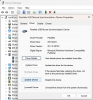
After updating Parallels to Version 20.1.0 (55732) and Windows 11 VM to 24H2 (26100.2152), scrolling got extremely slow. It only moves the view a couple of pixels for each full turn of the mouse wheel. I found out that if I go to Device Manager in Windows, find the "Parallels USB Mouse Synchronization Device" and disable and enable it again, scrolling works fine until I restart the VM.
Optimize for Games setting nor editing <SmoothScrolling> element in config.pvs has any effect.
Screenshot 2024-10-15 at 10.38.02.png
 
Here's a recording illustrating the issue:
A44fhuY.gif
 
I'm having the exact same problem. Disabling and enabling Parallels USB Mouse Synchronization Device fixes. But, when I log into Windows 11 again, it does the same thing. HELP!
I'm having the same problem. Disabling/enabling in Device Manager temporarily fixes the issue.
Guys, which macOS version do have installed on the host? I'm still on Sonoma (14.5). I wonder if upgrading to Sequoia would help.
 
I have the same issue, but after installing Version 20.1.1 (55740) and Windows 11 VM to 24H2 (26100.2152) it did not fix the issue.
BTW, I tried the first solution, and I was not able to enable back the Mouse, so I needed to revert to a previous snapshot of my VM
 
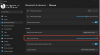
Good news, I fully mitigated this, modifying the mouse "Lines to scroll at a time" config to 100 as per my screenshot
 

Attachments

  • 2024-10-25_08-29-33.png
    2024-10-25_08-29-33.png
    115.7 KB · Views: 76
Good news, I fully mitigated this, modifying the mouse "Lines to scroll at a time" config to 100 as per my screenshot
Good find. I spend my days scrolling through long Word documents, which wouldn't work anymore unless I disabled/enabled the Sync Device each time after booting up the VM. Increasing the value to 100 as you suggest now allows me to scroll through docs in Word, but it's painfully slow. Now, leaving this setting at 100 and disabling/enabling the device after boot results in scrolling on steroids that's arguably way too fast :D So I suppose there's still something wonky happening that Parallels needs to figure out.
 
I'm having the same issue with Windows 11 24H2 and Parallels 20. I'm on Sonoma 15.1 RC.
If I reboot the virtual machine after the first boot, the issue is fixed (but it is annoying as hell)
 
Hi everyone, have any of you tried updating Parallels Tools? I just updated it, and the error is gone
 
Hi everyone, have any of you tried updating Parallels Tools? I just updated it, and the error is gone
I did, but it's the same as simply rebooting the VM for me. It's just a temporary fix and the scrolling issue is back the next time I do a fresh start of Parallels and the VM
 
I spoke to support today and they suggested re-installing Parallels Tools into Windows 11. For me this solution did end up working, although I had to do it twice for some strange reason as upon my second reboot the slow scrolling issue reappeared.

Thankfully re-installing Parallels Tools into Windows 11 a second time seemed to do the trick.
 
I'm experiencing the same issue with Parallels Tool. I have the same version and have had the same problem since I started using it. Temporarily, restarting or reinstalling Parallels Tool resolved the issue, but I have to repeat this process every time I shut down the Windows 11 VM.
 
I'm experiencing the same issue with Parallels Tool. I have the same version and have had the same problem since I started using it. Temporarily, restarting or reinstalling Parallels Tool resolved the issue, but I have to repeat this process every time I shut down the Windows 11 VM.
Same here. Reinstalled Parallels Tools multiple times now, but it's still only a temporary fix. It's the same as simply restarting the VM.
 
For me, reinstalling Paralles Tools only helps until you power down the VM. The issue comes back right after the next startup. It persists even after updating to Parallels Desktop Version 20.1.1 (55740).
 
I have the same issue, but after installing Version 20.1.1 (55740) and Windows 11 VM to 24H2 (26100.2152) it did not fix the issue.
BTW, I tried the first solution, and I was not able to enable back the Mouse, so I needed to revert to a previous snapshot of my VM
Try hitting the enter key on keyboard once disable.
 
Back
Top