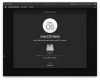
macOS Big Sur and Parallels Desktop

The same happened to me but I found a solution:
  1. restart your Mac
  2. hold CMD + R while booting
  3. wait; then login with your macOS credentials
  4. in the menu bar go to utilities > terminal
  5. enter the following "spctl kext-consent add 4C6364ACXT" and press the return key
  6. go to the Apple menu in the menu bar and click restart
Thanks for your reply, unfortunately the solution not work on me. And I have checked the Team Identifiers is in the list.

spctl kext-consent list

Allowed Team Identifiers:
4C6364ACXT
P8DQRXPVLP
 
I could only install Parallels 15 on Big Sur after removing a previous installation of VirtualBox. (It had kernel extensions that messed up the dependencies of Parallel's kernel extensions.) Even after getting Parallels running, its kernel extensions are still shadowed in /Library/StagedExtensions/Applications/Parallels Desktop.app, even though they successfully load. Parallels doesn't quit gracefully; I have to force-quit it.

I too noticed the bizarre bug of the "t", "y", and "2" keys not registering unless I create modifier-key-less shortcuts for them in the Parallels preferences. That's almost a usable workaround... in another bizarre twist, there's a short delay after typing shortcuts, during which no other key registers. E.g., if you type "tu" in rapid succession, you just get "t", but if you wait a little bit in between you get both characters. I hope this weird bug is easy to squash, because it's extremely annoying. :)
 
I am unable to upgrade from 10.15.6 Beta (10G46c), I am receiving the following error:
The operation couldn't be completed. (BIErrorDomain error 3.)
I have tried installing on the same HD as the Catalina Beta and also tried adding a new HD but the same issue...
I'm using Parallels Desktop 15 Pro Edition
Version 15.1.4 (47270)
Hello,
could you please collect the tech report right after the issue reproduced and post the report's ID here?
 
I was able to get past the "BIErrorDomain error 3" issue in Parallels as follows:
  1. On a real, supported Mac, run this command in Terminal:
    ioreg -l | grep board-id
  2. Make a note of the board ID (mine is Mac-551B86E5744E2388, for example)
  3. Run this command in Terminal:
    sysctl hw.model
  4. Make a note of the hardware model (mine is MacBookPro14,3)
  5. In the VM configuration, under Hardware -> Boot Order -> Advanced Settings -> Boot flags, enter the following (inserting the information noted above where shown):
    devices.mac_hw_model="<model>"
    devices.smbios.board_id="<board ID>"
That should be enough to allow the installation to proceed.
 
I'm wondering if the drive image has to be APFS to work properly.
Mine setup is all APFS and I have the same issue. So, it's not related to that. My guess is that Apple changed some things in the OS and parallels hasn't accounted for it yet (I'm sure they just got the beta, like everyone else).
 
I found this here and fixed my issue.
https://developer.apple.com/forums/thread/649774


I was able to get past the "BIErrorDomain error 3" issue in Parallels as follows:

  1. On a real, supported Mac, run this command in Terminal:
Code Block
ioreg -l | grep board-id

2. Make a note of the board ID (mine is Mac-551B86E5744E2388, for example)
3. Run this command in Terminal:
Code Block
sysctl hw.model

4. Make a note of the hardware model (mine is MacBookPro14,3)
5. In the VM configuration, under Hardware -> Boot Order -> Advanced Settings -> Boot flags, enter the following (inserting the information noted above where shown):
Code Block
devices.mac_hw_model="<model>"
devices.smbios.board_id="<board ID>"


That should be enough to allow the installer to proceed.
 
Just upgrade to Big Sur and I couldn't use Parallel 15.
It's showed --> To complete Parallel Desktop setup, please. restart your Mac.
and WhenI restart, this box comes up again.
 

Attachments

  • Untitled23.png
    Untitled23.png
    60.4 KB · Views: 67
Some promising (but cryptic) instructions are found at the bottom of https://mrmacintosh.com/how-to-install-macos-big-sur-beta-on-vmware-fusion-parallels-desktop/ - I plan to play with them a little today...I can report back what I find.

Thanks. I actually saw those before coming here. As you say, a bit too cryptic, but the posts above spell it out.

I haven't tried to see if they work yet. I found it easier to get it up and running on VM Fusion, which only required the board-id edit.

However, I also noted that the installer wouldn't let me choose the root drive to install on Fusion either unless I increased the disk size to 128GB. So that could also be something to watch out for with the instructions above for Parallels, too.
 
I installed the Big Sur beta on a 2018 Mac Mini (host OS) and found that the "t" and "y" keys don't work in any Parallels VMs. I noticed that right away on a Windows 10 VM and also found that the keys didn't work on a Linux live boot CD. Creating a custom entry send-key for "t" and "y" does work - had to do that to enter a password :)

Other than that obviously important issue, I was pleasantly surprised that everything else seems to generally work under Big Sur.

I know this is completely unsupported by everyone involved, but any guesses on a workaround? I didn't see many options to try fiddling with in terms of keyboard settings.
How did you create a custom entry to send-key for "t" and "y". I have Y and y in my password and cant login. When I type y and t in username field if trying to reset password they both work so what makes you believe that they are not working? Not doubting your comment, just trying to figure out if my issue is same as I cannot login. When I type my password it goes back to login screen and if I try and reset my password by using my AppleID it doesnt allow my to change it. Both computer password and AppleID password have "y" in them.
 
[QUOTE="Alto, post: 868670, member: 119573However, I also noted that the installer wouldn't let me choose the root drive to install on Fusion either unless I increased the disk size to 128GB. So that could also be something to watch out for with the instructions above for Parallels, too.[/QUOTE]

Can confirm this was the missing piece of the puzzle for me too, under Parallels 15. 64GB dynamic wasn't cutting it!
 
However, I also noted that the installer wouldn't let me choose the root drive to install on Fusion either unless I increased the disk size to 128GB. So that could also be something to watch out for with the instructions above for Parallels, too.

Can confirm this was the missing piece of the puzzle for me too, under Parallels 15. 64GB dynamic wasn't cutting it!
 
How did you create a custom entry to send-key for "t" and "y". I have Y and y in my password and cant login. When I type y and t in username field if trying to reset password they both work so what makes you believe that they are not working? Not doubting your comment, just trying to figure out if my issue is same as I cannot login. When I type my password it goes back to login screen and if I try and reset my password by using my AppleID it doesnt allow my to change it. Both computer password and AppleID password have "y" in them.

The t and y keys don't produce any output at all for me in the parallels VMs. Others keys work no issue, but nothing for those two.
 
  • Before starting the Big Sur install you need to have the following values set under Hardware > Boot Order > Advanced Settings > Boot Flags.
  • devices.mac_hw_model="MacBookPro16,1"
  • devices.smbios.board_id="Mac-E1008331FDC96864"
 
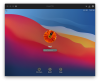
So, I get to pass the error 3. Screen Shot 2020-06-23 at 11.07.01 PM.png

then stuck right on the login screen, every time I write my password I get little loading then returning back to the login screen.
 
[QUOTE="Alto, post: 868670, member: 119573However, I also noted that the installer wouldn't let me choose the root drive to install on Fusion either unless I increased the disk size to 128GB. So that could also be something to watch out for with the instructions above for Parallels, too.

Can confirm this was the missing piece of the puzzle for me too, under Parallels 15. 64GB dynamic wasn't cutting it![/QUOTE]

after increasing the size from parallels, run the macOS VM, open disk utility and delete the free storage so it can be used within the 64gb.
 
Back
Top