I've tried the Uninstall Apps tool on several occasions and it is hit or miss. Some items it can uninstall without issue, but for most the process starts and then I get a dialog '"Uninstall Apps" doesn't have permissions to uninstall AppName. Please try again and enter your password when prompted." Clicking OK and the "Uninstall" button is now greyed out so a retry is not possible without closing the utility and trying again. However, I am never prompted for authentication to remove the application. Is this just a limitation? I use AppCleaner to remove the application and it prompts for password and removed applications without issues.

Install the app
How to install the app on iOS
Follow along with the video below to see how to install our site as a web app on your home screen.
Note: This feature may not be available in some browsers.
You are using an out of date browser. It may not display this or other websites correctly.
You should upgrade or use an alternative browser.
You should upgrade or use an alternative browser.
"Uninstall Apps" doesn't have permissions to uninstall...never prompts for password?
- Thread starter RossC4
- Start date

sergk
Parallels Developers
Hello,
Some programs requires administration privileges to be uninstalled. Uninstall Apps tool uses special helper for this purpose. You should be asked for administrator privileges to install this helper. The behavior you've described looks like incorrect. Could you please record screen video to understand your situation better?
Also check if file "/Library/PrivilegedHelperTools/com.parallels.toolbox.UninstallAppsHelper" exists.
Some programs requires administration privileges to be uninstalled. Uninstall Apps tool uses special helper for this purpose. You should be asked for administrator privileges to install this helper. The behavior you've described looks like incorrect. Could you please record screen video to understand your situation better?
Also check if file "/Library/PrivilegedHelperTools/com.parallels.toolbox.UninstallAppsHelper" exists.

Avinash Bundhoo
Staff member
Hello,
Thank you for your feedback.
To further investigate the issue, please follow the steps below:
1. On you macos > System Settings > Privacy & Security > App Management > Click on "+"
2. In the opened dialog window, in the search field and Type "Uninstall Apps".
3. Select "Uninstall Apps" and click on "Open".
3. Click on "Quit and Reopen"
4. Check if issue persists.
If issue persists, reproduce the issue and collect a technical report (click on the Parallels Toolbox icon > Cogwheel> Help > Send technical data > check "Attach screenshots..." > press Send Report) and send the report's 9-digit ID in a reply.
Thanks
Thank you for your feedback.
To further investigate the issue, please follow the steps below:
1. On you macos > System Settings > Privacy & Security > App Management > Click on "+"
2. In the opened dialog window, in the search field and Type "Uninstall Apps".
3. Select "Uninstall Apps" and click on "Open".
3. Click on "Quit and Reopen"
4. Check if issue persists.
If issue persists, reproduce the issue and collect a technical report (click on the Parallels Toolbox icon > Cogwheel> Help > Send technical data > check "Attach screenshots..." > press Send Report) and send the report's 9-digit ID in a reply.
Thanks
MichaelB22
Bit poster
I have tried the above and it still does not allow me to uninstall a specific app...other suggestions?

Mikhail Ushakov
Problem solver
Hi Michael,I have tried the above and it still does not allow me to uninstall a specific app...other suggestions?
What's the name of the app you're trying to uninstall? Would you also generate a technical report right after reproducing the issue again as outlined in https://kb.parallels.com/en/124107 and share its ID with us, please?
MichaelB22
Bit poster
Trying to uninstall the (legacy) Kindle Classic app which is no longer supported. Technical report generated and sent with ticket #437771751
I've gone through this thread and none of the ideas solves the problem. It doesn't matter what application I attempt to delete I get the message "Uninstall Apps" doesn't have permission....... to uninstall the specific app. Example of the message is attached.
Attachments
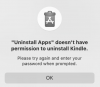

Hello,Trying to uninstall the (legacy) Kindle Classic app which is no longer supported. Technical report generated and sent with ticket #437771751
As a possible solution, kindly follow the below steps:
- Temporarily uninstall Sophos ( instructions ) and Microsoft Defender (instructions)
- Restart your Mac and verify if the issue persists by trying to uninstall the Application using Uninstall Apps?
- Click the Apple menu () in the top-left corner of the screen and select System Settings.
- Click Users & Groups.
- Click the lock icon in the bottom-left corner of the window and enter your administrator password.
- Click the + button in the bottom-left corner of the window to create a new user.
- In the New Account sheet, enter a name for the new user and select Administrator from the Account Type menu.
- Click Create User.
- Login to the New User Admin Account and try to uninstall the Application using Uninstall Apps again .
If the issue still persists, kindly generate an additional technical report right after reproducing the issue again as outlined in https://kb.parallels.com/en/124107 and provide us with the report ID.
Thank you.
Hello,I've gone through this thread and none of the ideas solves the problem. It doesn't matter what application I attempt to delete I get the message "Uninstall Apps" doesn't have permission....... to uninstall the specific app. Example of the message is attached.
For us to further investigate the issue, kindly generate a technical report right after reproducing the issue again as outlined in https://kb.parallels.com/en/124107 and provide us with the report ID.
Thank you.
CitizenHax
Bit poster
I have the same issue. Is there an ETA for a resolution?
Hello,FYI, I tried uninstalling Parallels Toolbox including manual removal of the "com" file in the "launchdaemons" folder. The problem continues to exist.
Indeed, it appears that the case requires deeper investigation, so we escalated it to the Development Team.
Once there is a response from them - whether it is a request for additional information, a workaround or a permanent fix - we will let you know.
We will get back to you as soon as we have an update.
Thank you.
Hello,I have the same issue. Is there an ETA for a resolution?
For us to further investigate the issue, kindly generate a technical report right after reproducing the issue again as outlined in https://kb.parallels.com/en/124107 and provide us with the report ID.
Thank you.
Mikhail Ushakov
Problem solver
Hi @zoyaa1 ,I've tried the Uninstall Apps tool on several occasions and it is hit or miss. For some items, it can uninstall without issue, but for most, the process starts and then I get a dialog '"Uninstall Apps" that doesn't have permission to uninstall AppName. Please try again and enter your password when prompted." Clicking OK and the "Uninstall" button is now greyed out so a retry is not possible without closing the utility and trying again. However, I was never prompted for authentication to remove the application. Is this just a limitation? I use AppCleaner to remove the application and it prompts for password and removed applications without issues.
Kindly generate a technical report right after reproducing the issue again as outlined in https://kb.parallels.com/en/124107 and post the report ID here.
Hello All,
I was able to get the Uninstall Apps to work on Mac after making the following changes:
1. Access Settings -> Privacy & Security -> App Management - activate the Uninstall Apps here
2. Access Settings -> Privacy & Security -> Full Disk Access - activate the Uninstall Apps here too.
I was able to get the Uninstall Apps to work on Mac after making the following changes:
1. Access Settings -> Privacy & Security -> App Management - activate the Uninstall Apps here
2. Access Settings -> Privacy & Security -> Full Disk Access - activate the Uninstall Apps here too.
Hello All,
I was able to get the Uninstall Apps to work on Mac after making the following changes:
1. Access Settings -> Privacy & Security -> App Management - activate the Uninstall Apps here
2. Access Settings -> Privacy & Security -> Full Disk Access - activate the Uninstall Apps here too.
This does appear to fix the. problem. The question now is if these are the correct settings why were they not activated? Or is this a hack/workaround? Feels like the latter.
Mikhail Ushakov
Problem solver
Thank you for bringing it up!
We've already reported the issue to our Development team, and they're actively working to address the issue.
We've already reported the issue to our Development team, and they're actively working to address the issue.