I've been facing the same problems, but have solved them as follows. I'm running Windows 10 under Parallels on a MacBook Pro.
1. The left-alt key doesn't work to provide accents.
2. The right-alt key will produce most of them using the same mapping as with my Apple keyboard layout. So, "right-alt + e, [letter]", puts an acute accent on the letter, as in é. And so on.
3. I couldn't find the tilde key and in solving it found a quick way to find all accent shortcuts, as follows.
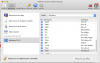
4. In Word, go to the "Insert" ribbon. At the far right of the ribbon, there's a pop-up for "Symbol", from where I opened the "More symbols..." window.
5. In this window, I selected the "symbols" tab, set the font to "(normal text)" and the subset to "Basic Latin", and I could see a display of letters and symbols.
6. Scrolling down, I came to the "ã" (a tilde) symbol (which was in the "Latin-1 subset" - the subset field updating as you scroll down).
7. I clicked on the ã symbol and noticed that at the bottom of the window it stated: "Shortcut key: Alt + Ctrl + N,A"
8. That combination has worked everywhere I've tried it, including Word, Excel and the Windows search bar. Note, the "N" is the key without shift.
9. Select any other symbol and it will tell you how to produce it. Just remember, the Alt key is the right-hand one.
10. At least some options differ from the standard Apple ones (which sometimes also work). So, it is also possible to produce the acute accent using Crtl +',A. That is, Ctrl and the single quote key, followed by the letter.
I hope this solves this for other people.
Mike B