Re-create OSX accented characters shortcuts on Windows

Hello,

I am a English-French translator working with SDL Trados Studio. I have the same problem and cannot find a solution.
If you found a way to make it work, please share it with me. It would be really helpful!

Thanks in advance!
 
Same problem here, I wish Parallels could make it easer and possible to use the left ALT key.
I use the shortcut : ALT (on the right)+UPPER CASE +1, then the letter I want to put the accent on, but it's quite annoying.
 
Guys, could you please describe in more detail what is going wrong and how would like to resolve this?
Did you perform any resolution steps?
 
Hello,
Thank you for your interest.
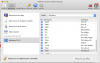
Well, the main problem is that the Alt left key in Mac is mapped to the Alt right key. In French keyboard, as I said, we use a combination Alt right key + Shift + 1, then the letter with the accent (á). It's also used for brackets "[" Alt+shift+( and "]"Alt+shift+) and many others special characters. When in Windows we have to use the Alt left key which is very annoying. I have tried through the keyboard preferences to change this behaviour without success. When I go to the Parallels keyboard preferences, I go to Virtual Machine, then to the Windows or Mac profil, input the short-cut for Mac then the same for Windows but it does not work. It's shows me a
My colleagues are phasing the same problem but they are using a English keyboard. The problem is the way Parallels interprets the specials characters form a Mac.
I have included a screen capture to illustrate it.
Hope this will help you help us find a solution.
Hoping to hear from you soon.
Best regards,
Pierre S.
 

Attachments

  • Capture d’écran 2020-03-24 à 07.45.55.png
    Capture d’écran 2020-03-24 à 07.45.55.png
    140.4 KB · Views: 11
For me, like the OP: I'm using a qwerty US international keyboard. When I write in French, I can type the letters with accents using the standard Apple shortcuts:
é is hold 'alt' 'e' then 'e'
à is hold 'alt' ' ` ' then 'a'
ç is hold 'alt' 'c'
etc..

But into windows VM, those shortcuts do not work .
 
I've been facing the same problems, but have solved them as follows. I'm running Windows 10 under Parallels on a MacBook Pro.
1. The left-alt key doesn't work to provide accents.
2. The right-alt key will produce most of them using the same mapping as with my Apple keyboard layout. So, "right-alt + e, [letter]", puts an acute accent on the letter, as in é. And so on.
3. I couldn't find the tilde key and in solving it found a quick way to find all accent shortcuts, as follows.
4. In Word, go to the "Insert" ribbon. At the far right of the ribbon, there's a pop-up for "Symbol", from where I opened the "More symbols..." window.
5. In this window, I selected the "symbols" tab, set the font to "(normal text)" and the subset to "Basic Latin", and I could see a display of letters and symbols.
6. Scrolling down, I came to the "ã" (a tilde) symbol (which was in the "Latin-1 subset" - the subset field updating as you scroll down).
7. I clicked on the ã symbol and noticed that at the bottom of the window it stated: "Shortcut key: Alt + Ctrl + N,A"
8. That combination has worked everywhere I've tried it, including Word, Excel and the Windows search bar. Note, the "N" is the key without shift.
9. Select any other symbol and it will tell you how to produce it. Just remember, the Alt key is the right-hand one.
10. At least some options differ from the standard Apple ones (which sometimes also work). So, it is also possible to produce the acute accent using Crtl +',A. That is, Ctrl and the single quote key, followed by the letter.
I hope this solves this for other people.
Mike B
 
Hello Mike,
Thank you for your reply and proposal.
You might be using an English keyboard. For me, when I want to do the ñ while in Parallels, I just press right Alt + N, the N again. And Right ALT + N, then N again, while in Mac.
I use a French keyboard. While in Mac, I have to press Left ALT + SHIFT + 1 and then the vowel. It's already terrible but Mac does not provide any other way to insert those accents more directly. The French layout propose directs keys for é, à, è, but those are only used in French...
The problem of all this is that Parallels is supposed to respect the Mac short cuts between the two universes (Mac and Windows).
When you work as a professional translator and you can not reproduce the exact habits you have in Mac, it makes you loss time and performance.
I wish that parallels could resolve this issue.

Again, thank you fro your proposal.
Best regards,
Pierre Souchar
 
Almost a year, I posted on April, 14, 2020 and still no solution. Can someone take care of this?
Thank you in advance !
Pierre S.
 
Hello, here is what worked for me on Windows 11. In my Windows 11 VM, I installed the United States - International Qwerty keyboard, not the Parallels version. That gave me all my accents.
 
See this Microsoft Community post, it contains information on:

a) How to use a custom US-ENglish "Mac-like" layout, where the "AltGR" in Windows will allow you to type accented characters exactly with the same keys as on the Mac

b) If you want to use a Windows built-in US-EN layout to type accented characters - without having to match the Mac - you likely don't need the custom layout above, and can just add "English United States - International" (this one is built-in into Windows and can be added as detailed on this how-to from Microsoft)

Full details on the post and replies from Jan 20, 2025 here.
 
Back
Top