Living a nightmare trying to create a Sequoia VM inside M1 Sequoia using Parallels Desktop

JacopoC

Bit poster
Hi,

I need to create a development environment inside my M1 chip Mac.
I'm running Sequoia 15.3.2 so I thought creating a Sequoia 15.3.2 VM would have been the easiest solution.
Well, I was wrong.
First of all, there are no ISO/DMG ready to be used (problem of Apple I know). I followed several guides but no success really.
I read your guide but it is outdated and/or doesn't provide the right steps to me.
Let's go through it.

  1. Solution 1: Automatic installation
    This is the new UI and there is no chance to "Download Mac OS"

    upload_2025-3-21_13-10-21.png
  2. Alternative way of installation
    I downloaded the Sequoia 15.3.2 ipse file. I selected Parallels Desktop as primary App to open it, as mentioned in the guide, and this is the error

    upload_2025-3-21_13-18-14.png
  3. Advanced Installation
    When I try to create the VM using prlctl command, terminal can't find that command:
    upload_2025-3-21_13-28-2.png
    I am using the last version of Parallels Desktop I guess (about shows Version 1.10.2 (23897))
I have run Virtual Machines on Parallels Desktop for like a decade, mostly on Intel chips, but recently I got this M1. Windows 11 runs like a charm and it was super easy to create a VM from scratch.
But this one has become a serious nightmare and I'm wasting too much time on it, while I should spend my time on development not on the environment setup.
Sorry for my "rant" but I feel VERY frustrated. Is anybody else in my situation or has anybody worked it out somehow?
Thanks guys


P.S.: the question mark of "Create New" UI

upload_2025-3-21_13-29-28.png
redirects to a dead link
 
*ipsw file.
More specifically, the file downloaded by Apple Developer page is: UniversalMac_15.3.2_24D81_Restore.ipsw
Edit: my license is for Parallels Desktop for Mac Pro Edition.
 
Hi,

I need to create a development environment inside my M1 chip Mac.
I'm running Sequoia 15.3.2 so I thought creating a Sequoia 15.3.2 VM would have been the easiest solution.
Well, I was wrong.
First of all, there are no ISO/DMG ready to be used (problem of Apple I know). I followed several guides but no success really.
I read your guide but it is outdated and/or doesn't provide the right steps to me.
Let's go through it.

  1. Solution 1: Automatic installation
    This is the new UI and there is no chance to "Download Mac OS"
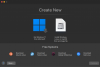
    View attachment 23398
  2. Alternative way of installation
    I downloaded the Sequoia 15.3.2 ipse file. I selected Parallels Desktop as primary App to open it, as mentioned in the guide, and this is the error

    View attachment 23399
  3. Advanced Installation
    When I try to create the VM using prlctl command, terminal can't find that command:

    View attachment 23400
    I am using the last version of Parallels Desktop I guess (about shows Version 1.10.2 (23897))
I have run Virtual Machines on Parallels Desktop for like a decade, mostly on Intel chips, but recently I got this M1. Windows 11 runs like a charm and it was super easy to create a VM from scratch.
But this one has become a serious nightmare and I'm wasting too much time on it, while I should spend my time on development not on the environment setup.
Sorry for my "rant" but I feel VERY frustrated. Is anybody else in my situation or has anybody worked it out somehow?
Thanks guys


P.S.: the question mark of "Create New" UI
View attachment 23401
redirects to a dead link
Hello @JacopoC
Thank you for your feedback.
Please note that the creation of macOS Virtual machines are not supported on Parallels Desktop App Store Edition (that you currently have installed).
For more information, please check this link.
As a solution, please follow the steps below:
1. Remove Parallels Desktop App Store Edition on the host macOS (Finder > Applications > Parallels Desktop > Right-click on Parallels Desktop.app > Move to bin)
2. Download and install Parallels Desktop from the link below:
https://download.parallels.com/desktop/v20/20.2.2-55879/ParallelsDesktop-20.2.2-55879.dmg
3. Launch Parallels Desktop > Right-click on the Parallels Icon in the Dock > Account & License > Select your PDFM Pro License in the list > Activate.
4. You should now be able to create a macOS virtual machine from the installation Assistant or Manually.
Thanks!
 
Back
Top