macOS 10.13 high Sierra Support

Here's how to get around the "storage and verification" error when trying to upgrade from 10.12 to 10.13 beta from within 10.12.

Create a 10.12 VM, as you have no doubt already done. Close it, go into Parallels configuration, change the disk from "expanding to 64 GB" to a fixed size of 64 GB, assuming you have enough room on your HD for a VM of fixed size of 64 GB. It will take a little while to expand it.

Then boot up your 10.12 VM as usual. Run the Disk Utility program from within the VM 10.12, and find the main VM drive in Disk Utility. Choose "Partition," create a secondary partition and call it High Sierra or whatever you want, and format it as Extended (Journaled) GUID. Shrink the primary partition (probably called Macintosh HD) almost as much as you can to make the secondary partition larger than 32 GB. Exit Disk Utility.

Run the High Sierra Beta utility from within 10.12. When it asks where to install the High Sierra, choose the High Sierra partition. After installation it may have some hiccups, give you a grey screen, and you may have to reset it from the Parallels main menus. Eventually it will boot up into High Sierra, after giving you a "push any key" prompt. You don't have to push a key--it will just boot into High Sierra.

You can try to install Parallels Tools, and it will look as though they are installing, but they won't get rid of the yellow triangle and won't work, presumably not until Parallels updates to tools that support 10.13. So the VM will work, but slowly and disabled.

Screenshot 2017-07-04 22.04.39.jpg
 
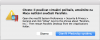
I have a different issue even before this. When I try to install Parallels 12 (I think everyone else had it installed already) I get the following alert, but even when I click Allow, it doesn't remember it:

To run virtual machines, please allow the Parallels components to load on your Mac.
Open the macOS System Preferences > Security & Privacy > General and click "Allow" next to the phrase about "Parallels, Inc.". Then restart Parallels Desktop from the /Applications folder.
 
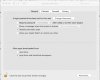
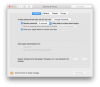
I don't find anything to do with Parallels in Security and Privacy. The "allow" area only talks about allowing other programs than Apple programs. Screenshot 2017-07-06 13.16.24.jpeg
 
You can see what it says here. Once I do this however and re-launch, I keep getting the same message.
 

Attachments

  • 1.png
    1.png
    138.2 KB · Views: 77
  • 2.png
    2.png
    307.2 KB · Views: 74
Sorry, I was uncertain of what you were referring to. You were talking about running Parallels in 10.13 beta altogether, not about VMs.
I've had no problems running Parallels 12.2.1 in 10.13. All my pre-existing VMs work (Boot Camp VM, Ubuntu VM).
The problems I've had both in 10.12.5 or 10.13 beta are in running a 10.13 VM created via the method I posted a few posts above. There seems to be no way to shrink the file w Parallels 12.2.1, and the Parallels tools will not stay loaded in the 10.13 VM. I guess these all have to wait until we get a Parallels update.
 
Ahh, gotcha. I would be interested to hear if anyone can even launch a new install of the latest version of Parallels. I'm happy to help out testing a beta.
 
Just installed High Sierra Developer Beta 4 today, and all of a sudden, I have the following error message:

To run virtual machines, please allow the Parallels components to load on your Mac.
Open the macOS System Preferences > Security & Privacy > General and click "Allow" next to the phrase about "Parallels, Inc.". Then restart Parallels Desktop from the /Applications folder.

However, when I go in "System Preferences > Security & Privacy > General", I don't find anything to do with Parallels in Security and Privacy.

Note that I have been fine with the previous 3 betas, and I am running the latest Parallels 12
 
Last edited:
Just installed High Sierra Developer Beta 4 today, and all of a sudden, I have the following error message:

To run virtual machines, please allow the Parallels components to load on your Mac.
Open the macOS System Preferences > Security & Privacy > General and click "Allow" next to the phrase about "Parallels, Inc.". Then restart Parallels Desktop from the /Applications folder.

However, when I go in "System Preferences > Security & Privacy > General", I don't find anything to do with Parallels in Security and Privacy.

Note that I have been fine with the previous 3 betas, and I am running the latest Parallels 12

I saw the same problem. Reported it to Apple because it doesn't just affect Parallels but other virtualization apps as well.
 
Just installed High Sierra Developer Beta 4 today, and all of a sudden, I have the following error message:

To run virtual machines, please allow the Parallels components to load on your Mac.
Open the macOS System Preferences > Security & Privacy > General and click "Allow" next to the phrase about "Parallels, Inc.". Then restart Parallels Desktop from the /Applications folder.

However, when I go in "System Preferences > Security & Privacy > General", I don't find anything to do with Parallels in Security and Privacy.

Note that I have been fine with the previous 3 betas, and I am running the latest Parallels 12
I saw the same problem
 
That's not a Beta 4 issue. That was the problem I reported here a few posts ago on an earlier beta. I cannot run Parallels at all since I didn't have an install on this machine until I had 10.13 installed.
 
That's not a Beta 4 issue. That was the problem I reported here a few posts ago on an earlier beta. I cannot run Parallels at all since I didn't have an install on this machine until I had 10.13 installed.

Nope, that is definitely beta 4 issue since I have been using Parallels 12 everyday without any problem until now.
 
Just installed High Sierra Developer Beta 4 today, and all of a sudden, I have the following error message:

To run virtual machines, please allow the Parallels components to load on your Mac.
Open the macOS System Preferences > Security & Privacy > General and click "Allow" next to the phrase about "Parallels, Inc.". Then restart Parallels Desktop from the /Applications folder.

However, when I go in "System Preferences > Security & Privacy > General", I don't find anything to do with Parallels in Security and Privacy.

Note that I have been fine with the previous 3 betas, and I am running the latest Parallels 12

Same problem here after installing beta 4.
Worked fine with beta 3 one hour before updated.
Now i have the same popup and there is nothing to switch or set in system settings
 
Hopefully, someone here comes up with a workaound? Otherwise, looks like we need to rollback to Parallels 11 as AndreC3 said.
 
Same here. v12 was fine with all betas, but today after installing beta 4 it is giving the same unidentified developer error but the Security & Privacy is not showing Parallels. Switch to allow all apps didn't help, nor did starting Parallels while holding the control key. Need a fix!
 
Hi Guys,
As macOS High Sierra is not officially released it is not supported by us. You can try disabling System Integrity Protection and check if you can use Parallels Desktop.
Follow these steps to disable SIP:
  1. Restart your Mac.
  2. Before OS X starts up, hold down Command-R and keep it held down until you see an Apple icon and a progress bar. Release. This boots you into Recovery.
  3. From the Utilities menu, select Terminal.
  4. At the prompt type exactly the following and then press Return: csrutil disable
  5. Terminal should display a message that SIP was disabled.
  6. From the menu, select Restart.
You can re-enable SIP by following the above steps, but using csrutil enable instead.
 
Hi Guys,
As macOS High Sierra is not officially released it is not supported by us. You can try disabling System Integrity Protection and check if you can use Parallels Desktop.
Follow these steps to disable SIP:
  1. Restart your Mac.
  2. Before OS X starts up, hold down Command-R and keep it held down until you see an Apple icon and a progress bar. Release. This boots you into Recovery.
  3. From the Utilities menu, select Terminal.
  4. At the prompt type exactly the following and then press Return: csrutil disable
  5. Terminal should display a message that SIP was disabled.
  6. From the menu, select Restart.
You can re-enable SIP by following the above steps, but using csrutil enable instead.

You are really a genius, disabling SIP works.
 
Last edited:
Thank you Ajith, that solved the problem for me and hopefully there will be a more secure fix soon that will not put the system at risk.
Jakov
 
Yes it works fot mee too nice job. I had this problem. Now solved by manual from support
 

Attachments

  • Snímek obrazovky 2017-07-25 v 9.37.27.png
    Snímek obrazovky 2017-07-25 v 9.37.27.png
    90.9 KB · Views: 55
Back
Top