I've gone through multiple posts and articles showing how to increase your RAM through Configure->Hardware when the VM is not running but I'm still unable to change the current amount allocated. I recently downloaded Parallels desktop 13 for Mac and have a new iMac purchased in the last year with 16 GB of RAM but I'm unable to allocate more than 2 GB. I get the same error message others have mentioned: "to be able to change the settings, resume the virtual machine and then shut it down." It doesn't matter whether the VM is running or not, still can't change the memory or hard disk settings. Any suggestions or advice is much appreciated!

Install the app
How to install the app on iOS
Follow along with the video below to see how to install our site as a web app on your home screen.
Note: This feature may not be available in some browsers.
You are using an out of date browser. It may not display this or other websites correctly.
You should upgrade or use an alternative browser.
You should upgrade or use an alternative browser.
S
Sathiya@Parallels
Start the virtual machine and shut it down by selecting Actions (from Mac menu bar) -> Shut down. Then open virtual machine's configuration window, navigate to Hardware -> CPU and Memory -> allocate the memory as required. If you are still unable to change the memory for the virtual machine, try reinstalling Parallels Desktop which should resolve the issue if there is any misconfiguration.I've gone through multiple posts and articles showing how to increase your RAM through Configure->Hardware when the VM is not running but I'm still unable to change the current amount allocated. I recently downloaded Parallels desktop 13 for Mac and have a new iMac purchased in the last year with 16 GB of RAM but I'm unable to allocate more than 2 GB. I get the same error message others have mentioned: "to be able to change the settings, resume the virtual machine and then shut it down." It doesn't matter whether the VM is running or not, still can't change the memory or hard disk settings. Any suggestions or advice is much appreciated!
S
Sathiya@Parallels
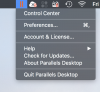
From the screenshot, I see that the virtual machine is already shut down. Hence, select 'Control center' from the menu, select the 'Cog wheel' icon from the control center to open the configuration window, navigate to Hardware -> CPU and Memory -> allocate the memory as required.So where is this Actions?
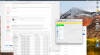
Many Thanks Sathiya! But it is still "greyed out" as an option. . . (after hitting the cog in windows 10 Control Center box) Further thoughts/suggestions?From the screenshot, I see that the virtual machine is already shut down. Hence, select 'Control center' from the menu, select the 'Cog wheel' icon from the control center to open the configuration window, navigate to Hardware -> CPU and Memory -> allocate the memory as required.
Attachments
S
Sathiya@Parallels
Please refer this article and set 'Start Automatically' option to 'Never' and 'On VM shutdown' as 'Keep Window' open. Then select Actions (from the Mac menu bar) -> Shut down to the virtual machine. Now open the configuration window, navigate to Hardware -> CPU and Memory and check whether you are able to change the RAM.Many Thanks Sathiya! But it is still "greyed out" as an option. . . (after hitting the cog in windows 10 Control Center box) Further thoughts/suggestions?
Many Thanks Sathiya! But it is still "greyed out" as an option. . . (after hitting the cog in windows 10 Control Center box) Further thoughts/suggestions?
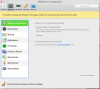
Um WHAT article? Where do i set Start Automatically option to never? Nothing in preferences that i see which matches this . . . why is this so difficult? Doesn't everybody want to maximize one's RAM?? OY vey this is dumb.Please refer this article and set 'Start Automatically' option to 'Never' and 'On VM shutdown' as 'Keep Window' open. Then select Actions (from the Mac menu bar) -> Shut down to the virtual machine. Now open the configuration window, navigate to Hardware -> CPU and Memory and check whether you are able to change the RAM.
S
Sathiya@Parallels
Once the virtual machine is shut down, it will be easy to edit the configuration settings. Please refer < https://kb.parallels.com/120414 > to change the startup and shutdown options as mentioned above.
Horrendously badly designed method. You should immediately redesign with a big ol Memory icon and put it front and center. The process of shutting down virtual machine is labyrinthian - she had to do something in Windows in order to make the option be un-greyed out! For us Mac folk delving into Windows is a bit like one must assume dumpster diving must be like 
The feature you are requesting is not possible in any virtual environment or in a real PC. You are going to change the RAM (Main Memory) of a virtual machine (virtual PC). If Windows is running (using RAM) at the time you are changing the memory, Windows cannot use the memory to keep its operations running and will result in a crash or fatal error from which Windows might not recover. To avoid this you have to shut down the Windows and change/increase the virtual memory/virtual RAM. You can shut down Windows simply using Actions > Shutdown or selecting Windows logo and select the Power button.Horrendously badly designed method. You should immediately redesign with a big ol Memory icon and put it front and center. The process of shutting down virtual machine is labyrinthian - she had to do something in Windows in order to make the option be un-greyed out! For us Mac folk delving into Windows is a bit like one must assume dumpster diving must be like
Thank you for your feedback. You can share it as a feature request on this thread.You are being suggested by a long term client to make the process more clear mate! Don't go on about problems with windows. . . just fix the process eh?
MichaelS79
Bit poster
Start the virtual machine and shut it down by selecting Actions (from Mac menu bar) -> Shut down. Then open virtual machine's configuration window, navigate to Hardware -> CPU and Memory -> allocate the memory as required. If you are still unable to change the memory for the virtual machine, try reinstalling Parallels Desktop which should resolve the issue if there is any misconfiguration.
Thanks - This post answered my question and solved my problem. I had no idea that I had to "shut down the virtual machine" by using "Actions." Please tell you boss: It would be a really good idea for you folks to make that a while lot clearer when people look for info on how to increase the amount of memory on the Support pages.

KebhaK@Parallels
Hunter
We are glad that the issue has been resolved and thank you for your feedback. We will pass the feedback to the corresponding team.Thanks - This post answered my question and solved my problem. I had no idea that I had to "shut down the virtual machine" by using "Actions." Please tell you boss: It would be a really good idea for you folks to make that a while lot clearer when people look for info on how to increase the amount of memory on the Support pages.