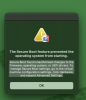
The Secure Boot feature prevented the operating system from starting.

MatthewW25

Bit poster
What do I need to do to fix this?


"The Secure Boot feature prevented the operating system from starting.
Secure Boot found unauthorised changes to the firmware, operating system, or UEFI drivers. To manage Secure Boot settings, go to the virtual machine configuration settings, click Hardware, and expand Advanced Settings."
 
What do I need to do to fix this?


"The Secure Boot feature prevented the operating system from starting.
Secure Boot found unauthorised changes to the firmware, operating system, or UEFI drivers. To manage Secure Boot settings, go to the virtual machine configuration settings, click Hardware, and expand Advanced Settings."
Hello,
We have created a support ticket to assist you further.
Kindly check your email for future messages.
Regards,
 
I'm having the same problem: after a Windows update, the virtual machine no longer starts. I looked for previous occurrences of this issue, and the recommendation was to disable and enable the TPM module, but in version 20 this option doesn't exist.
 
Secure Boot found unauthorised changes to the firmware, operating system, or UEFI drivers. To manage Secure Boot settings, go to the virtual machine configuration settings, click Hardware, and expand Advanced Settings.

Hi, I have the same problem. Can you please provide and assistant.

Kind Regards,
 
Judging by the number of entries, there is something very far wrong if Parallels cannot accommodate the most recent Windows update. The advice so far from Parallels is not clear. Please spell out how to fix the issue.
 
I found a solution... if you search for "Fixing the error "The Secure Boot feature prevented the operating system from starting" when launching your Windows 11" there are detailed instructions on how to get around this problem. Hopefully this is corrected soon so we don't have to do a work around.
 
I have cracked it thanks to another post. Windows>Actions>Configure>Hardware Go to the bottom of the menu where there's a module like TPS (3 upper-case letters beginning with T, anyway). Click on that, then click the minus sign in the line below to remove it. The system then opens properly.
 
We observed that you encountered the error message "The Secure Boot Feature prevented the operating system from starting" when attempting to launch your virtual machine. This typically occurs when a recent Secure Boot certificate update hasn't yet been recognized by the virtual machine's older TPM (Trusted Platform Module) chip, a security component that verifies system integrity during startup.

Important note about BitLocker: If your Windows virtual machine uses BitLocker encryption, please ensure you have your BitLocker recovery key readily available before proceeding. After applying either workaround below, Windows may prompt for this key during startup. To locate your recovery key, please see Find your BitLocker recovery key.


Prerequisite: Before making any changes, we recommend creating a snapshot to preserve your current virtual machine state.

Workaround: Remove and re-add the TPM chip

1. Right-click the Parallels Desktop icon in your Mac dock and select "Control Center."
2. Click the gear/cog icon next to your virtual machine.
3. Select "Hardware."
4. Click "TPM Chip" in the left sidebar.
5. Click the "-" (minus) button at the bottom of the list to remove the TPM chip, then confirm by clicking "Remove."
6. Start the virtual machine.
7. Shut down the virtual machine completely.
8. Return to "Hardware", click the "+" (plus) button, and select "TPM Chip" to re-add it.
9. Close the configuration window and start the virtual machine again.

For more information, visual guidance, and additional troubleshooting options, please see Fixing the error "The Secure Boot feature prevented the operating system from starting" when launching your Windows 11.
 
Same problem as of today. Is the TPM Chip solution above a workaround or is it better to wait for Parallels to address via a different route? The reason I ask is that I cannot start the VM to access the BitLocker key. But tbh, I can't even recall if my VM has BitLocker enabled. Is there a way to check if BitLocker is in use without starting the VM?
 
OK - I couldn't get the BitLocker key from my corporate administrator because the VM isn't enrolled in Intune. But I did find the recovery key in my personal Microsoft account. So the above solution has allowed me to recover and I'm back in, with a new TPM.
 
Hi,

I encountered the same issue. I'm using the Standard Edition Parallels Desktop 20 and the VM is configured in a way that Windows 11 starts up automatically when Parallels Desktop is launched, and PD will exit when Windows 11 shuts down. As a result the issue occurred upon Windows 11 booting up, and then Parallels Desktop exited automatically. So, there is no way for me to get to the Control Center to perform the workaround.

Any advise is greatly appreciated!
 
Hi,

I encountered the same issue. I'm using the Standard Edition Parallels Desktop 20 and the VM is configured in a way that Windows 11 starts up automatically when Parallels Desktop is launched, and PD will exit when Windows 11 shuts down. As a result the issue occurred upon Windows 11 booting up, and then Parallels Desktop exited automatically. So, there is no way for me to get to the Control Center to perform the workaround.

Any advise is greatly appreciated!
Same for me.
 
Back
Top