I am using the latest Parallels 10.2.0 build on the latest MacBook Pro quad core 16GB RAM, so I do have plenty of resources. My virtual machine is Windows Server 2008 R2 shows 99% of CPU idle, but my Parallels run at 400% CPU and kicking off the fan all the time. The MacBook Pro casing heats up pretty bad too. I've tried various KB articles suggested in other posts (e.g. reducing to 2 CPUs, disabling real-time free space optimization etc.), but still Parallels are overloading my CPUs. I love Parallels and the Coherence mode, but the performance needs to be improved ASAP. This makes Parallels almost unusable for me and others, according to the posts I've read so far.

Install the app
How to install the app on iOS
Follow along with the video below to see how to install our site as a web app on your home screen.
Note: This feature may not be available in some browsers.
You are using an out of date browser. It may not display this or other websites correctly.
You should upgrade or use an alternative browser.
You should upgrade or use an alternative browser.
The CPU Fan is Always On (Latest MacBook Pro Quad-core 16GB RAM)
- Thread starter DmitriM1
- Start date
Hi DmitriM1,
Please try creating an empty Virtual Machine and mapping the existing Hard Drive to the empty Virtual Machine and check the CPU usages. Refer to this article for more information, http://kb.parallels.com/121578
To increase the performance of the Virtual Machine, please refer to this article, http://kb.parallels.com/112091
Please try creating an empty Virtual Machine and mapping the existing Hard Drive to the empty Virtual Machine and check the CPU usages. Refer to this article for more information, http://kb.parallels.com/121578
To increase the performance of the Virtual Machine, please refer to this article, http://kb.parallels.com/112091
@Dhruba I've tried to follow that KB to create an empty Virtual Machine, but the "Continue without a source" checkbox mentioned in Step 3 simply doesn't exist in Parallels 10. At least, I am not prompted with that option as shown in that article. I've already tried optimizations suggested in the other KB, but the VM is still slow even though the Windows 2008 R2 server shows 99% being idle. So, I know it's not Windows that slowing it down. I have a fan constantly coming on when I am not even using the VM. The v10 performance needs to be addressed and optimized ASAP. As it is right now, Parallels 10 is too slow and pretty much unusable for me. And remember? I am using the latest MacBook Pro with 16GB memory and SSD drive.
@Dhruba Maybe this KB is more appropriate for v10 http://kb.parallels.com/en/116263?
Hi DmitriM1,
Yes, you can also follow the article that you mentioned, that is http://kb.parallels.com/116263
Yes, you can also follow the article that you mentioned, that is http://kb.parallels.com/116263
OK. I've followed that KB and no difference in the CPU usage pattern. Just having a few windows open in VM rams up the CPU to over 200% easily and the fan starts coming on all the time. Windows CPU in task manager is at 99% idle most of the time, so it's the Parallels VM that uses too much CPU resources. I hope you guys find a way to optimize it in the upcoming updates. I really don't want to by a Windows PC to run Windows software.

Hi DmitriM1,
- Go to Actions > Configure > Options > Optimization > Free Space: Real-time Virtual Disk Optimization.
- Make sure you're using the latest build for your version of Parallels Desktop 10 for Mac build 28956
- In the Parallels Desktop menu, go to Preferences > Advanced. Make sure "Detailed log messages" option is not enabled. Note:Enabling this feature is necessary only while troubleshooting issues related to your virtual machine, and it may be requested by a Parallels Support representative.
- Open virtual machine Configuration> switch to Options tab > Optimization tab > Set performance to "Faster virtual machine"; check "Enable adaptive hypervisor" and "Tune Windows for speed." If you're not running on batteries, you can also turn on the "Better performance" option.
- The minimum memory assigned to the virtual machine should be equal to the minimum recommended memory indicated in the system requirements of the guest OS you're running.
- The maximum memory assigned for the virtual machine should be calculated from the amount of memory used by the OS when you normally work with it.

Maria@Parallels
Problem solver
Hi @DmitriM1, did you try the steps below:
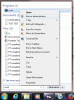
1. Start your Windows virtual machine -> click on Start and type in the "Search" box "cmd" -> on the top of the list please right click on the "Command prompt" and choose run as administrator (for more information please see the screenshot in the attachment)
2. In the Command prompt window please type the following command:
sfc /scannow and hit Enter.
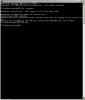
3. Once the system scanning finished please provide us with the results (make a screenshot of the Command Prompt message)
4. Close Command Prompt
5. Click on Start -> type "msconfig" in the search field and press the Enter key.
6. In the General tab -> Select "Selective startup"
7. In the "System configuration" window go to "Startup" tab and uncheck all applications, except 'parallels'-word contained then click "Apply".
8. After the previous step, open the "Services" tab and enable the option "Hide all Microsoft services" -> and then disable all the non-microsoft services, except 'parallels'-word contained.
9. Click on "Apply" and "OK" -> restart your virtual machine and check the issue.
1. Start your Windows virtual machine -> click on Start and type in the "Search" box "cmd" -> on the top of the list please right click on the "Command prompt" and choose run as administrator (for more information please see the screenshot in the attachment)
2. In the Command prompt window please type the following command:
sfc /scannow and hit Enter.
3. Once the system scanning finished please provide us with the results (make a screenshot of the Command Prompt message)
4. Close Command Prompt
5. Click on Start -> type "msconfig" in the search field and press the Enter key.
6. In the General tab -> Select "Selective startup"
7. In the "System configuration" window go to "Startup" tab and uncheck all applications, except 'parallels'-word contained then click "Apply".
8. After the previous step, open the "Services" tab and enable the option "Hide all Microsoft services" -> and then disable all the non-microsoft services, except 'parallels'-word contained.
9. Click on "Apply" and "OK" -> restart your virtual machine and check the issue.
Attachments
I have attached the requested screenshot along with the log file. I've also disabled start-up items and services other than MS and Parallels. I didn't really have anything except Google Chrome Update one. I'll let you know if the issue still persists. Feel free to follow up with me if you don't hear back within a couple of weeks.
Attachments
Maria@Parallels
Problem solver
@DmitriM1 thanks for the updates.
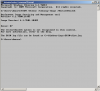
Please use this article in order to resolve the "Windows Resource Protection found corrupt files but was unable to fix some of them. Details are included in the CBS.Log windir\Logs\CBS\CBS.log." issue
Please use this article in order to resolve the "Windows Resource Protection found corrupt files but was unable to fix some of them. Details are included in the CBS.Log windir\Logs\CBS\CBS.log." issue
Maria@Parallels
Problem solver
@DmitriM1 you can run DISM command on Windows 2008 R2 server, please check Microsoft KB: https://support.microsoft.com/en-us/kb/947821
Also is it possible to check some internal error message in Event Viewer? I think there will be some root cause error in Windows logs..
Also is it possible to check some internal error message in Event Viewer? I think there will be some root cause error in Windows logs..
I've installed and ran the "System Update Readiness tool" as that article suggested. It installed some Hotfix for Windows: (KB947821). I don't see any changes. The CPU is still on when I work in Windows 2008 R2 VM. The windows CPU usage is low (~5%), and the parallels (prl_vm_app) is high (100%-150%). I think the latter kick in the CPU fan.
As far as the Event View goes, I don't know what I am looking for. Let me know if I need to make some screenshots for you.
As far as the Event View goes, I don't know what I am looking for. Let me know if I need to make some screenshots for you.
Maria@Parallels
Problem solver
Maria@Parallels
Problem solver
Maria@Parallels
Problem solver
The 49 vector string pleaseThe trace_intr outputs pages of data as it runs. What should I capture?