Niall Campbell
Junior Member
I've been following BrianH2's steps to upgrade to 16.04, that is:
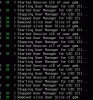
But after restarting (step 7) Ubuntu fails to load the login screen. Instead I'm presented with:
And no login screen.
The solution that has worked for me is involves reconfiguring lightdm. I'm unsure as to why this works but thought it would be helpful.
To upgrade from Ubuntu 14.04 to 16.04, try the following:
- Start the Ubuntu 14.04 virtual machine.
- Uninstall Parallels tools via the command line:
Code:sudo /usr/lib/parallels-tools/install -r- Shutdown the Ubuntu 14.04 virtual machine.
- Turn off 3D acceleration.
- Start the Ubuntu 14.04 virtual machine. The screen size will be limited to 800 x 600. While uncomfortable, it will be large enough to upgrade via the GUI.
- Upgrade to Ubuntu 16.04.
- Reboot once the upgrade completes.
- Install Parallels tools.
- Shutdown the Ubuntu 16.04 virtual machine.
- Turn on 3D acceleration.
But after restarting (step 7) Ubuntu fails to load the login screen. Instead I'm presented with:
Code:
/dev/sda1: clean, 322731/4128168 files, 3366736/16514816 blocks
Created slice User Slice of newrelic.
Created Session c1 of user newrelic.
Starting User Manager for UID 999...
Created slice User Slice of gdm.
Starting User Manager for UID 119...
Started Session c2 of user gdm.
Started User Manager for UID 999
Started User Manager for UID 119.
Starting Console Manager...
Started Console Manager.
Started LSB: Apache2 web server.
Stopping User Manager for UID 119...The solution that has worked for me is involves reconfiguring lightdm. I'm unsure as to why this works but thought it would be helpful.
- Press CTRL+ALT+F2 to open the terminal window. Note that there might be a lot of flickering between the previous screen and the terminal window in parallels. This flickering subsided for me after a few minutes (when the hard disk read/write light stopped).
- Login to Ubuntu in the terminal if you're presented with the login prompt.
- Run the lightdm package configuration command
Code:
sudo dpkg-reconfigure lightdm - Select lightdm from the list.
- Restart Ubuntu
Code:
sudo reboot now