Routing problems with bridge101 aka host-only in Sequoia (was Monterey, Ventura)

The only other ways I could see myself working around this issue were using IP-in-IP (or GRE) encapsulation to pass forwarded traffic across the vmnet interface - which would require a lot of config (and third party tools) on the vm and host, or to intstead forward to the vm via its external bridged interface. The latter works because the host interface in that bridge is not a vmnet interface. Finding that to work in an earlier test is actually what gave me the idea to use feth interfaces. The feth solution is much better though IMHO as it doesn't expose any of your private traffic to your local wifi or ethernet segment and doesn't require a bunch of scripts to handle those interfaces' dynamism. You can just create a launch daemon that is triggered to run by bridge101 coming up when Parallels starts.
 
To make this more useful you can add resolver config files to /etc/resolver/ to forward DNS requests for matched subdomains to the internal DNS on the other side of your VPN tunnel via your feth0 interface.
 
I have also tested directly bridging a VM interface to the feth0 host interface and found that it works. Parallels dutifully creates the bridge on demand when the VM starts and binds feth0 to it. The device topology makes less sense this way as you have a dangling, but required, feth1 peer but it offers the advantage of not requiring an additional launch daemon to bind the feth1 interface to the host-only network bridge (bridge101...) when Parallels starts. You can just add a very simple networking script to run on boot adding the feth interfaces. I already had such a script to add aliases for lo0. In case you don't already have this here is an example ...
Code:
erwhi@X15:~$ cat /opt/local/sbin/networking
#!/bin/sh

sysctl -w net.inet.ip.forwarding=1
#sysctl -w net.inet.ip.redirect=0
#sysctl -w net.inet.icmp.drop_redirect=1
#sysctl -w net.inet.tcp.mssdflt=1450
#sysctl -w net.inet.tcp.blackhole=1
#sysctl -w net.inet.tcp.icmp_may_rst=0
#sysctl -w net.inet.tcp.randomize_ports=1
#sysctl -w net.inet.udp.blackhole=1
sysctl -w net.inet6.ip6.forwarding=1
#sysctl -w net.inet6.ip6.redirect=0
#sysctl -w net.inet6.ip6.use_tempaddr=1
#sysctl -w net.inet6.ip6.auto_linklocal=0
#sysctl -w net.inet6.icmp6.rediraccept=0

# x15.local virtual hosts
/sbin/ifconfig lo0 alias 127.0.1.1/32
# local apache virtual hosts
/sbin/ifconfig lo0 alias 127.0.1.2/32
# local postgres
/sbin/ifconfig lo0 alias 127.0.1.3/32

# local nginx
#/sbin/ifconfig lo0 alias 127.0.2.1/32
# local flask
#/sbin/ifconfig lo0 alias 127.0.2.2/32

/sbin/ifconfig lo0 alias 127.0.2.4/32
/sbin/ifconfig lo0 alias 127.0.2.5/32
/sbin/ifconfig lo0 alias 127.0.2.6/32
erwhi@X15:~$

Code:
erwhi@X15:~$ cat /Library/LaunchDaemons/net.devocean.networking.plist
<?xml version="1.0" encoding="UTF-8"?>
<!DOCTYPE plist PUBLIC "-//Apple//DTD PLIST 1.0//EN" "http://www.apple.com/DTDs/PropertyList-1.0.dtd">
<plist version="1.0">
    <dict>
        <key>Label</key><string>net.devocean.networking</string>
        <key>ProgramArguments</key>
        <array>
            <string>/opt/local/sbin/networking</string>
        </array>
        <key>RunAtLoad</key><true/>
        <key>KeepAlive</key><false/>
        <key>ServiceDescription</key><string>Custom networking configuration</string>
        <key>StandardErrorPath</key><string>/var/log/network.log</string>
        <key>StandardOutPath</key><string>/var/log/network.log</string>
        <key>WatchPaths</key>
        <array>
            <string>/opt/local/etc/network.conf</string>
        </array>
    </dict>
</plist>
erwhi@X15:~$
 
Oops, the networking script above should have read (for the minimum requirement of forwarding traffic to parallels) ...
Code:
#!/bin/sh

sysctl -w net.inet.ip.forwarding=1
sysctl -w net.inet6.ip6.forwarding=1

ifconfig feth0 create
ifconfig feth1 create
ifconfig feth0 peer feth1
ifconfig feth0 10.99.98.1/24
 

Hey Erin! I would have replied earlier but this account is linked to an email I don't really monitor and I had stopped using PD for a while. I was looking into this, again, and found out that Apple has supposedly hard-coded some kind of filter in their vmnet implementation (for unknown reasons). I found out that QEMU made this as a work-around:
https://github.com/lima-vm/socket_vmnet

To clarify, are you using a Linux router guest VM as the gateway? It also isn't immediately clear to me which inputs you are entering in MacOS (presumably as root) versus the host OS or host PD configuration. I've never used feth (this is the first I've heard of it). I'm not exactly sure how you're binding a Host-only network given that PD uses vmnet (which would seem to be to get bound up in the original problem inherent in vmnet). Also, since the kernel is filtering packets based on destination, I don't see how feth would bypass this filter. Of course, if you ARE using a VM guest as the gateway successfully, my skepticism is immediately dispelled and want to try to get a similar configuration working on my Mac running Sequoia.
 
Oh my apologies I *think* I understand what you're doing here. We're using the hardware ethernet bridge which doesn't use vmnet or indeed any IP routing thus avoids any L3 routing.
 
OK, I think I got it working, at least partially. I'm now manually editing /Library/Preferences/SystemConfiguration/preferences.plist so that I can route things via the network services panel so things don't get screwy when I switch to a different gateway via wifi or whatever. I'll post my setup when I get it working!
 
YES! I got it working! Erin, I love you!

I did things a bit differently so here is my setup:

Step 1: I disabled "Connect Mac to this Network" in the Parallels Desktop preferences (NOT THE VM PREFS!). This is to avoid any conflicts

Step 2: I made and ran a little script as root to initialize my feth devices:
Code:
#!/bin/bash
# 1. Create the fake ethernet pair
ifconfig feth0 create
ifconfig feth1 create
ifconfig feth0 peer feth1

# 2. Assign the Mac host side your gateway subnet IP
ifconfig feth0 10.37.129.2 netmask 255.255.255.0 up

# 3. Bring the peer link up
ifconfig feth1 up

# 4. Attach the peer directly to the unassigned Parallels switch
ifconfig bridge101 addm feth1

# 5. Force the bridge interface to an active state
ifconfig bridge101 up

Step 3: Make sure the VM is still using Host-Only
Step 4: Edit /Library/Preferences/SystemConfiguration/preferences.plist
Unfortunately, this has to be done manually because feth devices aren't reconized or whatever (another Apple mystery), but thankfully I know this work-around from having to make "Services" for various devices hidden to network services.
Three parts of this file have to be edited perfectly:
a) Quit System Preferences and MAKE SURE IT ISN'T RUNNING! If it's still running it will overwrite your edits!
Code:
ps ax |grep settings

b) Generate a UUID
Code:
❯ uuidgen
4E9A5DC9-F3CB-407B-A503-6EDE7100CDA9

c) add a service. Here is mine:
Code:
<key>4E9A5DC9-F3CB-407B-A503-6EDE7100CDA9</key>
        <dict>
            <key>DNS</key>
            <dict/>
            <key>IPv4</key>
            <dict>
                <key>ConfigMethod</key>
                <string>Manual</string>
            </dict>
            <key>IPv6</key>
            <dict>
                <key>ConfigMethod</key>
                <string>Automatic</string>
            </dict>
            <key>Interface</key>
            <dict>
                <key>DeviceName</key>
                <string>feth0</string>
                <key>Hardware</key>
                <string>Ethernet</string>
                <key>Type</key>
                <string>Ethernet</string>
                <key>UserDefinedName</key>
                <string>Fake Ethernet (feth0)</string>
            </dict>
            <key>Proxies</key>
            <dict>
                <key>ExceptionsList</key>
                <array>
                    <string>*.local</string>
                    <string>169.254/16</string>
                </array>
                <key>FTPPassive</key>
                <integer>1</integer>
            </dict>
            <key>SMB</key>
            <dict/>
            <key>UserDefinedName</key>
            <string>Fake Ethernet (feth0)</string>
        </dict>

d) Edit the "Service" list by adding another entry. I copied and pasted one of the existing entries and changed BOTH UUID keys:
Code:
<key>4E9A5DC9-F3CB-407B-A503-6EDE7100CDA9</key>
                    <dict>
                        <key>__LINK__</key>
                        <string>/NetworkServices/4E9A5DC9-F3CB-407B-A503-6EDE7100CDA9</string>
                    </dict>

e) Edit the "ServiceOrder" by adding another entry. Again, I copy/pasted one of the existing entries and changed the UUID:
Code:
                        <key>ServiceOrder</key>
                        <array>
                            <string>4E9A5DC9-F3CB-407B-A503-6EDE7100CDA9</string>

f) Having edited ALL THREE locations in the file, do a syntax check:
Code:
plutil /Library/Preferences/SystemConfiguration/preferences.plist

g) BACKUP THE FILE! The system loves to revert all this work

h) kill configd
Code:
sudo killall configd

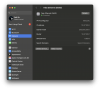
i) Go to System Preferences -> Network. There should now be a new service called Fake Ethernet. Configure it by setting the
IP to 10.37.129.2
subnet to 255.255.255.0
router to the VM's IP (in my case 10.37.129.7)
DNS to something appropriate like 8.8.8.8 or 1.1.1.1 or whatever matches your router's DNS

Violà! You should now have internet via the router running as a VM!

Thank you again, Erin! This setup is a million times better than fussing around with wireguard. I owe you a drink or something.
 
This is how your Network prefs will look
 

Attachments

  • Screenshot 2026-06-10 at 2.25.25 PM.png
    Screenshot 2026-06-10 at 2.25.25 PM.png
    601.2 KB · Views: 1
Back
Top