Hi,
After installing parallels desktop on mac it hijacks file associations. This is unexpected and unwanted. I saw this question in a few places and found good solution, so thought I'd share.
Previous threads
- How do I remove Parallels file associations?!!
- File association problem in Mac
- remove unwanted file associations after installing parallels
To remove parallels file associations everywhere
1. Disable file associations on mac and windows (instructions)
- Open the windows VM and shut it down
- Click "Actions" in the menu bar, then "Configure" to open the VM settings
- Click "Options" > "Applications"
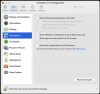
- Uncheck (disable) "Share Windows applications with Mac" and "Share Mac applications with Windows" (see attachment)
- Exit settings
- Optionally delete the folder "Applications (Parallels)" which contained shortcuts by... opening finder, going to your home folder (click your name under favorites), and deleting the folder
2. Rebuild the mac file association database
- Open a terminal
- Copy and paste this command in (without quotes)
"/System/Library/Frameworks/CoreServices.framework/Versions/A/Frameworks/LaunchServices.framework/Versions/A/Support/lsregister -kill -r -domain local -domain system -domain user"
- Hit enter and let it run
- Restart finder by pasting this command in (without quotes)
"killall Finder"
- Hit enter
That should do it. Disabling windows application sharing should remove the application shortcuts, and then the lsregister command should rebuild the file association database.
For reference:
- List File Associations in macOS Sierra
- Removing obsolete file type associations from "Open With" menu
After installing parallels desktop on mac it hijacks file associations. This is unexpected and unwanted. I saw this question in a few places and found good solution, so thought I'd share.
Previous threads
- How do I remove Parallels file associations?!!
- File association problem in Mac
- remove unwanted file associations after installing parallels
To remove parallels file associations everywhere
1. Disable file associations on mac and windows (instructions)
- Open the windows VM and shut it down
- Click "Actions" in the menu bar, then "Configure" to open the VM settings
- Click "Options" > "Applications"
- Uncheck (disable) "Share Windows applications with Mac" and "Share Mac applications with Windows" (see attachment)
- Exit settings
- Optionally delete the folder "Applications (Parallels)" which contained shortcuts by... opening finder, going to your home folder (click your name under favorites), and deleting the folder
2. Rebuild the mac file association database
- Open a terminal
- Copy and paste this command in (without quotes)
"/System/Library/Frameworks/CoreServices.framework/Versions/A/Frameworks/LaunchServices.framework/Versions/A/Support/lsregister -kill -r -domain local -domain system -domain user"
- Hit enter and let it run
- Restart finder by pasting this command in (without quotes)
"killall Finder"
- Hit enter
That should do it. Disabling windows application sharing should remove the application shortcuts, and then the lsregister command should rebuild the file association database.
For reference:
- List File Associations in macOS Sierra
- Removing obsolete file type associations from "Open With" menu