Problems with internet connectivity

No xp connectivity when I reboot XP but can restore by reverting to snapshot

Hi,
Recently I had a system crash in XP that required me to reboot windows from within Parallels. When the system was back online i did not have any connectivity. I rebooted the whole machine from a shut-down and still no connectivity.

If I revert to a snapshot i get my networking back like nothing happened.

If i run the windows for few days from that snapshot and reboot i lose my connectivity so i revert and it comes back.

If run Windows for a few days make a snapshot reboot, i lose my connectivity. But then I can revert to that snapshot i get my connectivity back.

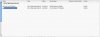
I use the shared networking option. In looking at my network settings, the only change between the reboot state and the reverted snapshot state is on the windows side where i lose connectivity on my cisco VPN connection, I can turn it back on with no change to lack of connectivity.

Any advice would be helpful.

Thanks,
Matt

PARA 5584
OSX 10.4.11
Macbook pro duo 15" 2.33GHZ/3GB/160GB
 

Attachments

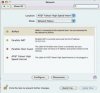
  • network_pane_OSX.jpg
    network_pane_OSX.jpg
    11.8 KB · Views: 4
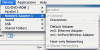
  • Network_PC.jpg
    Network_PC.jpg
    9 KB · Views: 4
  • PARA_device_settings.gif
    PARA_device_settings.gif
    16.8 KB · Views: 3
Xenos,
Had already tried that. When i turn NAT off it does not turn back on and i get no IP address and then need to reboot the mac to get it back. With Guest, no effect.

thanks,
Matt
 
Matt, I think you should reinstall Parallels. Please do it this way:

Go to Finder - Applications - Utilities - Terminal.

Type and run the following commands:

• sudo rm /System/Library/Extensions/vmmain.kext
• sudo rm /System/Library/Extensions/hypervisor.kext
• sudo rm /System/Library/Extensions/Pvsvnic.kext
• sudo rm /System/Library/Extensions/ConnectUSB.kext
• sudo rm /System/Library/Extensions/Pvsnet.kext
• sudo rm -rf /Library/Parallels/
• sudo rm ~/Library/Preferences/com.parallels.*

Before you run these commands, please make sure that your VM hdd and pvs files are NOT stored in ~/Library/Parallels.

Reboot your Mac and reinstall Parallels.

Best regards,
Xenos
 
Xenos -

The problem seems to have abated. If I were to guess, changing the Network Adapter in the VM configuration to another type, then changing it back to shared may have helped. This is just a guess, however. Anyway, thanks for your help.

nick
 
I too had the same problem. Where the two virtual ethernet interfaces in the Mac side had self-assigned IP addresses.

I ended up re-installing Parallels and then rebooting. Now both virtual ethernet interfaces have to correct looking 10.37.x.x and 10.211.x.x addresses.

Now my XP VM (bootcamp) is running fine, can see the internet, and do file sharing with the mac.

Funnily enough, however, the names of the virtual ethernet interfaces in the Mac System Preferences -> Network are gone... they used to be "Parallels NAT" and "Parallels Host-something", now they are simply "Ethernet 2" and "Ethernet 3". I wonder if this is related to the cause of the problem in the first place.....

-Matt
 
Hello Tintin and Matt,

Thank you for posting the information on workarounds that helped you.

Matt, I don't think that the change of the names of the virtual ethernet interfaces is related to the issue you had. The names could have changed with the change of the network settings. This is not going to create any problems for you, I suppose.

Best regards,
Xenos
 
Instabilty of the Parallels Adpaters, fixed by reboot ... maybe

Xenos,

You can see a common problem in several threads in this forum: sometimes the Parallels Adapters lose their IP address assignments -- for no obvious reason -- and then they get them back -- again for no obvious reason.

Common "fixes" include reinstalling Parallels, or just reinstalling Parallels Tools into the guest OS, and of course rebooting both the VM and the Mac. This isn't very scientific; it's more a matter of luck.

My own observation to add to the discussion: if you boot the Mac in "on the road" configuration, i.e. with no network connections, there is a high chance that the Parallels adapters will revert to self-assigned IP addresses. Try it yourself: disconnect ethernet, turn off Airport, turn off Bluetooth, then reboot the Mac. YMMV but for me this virtually guarantees the Parallels Adpaters will lose their addresses. I can fix it simply by plugging in an Ethernet cable and rebooting once again.

It seems as long as there is one connected physical net interface then the Parallels Adapter will pick up their correct assignments. If not, then not.

Something for you guys to look into?
 
Try it yourself: disconnect ethernet, turn off Airport, turn off Bluetooth, then reboot the Mac. YMMV but for me this virtually guarantees the Parallels Adpaters will lose their addresses. I can fix it simply by plugging in an Ethernet cable and rebooting once again.

indeed this worked for me.

Step 1.) Turn off all network connections (COMPLETELY off, as in show: interface, configure IPv4, off) <!~~~~this could be the key.
Step 2.) Reboot
Step 3.) Check the two Parallels network devices
Step 4.) Re-connect the Mac to the network
Step 5.) Restart Parallels
Step 6.) ?????
Step 7.) PROFIT!!!!!!

and yes, I joined the forum just to post this. :D
 
i still dont get it and parallels does not connect

Hi

I've read every one of these posts about no connectivity - and my symptoms are the same. basically, the mac works fine, no new software, but on or about Feb 15, all the connectivity vanishes for XP under parallels. reinstall doesnt work. no network connectivity at all.

Seems like some people here - after a month of trading messages - have gotten their connectiivy back. And looks like its something to do with removing all connections then restarting. I dont get it. I dont know UNIX at all, and I dont know what a ethernet 2 or 3 is. i dont know what ipconfig means nor what dns or network address is.

Can someone please post the EXACT steps on how to fix this. its not my firewall and its not my mac and its not any new apps of any kind. its parallels working one day then not working the next - perhaps becuase i swithch between the ethernet cable and airport or use this thing in hotels with different connections.

anyway, its a useless app until the connectivity comes back.

And please make it extermely UN-techy in your post. tell me exactly which pull down menu to use and which keys to type.

PS I wouldnt be so frustrated if anyone from parallels would return my phone calls or emails over the past 6 weeks

B
 
One more point ...

The error message (since I reinstalled parallels) is:

"Problem with network adapter is detected. Please check if network cable is connected to the physical network adapter attached to the virtual machine."

LOL

Now imagine telling your grandmother or grandfather the above error message. Kind of makes you laugh (yes, i am laughing from frustration).

You see, I dont have any network cables since I run airport and Safari surfs fine. Should the non-existant cable be attached to the virtual machine? or should it virtually be attached physically to the adapter to the machine ...

Grandpa B
 
Hello all,

MartinBear, Parallels engineers are analyzing the issue. Thank you for the remarks.

KrushR, thanks for the feedback.

Mcquaiba, please check the network settings in the Virtual Machine Configuration Editor, Network Adapter section. Do you have Shared Networking or Bridged Ethernet? Try Bridged mode and set en1: AirPort / Wireless Adapter.

Tecdude2, thank you for the output of the commands. The IP address is delivered correctly. Please check Parallels NAT and Host-Guest ports status in Mac System Preferences -> Network.

If they are red or yellow, open Parallels NAT configuration, choose "Off" in IPv4 drop-down menu and click "Apply". Do the same for Host-Guest adapter.

Shut down Parallels and reboot your Mac. Now go to Mac System Preferences -> Network again and choose "Using DHCP" in IPv4 drop-down menu for Parallels NAT and Host-Guest adapters. Click "Apply" again for both of them.

If you will not get network connection after this, you should reinstall Parallels.

Best regards,
Xenos
 
Airport not working with XP in Parallels VM

Just joined this forum to see if anyone else had the problem I have and that seems to be the case.

I have a MacBook pro 17" 2.6 GHz Intel Core Duo, 4 GB RAM, Mac OS X Version 10.5.2 running Parallels Desktop 3.0 for Mac Build 5584 (16 Jan 2008).

I can run Internet Explorer fine when I attach an ethernet cable to my router, even with airport running in OS X, but I have tried everything everyone suggests to try to get IE to connect via airport with no success.

In Devices : Network Adapter 1 I have only en0: Ethernet Adapter and en1: Airport/Wireless Adapter. I have tries switching them, Bridging before starting XP, etc. with no joy.

Is there a fix for this, or is this a BETA problem?

many thanks for any help anyone can give.
 
xenos have read this post and have am having the same issues listed above. have win xp pro as VP inside iMac with 10.4.11. everything worked fine until a month or so ago then it is hit or miss regarding if i can get on line.

see attachments for ipconfig /all and tracert
 

Attachments

Last edited:
Hello,

Clo2peter, IPv4 and IPv6 are Internet Protocol versions. If you run ifconfig in Terminal, will you see the addresses written in hexadecimal code or in common characters?

Did you try to set Shared Networking in your virtual machine configuration?

Uptickdk, thank you for the screenshots. DHCP seems to block IP delivery. You should either contact your system administrator or try setting static IP.

To set static IP address copy the IP address from Mac System Preferences -> Network -> Ethernet and copy it to Windows side:

Start -> Control Panel -> Network Connections. Right click Local Area Connections, choose Properties. On General tab find Internet Protocol (TCP/IP) in the list of items used for the connection. Double click Internet Protocol (TCP/IP) and check Use the following IP address. When you have copied the Mac IP address into the field IP address, change the last two numbers. For example, if your Mac IP is 172.16.0.30, your Windows IP should be 172.16.0.71.

Another possible alternative is to use Shared Networking instead of Bridged Ethernet.

Best regards,
Xenos
 
Back
Top