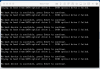
See attached screenshot for the error I am getting
My VM has been working correctly for a long time with no issues. The VM locked up and after about an hour I did a macOS "Force Quit" to recover. That's when the "No Boot Device Available" problem started.
Guest OS: Windows 7 Pro 64-bit Ultra Parallels Version: Desktop 12 for Mac Pro Edition; V 12.2.1 (41615)
MAC OS: Sierra v10.12.5 on 15" mid-2010 MacBook Pro
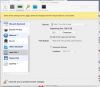
Tried KB Article ID: 123150 http://kb.parallels.com/en/123150. In step 3 where you disconnect the HDD, it's greyed out and I can't change it. See attached screenshot.
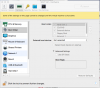
Tried KB Article ID: 123344 http://kb.parallels.com/en/123344. In the section titled "Resolution" where you check the "Use EFI Boot" box, it's greyed out and I can't change it. See attached screenshot.
Please direct me to any alternate KB articles or other information links to assist me in resolving this issue.
My VM has been working correctly for a long time with no issues. The VM locked up and after about an hour I did a macOS "Force Quit" to recover. That's when the "No Boot Device Available" problem started.
Guest OS: Windows 7 Pro 64-bit Ultra Parallels Version: Desktop 12 for Mac Pro Edition; V 12.2.1 (41615)
MAC OS: Sierra v10.12.5 on 15" mid-2010 MacBook Pro
Tried KB Article ID: 123150 http://kb.parallels.com/en/123150. In step 3 where you disconnect the HDD, it's greyed out and I can't change it. See attached screenshot.
Tried KB Article ID: 123344 http://kb.parallels.com/en/123344. In the section titled "Resolution" where you check the "Use EFI Boot" box, it's greyed out and I can't change it. See attached screenshot.
Please direct me to any alternate KB articles or other information links to assist me in resolving this issue.