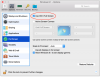
I was in the same boat very frustrated but finally got it working as I expected to (...which I have to imagine is how some others here would, too). I enabled "Displays have separate spaces" on OSX, restarted, and then in Parallels set my full screen preference for my Windows 10 guest to "Use all displays in full screen" and "Activating virtual machine shows all its spaces". Be sure to do this with the guest OS shut down. Windows now shares one desktop across both displays. The only slight change from PD11 behavior is that when I Cmd-Tab into Windows 10 from a OSX app, I have to click somewhere in the window to bring up the other display. Not really a big deal.

Install the app
How to install the app on iOS
Follow along with the video below to see how to install our site as a web app on your home screen.
Note: This feature may not be available in some browsers.
You are using an out of date browser. It may not display this or other websites correctly.
You should upgrade or use an alternative browser.
You should upgrade or use an alternative browser.
PD13 Multiple Monitors Still a Problem
- Thread starter SreechandraD
- Start date
I enabled "Displays have separate spaces"
This is the part that is unacceptable. Using separate spaces causes quite different window behavior when not using Parallels.
Yeah, I see that you lose the ability to drag and drop between displays on the OSX side. But I always use Magnet to move apps between displays (best app I've purchased) so I didn't even notice that until well into my workflow. And I imagine there are other implications for apps that are designed to spread across both displays (Final Cut perhaps?). But for my workflow at least, that combination of settings gets me almost back to the PD11 experience.
tom_seddon
Junior Member
Add me to the list of people frustrated by this nonsense. I'm using Sierra 10.12.6 and today I finally cracked under the pressure of all the upgrade nag screens and upgraded from PD11 to PD13. What a fool I was! A total waste of money, thanks to this problem. I don't understand how the functionality can have regressed like this. It worked fine in PD11! All they had to do was nothing at all! Presumably that was too much effort 
I've gone back to PD11 and will try to get a refund out of Parallels next week.
--Tom
P.S. I've been using VMWare Fusion at work on High Sierra and the full screen behaviour on that seems OK.
I've gone back to PD11 and will try to get a refund out of Parallels next week.
--Tom
P.S. I've been using VMWare Fusion at work on High Sierra and the full screen behaviour on that seems OK.
NicholasC1
Junior Member
Bump / still broken on 13.3. Does VMWare Fusion use all displays properly in full screen mode without turning on "displays have separate spaces" ? Last I checked (it's been a while) Fusion had a similar problem as well...
It looks like Parallels isn't going to do anything about this.
I remembered someone posted that they were using TotalSpaces2 to be able to work with Sync'd mutilpe fullscreen desktops. I have now given it a try and to my surprise it works!!
The set up I have gone for is:
Installed TotalSPaces2 (initially in trial node) having followed instructions and followed switching off & on SIP (Instruction on website).
MAC OSX (High Sierra) In Mission Control - Group Windows By Application
- Displays have seperate Spaces
TotalSpaces2 - In Layout - SyncGrids - Checked
- Added the correct desktop before opening Parallels
- In Transitions - Use Transitions
- Swipe to change Spaces (4 Fingers)
Then Voila - everything works as before.
I top this off with Hyperdock and it's nearly perfection.
I am not sure if you need all the above setting but it works for me.
Hope this help someone - I certainly feel it's restored me to 99% back to old PD11 - If only Parallels would do the same.
Ken
[I do not work for or have any connection to either Hyperdock or TotalSpaces2]
OK I gave up with PD11 too many issues with stability on OS X High Sierra and went for PD13, even though I got a refund on PD12 and I can see its still a problem, but went down the TotalSpaces2 route as suggested by Ken. Its taken a a good few hours and lots of crashing and re-booting but somehow its now working exactly as it should. I have tried all the configurations mixing options in Parallels Control Panel and the TotalSpace2 options, some options deliver 'Parallels' screens and others deliver multiple 'Windows 10' screens. I have managed to get it working under 2 or 3 options but the best seems to be...
OS X - Displays have separate spaces
Parallels Configuration -
Use all displays in full screen (checked on but is optional as can be selected from drop down menu when Windows is open)
Activating virtual machine shows all spaces, checked on creates correct 'Parallels' screens (which I think you want), unchecked creates 'Windows' screens, which generates extra blank screens (6 for me with dual monitors) and creates lots of issues getting rid of the ones you don't need.
My experience is...
**** checked on can cause a lot of crashes ***** unchecked requires moving (click on and drag) the second screen desktop using the OS X Desktop displays from one screen to the other (make sure you move the correct screen) for me its the 2nd desktop to the left of the main Windows desktop. It can be a combination of using OS X features to move the screen and TS2 features to set them up.
It takes a while to play with the TS2 options I have found it best to create 15 screens 1-15 for my apps and let Parallels add a 16th on its own, you will probably spend time adding and deleting screens in TS2 to see what happens. The resolution settings in Windows do NOT seem stable I have found I need to adjust the Display Settings to get the correct resolution on both monitors, once set its stable for that session. However, I do seem to be configuring bits each time after a log in and out or a reboot of the Mac. It is working and feels like I am getting a more stable set up each time I use it, which is not logical !!!
I would suggest adding a program name to each screen in TS2 it makes it a lot easier to use. Once completed it all works perfectly the same as spaces worked in previous OS X versions.
Only downsides are tool bar across 2nd monitor which greys out when not used and some issue with the cursor changing from black to white and size maybe on each monitor, which is a small price to pay.
Its not been easy and what has worked for me may not work for you, but this may be a useful reference for some. I am currently using a new top of the range 2018 Touch Bar Mac Book Pro
Thanks Ken for the info and encouragement to go and try it, Charles
I really hope that someone from Parallels is reading these forums. You are losing customers. I commend CharlesR3 for working on this but honestly it is ridiculous. Parallels get your "ass in gear" and fix the problem. Stop blaming it on Apple OS! It works in Parallels v11 perfectly with the latest Apple OS so that is not the issue. You probably have to give the user the option of turning off some features but let them make the choice. Don't just put out a new version after version and ignore the problem you created.
Anyone else wish to comment. Maybe they might listen to the masses. You can be sure they have lost a hug book of business!
Anyone else wish to comment. Maybe they might listen to the masses. You can be sure they have lost a hug book of business!
SreechandraD
Member
This is great news. And totally unacceptable that it took 3 years to get (back) here.
Anyone else want to chime in with confirmation if this is really working correctly? Will plan an upgrade and try session one evening this week.
Anyone else want to chime in with confirmation if this is really working correctly? Will plan an upgrade and try session one evening this week.
I have installed and it supports multiple monitors again ....
just make sure you are happy with your screen resolution selections...
1) Check PD 14 settings in Hardware/Graphics (Best for external Monitors for me)
2) Turn off Displays have separate spaces in OS X prefernces if you have been using that as an option. (I have as I have been using TotalSpaces2, which has been great and got PD to work pretty well, going to keep it running as its better than OS X options)
3) Check resolutions in OS X for all your monitors (I have laptop monitor set to More space and my 2nd monitor set to 1920 x 1200 which is best setting for it)
These settings will boot Windows with 2 different resolutions and I am choosing to change my laptop screen from 3400 x 2400 down to 1920 x 1200 so it works seamlessly when moving windows. Cant see a way to fix that permanently in W10 at the moment (if anyone knows how to?), so will have to do it every time I boot up. However, I would say this is a success.... FINALLY
Upgrade and install plus messing about has taken an hour so far and it does seem to work, try it. Fingers crossed for the next few days of using it.
just make sure you are happy with your screen resolution selections...
1) Check PD 14 settings in Hardware/Graphics (Best for external Monitors for me)
2) Turn off Displays have separate spaces in OS X prefernces if you have been using that as an option. (I have as I have been using TotalSpaces2, which has been great and got PD to work pretty well, going to keep it running as its better than OS X options)
3) Check resolutions in OS X for all your monitors (I have laptop monitor set to More space and my 2nd monitor set to 1920 x 1200 which is best setting for it)
These settings will boot Windows with 2 different resolutions and I am choosing to change my laptop screen from 3400 x 2400 down to 1920 x 1200 so it works seamlessly when moving windows. Cant see a way to fix that permanently in W10 at the moment (if anyone knows how to?), so will have to do it every time I boot up. However, I would say this is a success.... FINALLY
Upgrade and install plus messing about has taken an hour so far and it does seem to work, try it. Fingers crossed for the next few days of using it.
Last edited:
SreechandraD
Member
Thanks for the post. Feeling the optimism.
It is horrifying that my livelihood is in the hands of these developers. I need multiple monitors to work correctly and efficiently in Parallels. Otherwise, I will have to let this Mac Pro collect dust and go buy some Windows piece of junk.
It is horrifying that my livelihood is in the hands of these developers. I need multiple monitors to work correctly and efficiently in Parallels. Otherwise, I will have to let this Mac Pro collect dust and go buy some Windows piece of junk.
Thanks for the post. Feeling the optimism.
It is horrifying that my livelihood is in the hands of these developers. I need multiple monitors to work correctly and efficiently in Parallels. Otherwise, I will have to let this Mac Pro collect dust and go buy some Windows piece of junk.
I am a graphic designer been using Macs since 1990, and PD since about Version 6, its does seem to be working 2 hours in and much better faster than of recent, so be be optimistic and give it a go.

Dmitry Geynisman
Parallels Team
Hi guys, I am happy to let you know that we were able to improve multi-monitor support in the new Parallels Desktop 14 version (see updates summary).
With Parallels Desktop 14 for Mac installed simply disable 'Displays have separate spaces' > make sure that 'Use All Displays in Full Screen' is enabled (VM's menu bar > View) > enter Full Screen mode and you will be able to swipe between all displays at once.
We also did a bunch of improvements to multi-monitor support and overall product performance. Will be happy to hear your feedback.
With Parallels Desktop 14 for Mac installed simply disable 'Displays have separate spaces' > make sure that 'Use All Displays in Full Screen' is enabled (VM's menu bar > View) > enter Full Screen mode and you will be able to swipe between all displays at once.
We also did a bunch of improvements to multi-monitor support and overall product performance. Will be happy to hear your feedback.
Like PD 12 and 13, I have uninstalled 14 and have gone back to 11.
I have two displays. One is exclusively for MacOS and the other is split between Windows and whatever else needs some extra space. With Parallels 11, I can have my Windows VM open in full screen and still have the ability to have other MacOS windows open on top of it while clicking through to the VM will bring it to the front.
I have two displays. One is exclusively for MacOS and the other is split between Windows and whatever else needs some extra space. With Parallels 11, I can have my Windows VM open in full screen and still have the ability to have other MacOS windows open on top of it while clicking through to the VM will bring it to the front.