Install the app
How to install the app on iOS
Follow along with the video below to see how to install our site as a web app on your home screen.
Note: This feature may not be available in some browsers.
You are using an out of date browser. It may not display this or other websites correctly.
You should upgrade or use an alternative browser.
You should upgrade or use an alternative browser.
Parallels Mounter
- Thread starter DwightG
- Start date
-
- Tags
- parallels mounter
Thanks for coming back so quickly Mark.There is something called 'Parallels Mounter.app' in the main app cluster in v18.
There is also one in V17 for some reason but lots of people have said that it doesn't work and I'm sure there is a note somewhere from Parallels themselves saying it's present but doesn't work.
Is it operational on your Mac, (assuming you are running one)?
Lol... Disabling something but ensuring it's part of the distribution makes absolutely no sense to me. This is why I can't trust half of the responses I see from those guys. Sometimes I think they're under pressure to provide as many responses as possible and just make shit up half the time. Chances are Parallels Mounter is just not designed to operate stand alone (hence why it's buried in the cluster) and the individual underlying executables are spawned as separate processes within Parallels Desktop itself.
Anyway... the Parallels Mounter contains three Unix-based executables: 'PEFSUtil' (Parallels Explorer File System Utility?), 'Parallels Explorer', and 'Parallels Mounter'. I'm guessing that Explorer is the top executable that calls the other two.
Parallels Mounter, when run alone in Terminal responds with "Class CoreBluetoothManagerDelegate is implemented in both /Applications/Parallels Desktop.app/Contents/Frameworks/ParallelsVirtualizationSDK.framework/Versions/10/ParallelsVirtualizationSDK (0x1070309e0) and /Applications/Parallels Desktop.app/Contents/Frameworks/libPrlGui.3.dylib (0x1043c8c48). One of the two will be used. Which one is undefined." Worthwhile to note that both of those paths do exist and one or the other gets used depending upon how Parallels Mounter is called, the command line used, and/or the type of VM used.
The other two don't produce any output, but I'm guessing that each needs a set of specific command line parameters. For example, either a path to the VM to act on or a hard disk contained in the VM to work. Otherwise it just quits.
May be worth it to experiment with a backed up VM and/or it's embedded virtual disks to see what it does. Hopefully it doesn't need any specific command switch, because --help doesn't provide you anything. I wouldn't try anything on a VM that you use regularly, because not calling the executable correctly could damage the virtual disk (and ultimately the VM). So I recommend making sure you back up the VM and experiment on the backup before you try anything.
Anyway... the Parallels Mounter contains three Unix-based executables: 'PEFSUtil' (Parallels Explorer File System Utility?), 'Parallels Explorer', and 'Parallels Mounter'. I'm guessing that Explorer is the top executable that calls the other two.
Parallels Mounter, when run alone in Terminal responds with "Class CoreBluetoothManagerDelegate is implemented in both /Applications/Parallels Desktop.app/Contents/Frameworks/ParallelsVirtualizationSDK.framework/Versions/10/ParallelsVirtualizationSDK (0x1070309e0) and /Applications/Parallels Desktop.app/Contents/Frameworks/libPrlGui.3.dylib (0x1043c8c48). One of the two will be used. Which one is undefined." Worthwhile to note that both of those paths do exist and one or the other gets used depending upon how Parallels Mounter is called, the command line used, and/or the type of VM used.
The other two don't produce any output, but I'm guessing that each needs a set of specific command line parameters. For example, either a path to the VM to act on or a hard disk contained in the VM to work. Otherwise it just quits.
May be worth it to experiment with a backed up VM and/or it's embedded virtual disks to see what it does. Hopefully it doesn't need any specific command switch, because --help doesn't provide you anything. I wouldn't try anything on a VM that you use regularly, because not calling the executable correctly could damage the virtual disk (and ultimately the VM). So I recommend making sure you back up the VM and experiment on the backup before you try anything.
Yeah, I'm going to have to have a play with it.
How annoying that they've done this - it was the only foolproof way to get at your data if you had a major issue with that or Parallels itself. It used to run without issue in earlier versions, just can't remember how I called it.
I'll report back if I find anything.
How annoying that they've done this - it was the only foolproof way to get at your data if you had a major issue with that or Parallels itself. It used to run without issue in earlier versions, just can't remember how I called it.
I'll report back if I find anything.
I'm running Parallels Desktop 18.1.0 and I've just found out that Parallels Mounter is hidden inside Parallels Desktop app.
So here's how I managed to mount a Windows VM's hdd in Mac:
open /Applications/Parallels\ Desktop.app/Contents/Applications/Parallels\ Mounter.app/ --args /Users/user/VMs/Windows\ 7.pvm
So here's how I managed to mount a Windows VM's hdd in Mac:
open /Applications/Parallels\ Desktop.app/Contents/Applications/Parallels\ Mounter.app/ --args /Users/user/VMs/Windows\ 7.pvm
JonathanH25
Bit poster
Thank you vval for your solution. However, I cannot get the command to properly execute. I point it to my .pvm file and execute. I don't receive any errors, I just get a new terminal prompt. Any suggestions?I'm running Parallels Desktop 18.1.0 and I've just found out that Parallels Mounter is hidden inside Parallels Desktop app.
So here's how I managed to mount a Windows VM's hdd in Mac:
open /Applications/Parallels\ Desktop.app/Contents/Applications/Parallels\ Mounter.app/ --args /Users/user/VMs/Windows\ 7.pvm
JonathanH25
Bit poster
Disregard... There was an error in my syntax. However, when the Windows 11.pvm mounts, there are C:/ and D:/ volumes but no user profiles or user data. Is there a way to view user/Documents, etc.? I forgot the password for the VM... Just trying to recover the files.
It should be enough. Windows 11 stores user profiles (Documents, etc.) in C:\Users\USERNAME. Just navigate to that folder. In my case, Parallels Mounter mounts C and D in the wrong order, so "D" contains disk C actually, but it works.Disregard... There was an error in my syntax. However, when the Windows 11.pvm mounts, there are C:/ and D:/ volumes but no user profiles or user data. Is there a way to view user/Documents, etc.? I forgot the password for the VM... Just trying to recover the files.
It look like my Windows 10 Vm is corrupt as I have spent the entire day trying to get it to work. I learned about Parallels Mounter in hopes that I can at least connect to my drives within the bad VM. Doesn't anyone know if this is possible; and if so, how can I go about doing so. Just getting some of my important data out would be invaluable. Of course the snapshots won't work to revert either. Thank you.
I have found the Parallels mounter.app, just don't know to launch it to connect to the drives etc. Thanks
I have found the Parallels mounter.app, just don't know to launch it to connect to the drives etc. Thanks

Avinash Bundhoo
Staff member
Hello,It look like my Windows 10 Vm is corrupt as I have spent the entire day trying to get it to work. I learned about Parallels Mounter in hopes that I can at least connect to my drives within the bad VM. Doesn't anyone know if this is possible; and if so, how can I go about doing so. Just getting some of my important data out would be invaluable. Of course the snapshots won't work to revert either. Thank you.
I have found the Parallels mounter.app, just don't know to launch it to connect to the drives etc. Thanks
Thank you for your feedback.
if you have any important files inside the original virtual machine -- you may attach the virtual hard drive to your Mac and extract the valuable data. To do that, please perform the following steps:
1. Make sure that the original (old) virtual machine is shut down. If it is in a suspended state, please run it and then shut it down (Actions > Stop).
2. Open Terminal (Finder - Applications - Utilities - Terminal) and paste the following command:
/Applications/Parallels\ Desktop.app/Contents/Applications/Parallels\ Mounter.app/Contents/MacOS/Parallels\ Mounter "/path to hdd file"
For example:
/Applications/Parallels\ Desktop.app/Contents/Applications/Parallels\ Mounter.app/Contents/MacOS/Parallels\ Mounter "/Users/Shared/Parallels/Windows 11 (original).pvm/Windows 11-0.hdd"
Then virtual disk will appear on your Mac as a separate disk where you can find the data from your virtual machine and copy it to your Mac.
If the old virtual hard drive isn't too damaged, the original virtual machine's volumes will appear on the left-side pane in Finder, and you can drag and drop your files either to your Mac or into your new virtual machine.
As a second option, you can attach the original hdd file to a new virtual machine and try to find the data you need.
Hello,
Thank you for your feedback.
if you have any important files inside the original virtual machine -- you may attach the virtual hard drive to your Mac and extract the valuable data. To do that, please perform the following steps:
1. Make sure that the original (old) virtual machine is shut down. If it is in a suspended state, please run it and then shut it down (Actions > Stop).
2. Open Terminal (Finder - Applications - Utilities - Terminal) and paste the following command:
/Applications/Parallels\ Desktop.app/Contents/Applications/Parallels\ Mounter.app/Contents/MacOS/Parallels\ Mounter "/path to hdd file"
For example:
/Applications/Parallels\ Desktop.app/Contents/Applications/Parallels\ Mounter.app/Contents/MacOS/Parallels\ Mounter "/Users/Shared/Parallels/Windows 11 (original).pvm/Windows 11-0.hdd"
Then virtual disk will appear on your Mac as a separate disk where you can find the data from your virtual machine and copy it to your Mac.
If the old virtual hard drive isn't too damaged, the original virtual machine's volumes will appear on the left-side pane in Finder, and you can drag and drop your files either to your Mac or into your new virtual machine.
As a second option, you can attach the original hdd file to a new virtual machine and try to find the data you need.
The Mounter command doesn't work. There are missing dylibs, right out of the box too! Fresh install of Parallels 19.

Adeboye Adeotan
Forum Maven
The Mounter command doesn't work. There are missing dylibs, right out of the box too! Fresh install of Parallels 19.
Hi,
Please provide us with the output of the command to enable us troubleshoot.
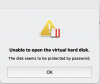
Thanks for the command line prompt above. However, my Parallels virtual disk is password-protected, so Parallels Mounter returns the error message: "Unable to open the virtual hard disk. The disk seems to be protected by a password." I know the password, but there is no interface option to enter it. Is there perhaps an argument that I can add to the common line prompt? Or some other way to mount a password-protected Parallels image? I can't open the image in Windows because it's is not compatible with Apple Silicon.