Optimizing Screen Resolution in Parallels 8/Windows 7

I stumbled upon this thread in trying to troubleshoot my issue, which was the right side of windows apps being cut off in coherence mode. I've since moved from vga to dvi, and the problem went away.

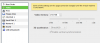
Even though my problem is fixed, something is bothering me: I have no "resolution" option under configure->hardware->video. See attached. Tried also with the machine powered down, same thing. No "resolution" options.

Is this simply because I don't have a retina display? This is an early 2011 macbook pro.
 

Attachments

  • Screen Shot 2013-02-05 at 12.31.00 PM.png
    Screen Shot 2013-02-05 at 12.31.00 PM.png
    42.1 KB · Views: 59
wow, I just upgraded to v8 and expected this to work like it did in v7, i.e as I reset my Mac retina 13" resolution using 'setres' or similar the PC would just resize to match - v8 appears to be a PITA trying to get a useable high quality display. Thanks for the hints in this thread....off to try and solve the ugly display issue now....
 
OS 10.7.5, Window 7, just upgraded to Parallels 8 and everything thing seemed fine, but the screen resolution was 'fuzzy' Went to adjust it in the control panel to the retina display size and everything got microscopic. Tried to revert it to 1440 but it would not hold.

BUT, it appears that 'Virtual Machine-->Configure-->Video' and I unchecked Enable Retina Resolution. At least it looks like it use to.
 
I stumbled upon this thread in trying to troubleshoot my issue, which was the right side of windows apps being cut off in coherence mode. I've since moved from vga to dvi, and the problem went away.

Even though my problem is fixed, something is bothering me: I have no "resolution" option under configure->hardware->video. See attached. Tried also with the machine powered down, same thing. No "resolution" options.

Is this simply because I don't have a retina display? This is an early 2011 macbook pro.
Yes. You won't see the setting unless a HiDPI display is connected. This is logical and doesn't mean you're missing any functionality.
The three options amount to:
1. Lock my Guest to half my actual resolution. ("Scaled")
3. Allow my Guest to use the full resolution. ("More space")
2. Allow my Guest to use the full resolution and hold my hand setting up the Guest to look okay in it. ("Best for retina")

Option 1 really has no reason to exist in fullscreen mode. You should always use option 3 ("More space") unless you're a beginner and don't understand Windows's settings. If you don't have a retina display, you're always using option 3 anyway.
 
I have been dealing with this issue for some time. Read almost all of the posts related to this issue, and had not found a "perfect" solution until today.

I'm running a MBPro Retina (mid 2012), Parallels Desktop build 8.0.18354 (rev 823166 Dec 4 2012), Windows 7. I've found the following settings provide awesome display in Windows 7 that takes advantage of the Retina resolution:

OS X:
-Settings > Display > Resolution = Best for Retina

Parallels:
-Options > Coherence > Use Crystal… = No
-Options > Coherence > Show Windows… = Yes
-Options > Coherence > Allow applications… = Yes
-Options > Coherence > Disable Windows Aero = No
-Options > Full Screen > Use Mac OS X Full Screen = Yes
-Options > Full Screen > Scale to fit screen = Stretch
-Options > Full Screen > Use all displays full screen = Yes
-Hardware > Video > 3D acceleration = DirectX10
-Hardware > Video > Enable vertical synch = Yes
-Hardware > Video > Resolution = More Space

Windows:
-Display > Resolution = 1920 x 1200
-Display > Make text large/small... = 100%
-Display > Adjust ClearType = Yes
-Display > Set custom DPI = 100%
-Display > Use Windows XP Style = Yes
-Personalization > Mouse pointers > Pointers > Scheme = Windows Aero (extra large)
 
bamciver: I think you'll find setting the Windows resolution to 2880x1800 and the DPI scale to 150% will make objects the same size but look much sharper. ;)
 
mmm201: You are correct, that made a difference.

Although there are some applications that aren't optimized to handle the 2880x1800 resolution, and consequently, the icons inside the app are a little too small.

My preferences are for the settings above, but revised settings could also be:

OS X:
-Settings > Display > Resolution = Best for Retina

Parallels:
-Options > Coherence > Use Crystal… = No
-Options > Coherence > Show Windows… = Yes
-Options > Coherence > Allow applications… = Yes
-Options > Coherence > Disable Windows Aero = No
-Options > Full Screen > Use Mac OS X Full Screen = Yes
-Options > Full Screen > Scale to fit screen = Stretch
-Options > Full Screen > Use all displays full screen = Yes
-Hardware > Video > 3D acceleration = DirectX10
-Hardware > Video > Enable vertical synch = Yes
-Hardware > Video > Resolution = More Space

Windows:
-Display > Resolution = 2880 x 1800
-Display > Make text large/small... = 100%
-Display > Adjust ClearType = Yes
-Display > Set custom DPI = 150%
-Display > Use Windows XP Style = Yes
-Personalization > Mouse pointers > Pointers > Scheme = Windows Aero (system scheme)
 
Last edited:
I was about to give up, not to use Parallels at all. This works, thanks for your handwork. I am deleting Vmware & Virtualbox, this is a winner. You have made my day, I have been struggling for month.
 
Last edited:
Thanks so much, this was really annoying. This is working for me so far but the text is still a little small for me. I'll just get used to it until there is a better fix.

mmm201: You are correct, that made a difference.

Although there are some applications that aren't optimized to handle the 2880x1800 resolution, and consequently, the icons inside the app are a little too small.

My preferences are for the settings above, but revised settings could also be:

OS X:
-Settings > Display > Resolution = Best for Retina

Parallels:
-Options > Coherence > Use Crystal… = No
-Options > Coherence > Show Windows… = Yes
-Options > Coherence > Allow applications… = Yes
-Options > Coherence > Disable Windows Aero = No
-Options > Full Screen > Use Mac OS X Full Screen = Yes
-Options > Full Screen > Scale to fit screen = Stretch
-Options > Full Screen > Use all displays full screen = Yes
-Hardware > Video > 3D acceleration = DirectX10
-Hardware > Video > Enable vertical synch = Yes
-Hardware > Video > Resolution = More Space

Windows:
-Display > Resolution = 2880 x 1800
-Display > Make text large/small... = 100%
-Display > Adjust ClearType = Yes
-Display > Set custom DPI = 150%
-Display > Use Windows XP Style = Yes
-Personalization > Mouse pointers > Pointers > Scheme = Windows Aero (system scheme)
 
thanks it worked for me

thank you. this solution works for me

Hi mikel51,
I also have a similar problem, but not really related to the resolution, but with the DPI.
When your Mac is set to use "Best Retina", your Windows 7 VM will be set to 2880x1800 (2x your Mac resolution) and 199% DPI (done when "Optimize Windows for full resolution" is set).

It does look nice and sharp, bit Windows 7 has a bug with DPI higher than 189%. For instance the Windows explorer will show a tiny address bar and a huge search bar, and you can't resize it. For the interested ones, this is documented here.

So, what I do is:
Under Hardware/Video, mark "Enable full Resolution", but leave "Optimize Windows for full resolution" unchecked.
Under Options/Full Screen, set "Scale to fit screen" to "Stretch".

Now under Windows, just set the resolution and dpi you want, and it will stick. Parallels will not modify it when you login.

@Parallels guys: it would be nice to set custom target resolution & dpi at the VM configuration.

Regarding your specific Quicken issue, try out checking/unchecking options like: "Disable display scaling on High DPI settings", in the compatibility settings of your program.

Hope it helps...
 
-Options > Coherence > Use Crystal… = No
-Options > Coherence > Show Windows… = Yes
-Options > Coherence > Allow applications… = Yes
-Options > Coherence > Disable Windows Aero = No
-Options > Full Screen > Use Mac OS X Full Screen = Yes
-Options > Full Screen > Scale to fit screen = Stretch
-Options > Full Screen > Use all displays full screen = Yes

where is this options section you speak of in Parallels? do you mean preferences? because i cant find those options under preferences.
 
I'm running the very latest version (build 9) and it's there. Configure is under the Virtual Machine menu on the menu bar, or it can be accessed by right clicking the Parallels icon in the dock.
 
Back
Top