
Install the app
How to install the app on iOS
Follow along with the video below to see how to install our site as a web app on your home screen.
Note: This feature may not be available in some browsers.
You are using an out of date browser. It may not display this or other websites correctly.
You should upgrade or use an alternative browser.
You should upgrade or use an alternative browser.
OpenSTEP 4.2 Doesn't Run with 4 - VT-x may be the Problem?
- Thread starter spetznatz
- Start date
P
Parallels User
I think VBE is the display driver, try playing with video memory values under Parallels.
P
Parallels User
This article might be helpful in some way: http://support.apple.com/kb/TA45370?viewlocale=en_US
John@Parallels
Forum Maven
Configure - Show Advanced Settings - CPU
write following
kernel.hvt_support=0
Click OK
write following
kernel.hvt_support=0
Click OK
John@Parallels
Forum Maven
Try to play with following settings
devices.acpi=0 - to disable ACPI
devices.apm.enable=0 - to disable apm
devices.acpi=0 - to disable ACPI
devices.apm.enable=0 - to disable apm
John@Parallels
Forum Maven
Yes, please
Hmmmm. No Joy.
Now it doesn't get to the 'Power Management is enabled' step. It hangs at the step before ('Check and re-set the date!').
If I could use version 3 on the same machine as 4 this wouldn't be a problem... I don't need multi-processing and high memory limits to run NeXTSTEP.
Now it doesn't get to the 'Power Management is enabled' step. It hangs at the step before ('Check and re-set the date!').
If I could use version 3 on the same machine as 4 this wouldn't be a problem... I don't need multi-processing and high memory limits to run NeXTSTEP.
this works for me with OpenStep 4.2
in CPU -System flags: (without the quotes)
"hvtsupport=0,acpi=0,apm.enable=0"
an with an texteditor in the pvs-File change
"<EnableVTxSupport>1</EnableVTxSupport>"
to
<EnableVTxSupport>0</EnableVTxSupport>
32 MB VideoRAM and under configure.app in Openstep use 1280x1024/888
Regards Peter
in CPU -System flags: (without the quotes)
"hvtsupport=0,acpi=0,apm.enable=0"
an with an texteditor in the pvs-File change
"<EnableVTxSupport>1</EnableVTxSupport>"
to
<EnableVTxSupport>0</EnableVTxSupport>
32 MB VideoRAM and under configure.app in Openstep use 1280x1024/888
Regards Peter
more info
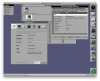
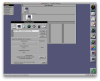
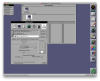
maybe the screenshots from openstep will help
you can boot into Default mode in Openstep with "config=Default" in the boot-Screen. This always works for me.
Sometimes with my settings above Openstep will "hang" on Boot. PD3 worked better here.
Peter
maybe the screenshots from openstep will help
you can boot into Default mode in Openstep with "config=Default" in the boot-Screen. This always works for me.
Sometimes with my settings above Openstep will "hang" on Boot. PD3 worked better here.
Peter
Attachments
John@Parallels
Forum Maven
Well, may be it is from my MBP CD 1.83 2 GB of RAM, but I have installed OpenStep4.2 without those flags
I just selected to load drivers
776
and
7774
OS type Other,
OS version other
Video 32 mb
Memory 128 mb
I just selected to load drivers
776
and
7774
OS type Other,
OS version other
Video 32 mb
Memory 128 mb
John,
I have tried for some time to get Openstep 4.2 to run in PD4. I've tried all the drivers on the Openstep install disks and the "beta" releases. It gets to the point that it loads mach_init and dies with errno 14.
It also dies at that point when using my image from PD3 (which works nicely in PD3). It also dies there when using "config=Default".
I don't understand what you mean by "loading drivers 776 and 7774". Are those Openstep drivers? Where did you get them? Or are they things one loads in parallels? If so, how do you load them? What sort of drivers are they?
Thanks,
- David
I have tried for some time to get Openstep 4.2 to run in PD4. I've tried all the drivers on the Openstep install disks and the "beta" releases. It gets to the point that it loads mach_init and dies with errno 14.
It also dies at that point when using my image from PD3 (which works nicely in PD3). It also dies there when using "config=Default".
I don't understand what you mean by "loading drivers 776 and 7774". Are those Openstep drivers? Where did you get them? Or are they things one loads in parallels? If so, how do you load them? What sort of drivers are they?
Thanks,
- David
John@Parallels
Forum Maven
Drivers are from Apple site
776 I mean, pass first driver screen 7, second hit 7, on 3rd select 6
and also my typo
on the second sequence is 7772
Here are my full steps
1. Start Parallels Desktop
2. Select File - New Virtual machine
3. Click Continue on Introduction page
4. Select CD/DVD image and point to OpenStep 4.2 ISO image
5. Select OS type - "Other"
6. Select OS version - "Other"
7. Select Custom installation type
8. Specify Name and Location
9. Click Done
10. Click Configure in Virtual machine window
11. Set Memory to 128 mb
12. Make sure Video is set to 32 mb
13. Make sure floppy disk controller is Enabled and Connected
14. Specify 4.2_Install_Disk.img in image path
15. In Boot Order move Floppy Disk to first position
16. Click OK and start Virtual machine
17. insert Driver installation disk
18. Select 776 in device drivers (clicking enter)
EIDE and ATAPI Device Controller (v 4.01)
19. Select 7772 in device drivers (clicking enter)
IDE Disk Controller (v 4.01)
20. Continue with installation.
776 I mean, pass first driver screen 7, second hit 7, on 3rd select 6
and also my typo
on the second sequence is 7772
Here are my full steps
1. Start Parallels Desktop
2. Select File - New Virtual machine
3. Click Continue on Introduction page
4. Select CD/DVD image and point to OpenStep 4.2 ISO image
5. Select OS type - "Other"
6. Select OS version - "Other"
7. Select Custom installation type
8. Specify Name and Location
9. Click Done
10. Click Configure in Virtual machine window
11. Set Memory to 128 mb
12. Make sure Video is set to 32 mb
13. Make sure floppy disk controller is Enabled and Connected
14. Specify 4.2_Install_Disk.img in image path
15. In Boot Order move Floppy Disk to first position
16. Click OK and start Virtual machine
17. insert Driver installation disk
18. Select 776 in device drivers (clicking enter)
EIDE and ATAPI Device Controller (v 4.01)
19. Select 7772 in device drivers (clicking enter)
IDE Disk Controller (v 4.01)
20. Continue with installation.
Markus Wenzel
Bit poster
John,
I'm sorry, but this is not what I wanted to read here. I had an image which took quite a while to install, working perfectly and smooth with PD3. I'd really appreciate if I could continue to use it with PD4, and not start a new installation from scratch!
Please don't tell me that I have to downgrade PD.
Regards,
Markus
I'm sorry, but this is not what I wanted to read here. I had an image which took quite a while to install, working perfectly and smooth with PD3. I'd really appreciate if I could continue to use it with PD4, and not start a new installation from scratch!
Please don't tell me that I have to downgrade PD.
Regards,
Markus

estrelnikov
Parallels Team
Could you please provide us with the installer image for testing purposes
Markus Wenzel
Bit poster
Yes I can. Please advice me how to transfer the rather big file to you.