no Internet connectivity on Parallels 19 running macOS 14

MHWill

Bit poster
Hello. I recently upgraded from Parallels Desktop 18 to v19, running on a Mac Studio with an Apple M1 Max chip. While still on v18, I had previously installed Windows 11 and macOS 13 Ventura. Once on v19, I installed a new instance of macOS 14 Sonoma (not upgrading/overwriting over macOS 13).

My macOS 14 VM has no ethernet internet connectivity (DHCP with an IP of 169.254.143.151).
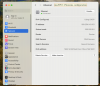
macOS 14.png
However my macOS 13 VM connects just fine (DHCP with an IP of 192.168.64.26).
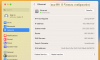
macOS 13.png
I have tried manually configuring macOS 14 using the same router, subnet and DNS addresses that work on macOS 13, but to no avail. (I can connect to my host Mac, naturally.)

Any ideas?
 
Hello. I recently upgraded from Parallels Desktop 18 to v19, running on a Mac Studio with an Apple M1 Max chip. While still on v18, I had previously installed Windows 11 and macOS 13 Ventura. Once on v19, I installed a new instance of macOS 14 Sonoma (not upgrading/overwriting over macOS 13).

My macOS 14 VM has no ethernet internet connectivity (DHCP with an IP of 169.254.143.151).
View attachment 21464
However my macOS 13 VM connects just fine (DHCP with an IP of 192.168.64.26).
View attachment 21463
I have tried manually configuring macOS 14 using the same router, subnet and DNS addresses that work on macOS 13, but to no avail. (I can connect to my host Mac, naturally.)

Any ideas?
Hello!
Kindly generate a technical report at the moment of reproduction, as described at https://kb.parallels.com/9058 and post the report ID once done.
 
Here is the Report ID you requested: 440101842.
Thank you.
Mark Williams
Hello Mark, thank you!
Unfortunately, this is a technical report collected for Parallels Toolbox but not Parallels Desktop. Kindly right-click the Parallels Desktop icon in Dock > Help > send technical data > tick 'Attach screnshots' and once the report is generated, kindly share its ID with me.
 
I am not Mark but I came to report the same issue (and see if anyone had a fix or workaround). However, I'm stuck as I did upgrade to MacOS 14 (Sonoma) so I don't have a functional network from Parallels right now. I'm pretty sure everything worked fine on Parallels v19 under MacOS 13 (which would indicate the issue is with Parallels on MacOS 14).

The technical report ID is 440203489.
 
I am not Mark but I came to report the same issue (and see if anyone had a fix or workaround). However, I'm stuck as I did upgrade to MacOS 14 (Sonoma) so I don't have a functional network from Parallels right now. I'm pretty sure everything worked fine on Parallels v19 under MacOS 13 (which would indicate the issue is with Parallels on MacOS 14).

The technical report ID is 440203489.
hi @StephenW17 ,
Kindly open configuration settings of your virtual machine > Options tab > Optimization > move the slider to the most right position (No limit).
It's supposed to fix the issue. If not, kindly share another technical report collected at the moment of reproduction.
 
Hi, my Parallels V19.1 was working fine until I updated today my macbook pro with M2 Chip from Sonoma 14 to 14.1. My Sonoma 14 Virtual machines has since the update no internet connection. The virtual machine has also a IP: 169.254.140.154 like MHWill was posting. Win 11 oder Ventura is working. Let me know, if you need some other information for debugging.
 
Sorry: i was too fast responding. It does not work. Even with fresh installed Sonoma 14.1 VM.
Hello!
Thanks for bringing this up!
We need the following data:
1. Kindly generate a technical report at the moment of reproduction, as described at https://kb.parallels.com/9058 and post the report ID once done.
2. Open Command Prompt in Windows and execute the commands below one by one:
ipconfig /release
ipconfig /renew
3. If the issue is fixed, please let me know. If not, collect the dump below:
  1. Make sure the issue reproduces.
  2. Shutdown the VM.
  3. Open Terminal on the Mac side and execute the following command:
    sudo tcpdump -i all -w ~/Desktop/net-host.pcap
  4. Start Windows, wait until it boots up, ensure that Windows gets the 169.254.x.x IP address.
  5. Kill tcpdump by pressing Control and C key combination and upload the resulting file net-host.pcap (it'll be saved in the Desktop folder) to any file share and share it with me.
 
hi @StephenW17 ,
Kindly open configuration settings of your virtual machine > Options tab > Optimization > move the slider to the most right position (No limit).
It's supposed to fix the issue. If not, kindly share another technical report collected at the moment of reproduction.

Please advise as to there this Options tab is on a macOS VM?
 
hi @StephenW17 ,
Kindly open configuration settings of your virtual machine > Options tab > Optimization > move the slider to the most right position (No limit).
It's supposed to fix the issue. If not, kindly share another technical report collected at the moment of reproduction.
Thank you. That appears to fix the issue. It seems odd to me that it worked fine under Ventura and v18 but now needs unlimited under Sonoma and v19. In any case, I'm glad it appears to be working again. I'll post again if the problem returns.
 
I had an idea for a workaround until the problem is fixed..Change the VM from Shared to Bridged Mode...This works for me so far...

Toggle Shared/Bridged Mode
prlctl set "<vm_name>" --device-set <network_adapter_id> --type <bridged/shared>
e.g.:
prlctl set "macOS 13" --device-set net0 --type bridged
 
Hello,
Kindly try performing the steps below as a workaround for the issue with the lack of network access inside a macOS Sonoma VM and share with me if it works for you:
1. Open Terminal.
2. Execute the command below (once done, it'll ask you for the Ma administrator password; please enter it and hit Enter to execute the command):
sudo nano /Library/Preferences/Parallels/network.desktop.xml
3. Locate the following string:
<SystemFlags></SystemFlags>
and paste the devices.net.use_naptd_for_macvm=0 value to make it look like this:
<SystemFlags>devices.net.use_naptd_for_macvm=0</SystemFlags>
Note: use arrow buttons on your keyboard to navigate.
4. Press Control and O buttons on the keyboard to save the changes and then hit Enter.
5. Press Command and Q shortcut to quit the Terminal.
Check if the issue remains. If it does, kindly reproduce the issue, and collect a technical report (right-click Parallels icon in Dock > Help > Send technical data > check "Attach screenshots..." > press Send Report) and provide us with the report's 9-digit ID in reply to this post.
 
Hello @Mikhail Ushakov
I did try to edit the network.desktop.xml on my virtual machine...but there is no such xml file.. See the attachment. Just on my pyhsical machine...
 

Attachments

  • 2023-10-31_15-25-10.png
    2023-10-31_15-25-10.png
    76.5 KB · Views: 21
Back
Top