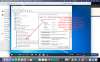
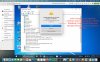
Network Initialization Failed

Good point, thank you for sharing this!
I do for sure not use >pirated< software. Instead, I bought a couple licenses and downloaded parallels desktop 16 for Mac Pro edition after having paid parallels for it.
The issues that I had with the network connection disappeared only for a short period. Today the mess started again. I wish there was a bug fix that will make the VM work properly, as it did before version 16.
 
@PSG: Yes, the issue incurred after updating Parallels. I have changed network settings to default as I did before the update, and now it works again.
I hope the next update will not change the settings from default to whatever.
 
Hi!!
I have found the solution. I know that if you open parallells in root session it works but I want to open parallells with my user session.

The solution?

sudo -b / Applications / Parallels \ Desktop.app/Contents/MacOS/prl_client_app

Try it and tell me.
Works perfectly for me.
As an improvement, and because I'm lazy, I gathered a few info on different websites and I used AppleScript to create an application to just have to double-click on it to launch my VM.
  1. launch apple Script
  2. paste below code and modify accordingly USERNAME ans PASSWORD :
    do shell script ("sudo -S -b /Applications/Parallels\\ Desktop.app/Contents/MacOS/prl_client_app /Users/USERNAME/Windows\\ 10.pvm") user name "USENAME" password "PASSWORD" with administrator privileges
  3. Export as Application.
  4. modify the application Icon by replacing the "applet.icns" file in the application :
    - generate a custom icns file from a PNG image of your choice on (for example) : https://anyconv.com/fr/convertisseur-de-png-en-icns/
    - right-click on application : choose "show package content"
    - browse to "Resources"
    - replace applet.icns file

  5. Voilà !
upload_2021-1-3_15-49-26.png
 
Hi! I Found the solution of this problem. You can use this to start Parallels without sudo and it should work.

1. sudo nano /Library/Preferences/Parallels/network.desktop.xml
2. find <UseKextless>1</UseKextless> (value can be -1), and change the value to the <UseKextless>0</UseKextless>
3. if you can't to find this tag, then just create it under root tag <ParallelsNetworkConfig ...>here</ParallelsNetworkConfig>

Result: you can start/restart Parallels without sudo - network will work.
 
the solution to fix network and usb exist from page 10 of this thread.
Code:
1) Close Parallels completely
2) In Terminal, type : sudo nano /Library/Preferences/Parallels/network.desktop.xml (this will open the Terminal text editor "nano")
3) Type your admin password to access the file
4) Locate this line <usekextless>-1</usekextless> it could be also value 1  and replace whatever value there with 0, so you should have <usekextless>0</usekextless>
5) Press Ctrl+O to ask for a save, then Ctrl+X to close the editor
In Terminal, type : sudo nano /Library/Preferences/Parallels/dispatcher.desktop.xml
find <usb>0</usb> and change 0 to 1
again Press Ctrl+O to ask for a save, then Ctrl+X to close the editor
6) Close Terminal and open Parallels like normal, your VM should load like on Catalina and before :)
 
the solution to fix network and usb exist from page 10 of this thread.
Code:
1) Close Parallels completely
2) In Terminal, type : sudo nano /Library/Preferences/Parallels/network.desktop.xml (this will open the Terminal text editor "nano")
3) Type your admin password to access the file
4) Locate this line <usekextless>-1</usekextless> it could be also value 1  and replace whatever value there with 0, so you should have <usekextless>0</usekextless>
5) Press Ctrl+O to ask for a save, then Ctrl+X to close the editor
In Terminal, type : sudo nano /Library/Preferences/Parallels/dispatcher.desktop.xml
find <usb>0</usb> and change 0 to 1
again Press Ctrl+O to ask for a save, then Ctrl+X to close the editor
6) Close Terminal and open Parallels like normal, your VM should load like on Catalina and before :)
for usb used like storage not for other use like COM port o something else
 
for usb used like storage not for other use like COM port o something else

yes I wrote about this problem before, about issue that only usb storage devices like pendrive, memory card etc can be mounted in VM here:
https://forum.parallels.com/threads...be-also-mountable-in-paralles-desktop.351917/

I start support ticket but support spat out for me only "reinstall parralles tools" and they hide again
anyway I;m not sure editing dispatcher.desktop.xml file other way could fix something more, I think problem lies in PD16.x code
 
finally I've got answer for my support ticket from Parallels Desktop support Team about other than usb storage devices:
Hello, Thank you for your patience and cooperation while we are working on the resolution. USB-to-com or USB-to-lanRJ45 devices are not supported with Parallels Desktop. If you need further assistance, you can reopen the ticket within 14 days by simply replying to this message. Please let us know if you have any additional questions. We appreciate your time and consideration. Thanks, Sakthi Sowmiya Customer Support

This is clear statement that PD16 is useless for You if you wish to use other usb device than storage pandrive. Move to VirtualBox, we don't need you :( .
 
there is no problem with all type of devices in free FUSION 12.1.0
 

Attachments

  • vmware_fusion_work_with_usb_devices_ok.png
    vmware_fusion_work_with_usb_devices_ok.png
    769.3 KB · Views: 15
Final conclusion:
in PRO/Standard version mounting of other than storage usb device works OK because this window shows up and you can click ALLOW or NOT
in business version this window doesn't show up so only default device like storage usb would be mounted
the question is:
Why business version is cut from important feature ?
 

Attachments

  • parallels PRO usb works.jpg
    parallels PRO usb works.jpg
    854.7 KB · Views: 18
Hi,
I had network failed after upgrade to Big Sur. I tried to use this procedure : sudo -b /Applications/Parallels\ desktop.app/Contents/MacOS/prl_client_app']Desktop.app/Contents/MacOS/prl_client_app,

Since yesterday my mac is working to create something (attached photo) and I can see the size of my HDD is dramatically going down. Can I stop this procedure and how to recover the 60 GB already consumed in my HDD?
Best Regards,
 

Attachments

  • Screenshot 2021-01-24 at 18.40.54.jpg
    Screenshot 2021-01-24 at 18.40.54.jpg
    220.6 KB · Views: 11
Last edited by a moderator:
Amazing good job!!! Thanks a lot!
also it's true that only USB storage device like pen-drive works in VM, I can't see different devices like usb->serial port emulating COM port or other standard windows usb devices. Parallels desktop can see I attached this type of device in "usb device" window but can't mount it to VM bootcamp win10PRO
i tried to play with USB2.0 and 3.0 option on/off but nothing helped, all storage are ok but nothing more
 
also it's true that only USB storage device like pen-drive works in VM, I can't see different devices like usb->serial port emulating COM port or other standard windows usb devices. Parallels desktop can see I attached this type of device in "usb device" window but can't mount it to VM bootcamp win10PRO
i tried to play with USB2.0 and 3.0 option on/off but nothing helped, all storage are ok but nothing more

look at my post for answer about other than usb storage:
https://forum.parallels.com/threads/network-initialization-failed.345647/page-13#post-880419

Network Initialization Failed
 
Maybe support could help us to fix issue with mounting usb other than storage in business version, but I think they will not do it for sure.
 
Am I the only one noticing that RenatN's post on Page 10, which WORKS BTW, has been removed? It would also appear that this user no longer exists... banned, for helping people?
 
Hi

Maria - sorry I didn't/t answer your question from 19/11. As I only get the warning message and my network works fine - I have just lived with the problem and hadn't checked back in. After all my issue is only an annoying popup once at startup.

However to answer your question. I am running the VM in shared Network mode. If I swap to Bridged the issue is exactly the same. I get the popup on startup but have the network within the VM still. Hope this helps.
 
There are some copys of the solution:

1) Close Parallels completely
2) In Terminal, type : sudo nano /Library/Preferences/Parallels/network.desktop.xml (this will open the Terminal text editor "nano")
3) Type your admin password to access the file
4) Locate this line <usekextless>-1</usekextless> it could be also value 1 and replace whatever value there with 0, so you should have <usekextless>0</usekextless>
5) Press Ctrl+O to ask for a save, then Ctrl+X to close the editor
In Terminal, type : sudo nano /Library/Preferences/Parallels/dispatcher.desktop.xml
find <usb>0</usb> and change 0 to 1
again Press Ctrl+O to ask for a save, then Ctrl+X to close the editor
6) Close Terminal and open Parallels like normal, your VM should load like on Catalina and before :)
 
Back
Top