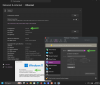
Currently, there is a Bridged Network issue with the latest version of Parallels Desktop running on the M5 machine. Currently, setting the network to Bridged mode may not provide an internet connection.
As a workaround, please manually select:
Network > Bridged Network > Wi-Fi
instead of using "Default Adapter".
To change the VM Wi-Fi/Ethernet MAC address in Parallels Desktop:
1. Shut down the VM completely
Do not suspend
2. Open VM configuration
Control Center
Right-click VM -> Configure
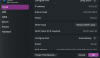
Hardware -> Network
3. Expand "Advance Settings"
4. Change MAC address
Click "Generate" for a new MAC
Or
Enter a custom MAC manually
Example format:
00:1C:42:12:34:56
5. Start the Windows virtual machine
Inside the Windows VM:
Press Win + R
Type: ncpa.cpl
6. Right-click the Wi-Fi/Ethernet adapter
Select Status → Properties
Double-click: Internet Protocol Version 4 (TCP/IPv4)
Select:
Use the following IP address
Use the following DNS server addresses
Enter the IP and DNS manually provided by your network/router.
Example:
IP Address: 192.168.1.50
Subnet Mask: 255.255.255.0
Default Gateway: 192.168.1.1
Preferred DNS: 8.8.8.8
Alternate DNS: 1.1.1.1
7. Click OK → Close
8. Test connection:
ping 8.8.8.8
ping google.com
If ping to 8.8.8.8 works but
google.com fails, it is a DNS issue.