Install the app
How to install the app on iOS
Follow along with the video below to see how to install our site as a web app on your home screen.
Note: This feature may not be available in some browsers.
You are using an out of date browser. It may not display this or other websites correctly.
You should upgrade or use an alternative browser.
You should upgrade or use an alternative browser.

Ashley Chumun
Staff member
Hello,
Thank you for your feedback,
Kindly refer to this article to set your Parallels Desktop keyboard layout in your Windows 11 Virtual Machine: https://kb.parallels.com/111674
Please let us know if the issue persists.
Thanks!
Thank you for your feedback,
Kindly refer to this article to set your Parallels Desktop keyboard layout in your Windows 11 Virtual Machine: https://kb.parallels.com/111674
Please let us know if the issue persists.
Thanks!
Hello Ashley.
Thank you for your quick answer. However, 3 points :
1) Your KB page says "If you would like to use Windows-like layout". No, I do not like anything special. I just would like that the key I press on my standard Apple keyboard generates the right character on the Windows 11 screen. This is OK for letters and digits, but not for some special characters. On the upper left corner of my keyboard, under the ESC key, the Apple "@" (lower case) and "#" (upper case) displays "²" and nothing. The "!" key (under 8) displays "_", "-" (left the backspace key) displays "=", "_" (same key, upper case) displays "+". Left to the return key, in upper case mode, "*" and "£" display "£" and "µ". "=" key (left to the right upper key) displays "!", and "+" key (same key, upper case) displays "§". In the numeric pad, "=" key (over the 8 key ) displays "5".
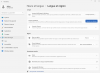
2) The image in your KB page does not correspond to the Windows 11 parameter form (see attached). I do not see (Apple) keyboard.
3) When I connect a second keyboard to my Mac, a Dell one (so a Windows keyboard), this keyboard works perfectly. I understand this as the confirmation that Parallels does not translate all Apple keys correctly. But I do not want to use an additional keyboard, this is not very practical !
Regards,
Gilbert
Thank you for your quick answer. However, 3 points :
1) Your KB page says "If you would like to use Windows-like layout". No, I do not like anything special. I just would like that the key I press on my standard Apple keyboard generates the right character on the Windows 11 screen. This is OK for letters and digits, but not for some special characters. On the upper left corner of my keyboard, under the ESC key, the Apple "@" (lower case) and "#" (upper case) displays "²" and nothing. The "!" key (under 8) displays "_", "-" (left the backspace key) displays "=", "_" (same key, upper case) displays "+". Left to the return key, in upper case mode, "*" and "£" display "£" and "µ". "=" key (left to the right upper key) displays "!", and "+" key (same key, upper case) displays "§". In the numeric pad, "=" key (over the 8 key ) displays "5".
2) The image in your KB page does not correspond to the Windows 11 parameter form (see attached). I do not see (Apple) keyboard.
3) When I connect a second keyboard to my Mac, a Dell one (so a Windows keyboard), this keyboard works perfectly. I understand this as the confirmation that Parallels does not translate all Apple keys correctly. But I do not want to use an additional keyboard, this is not very practical !
Regards,
Gilbert
Attachments
Ashley Chumun
Staff member
Dear GilberT,
Thank you for your feedback.
For us to better understand the issue, please, perform the following steps:
1. Go back to the page where you took the screenshot > Click on the 3 dots on the right of the French Language
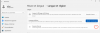
2. Select "Language Options" > Down below you will see all the keyboards that are currently installed.
3. Please check if you have a keyboard layout that ends with "-Parallels".
e.g on my mac I have the keyboard "French-Numerical" installed. To use the same layout in my Windows 11 virtual machine I need to set the keyboard layout as "French (Numerical, Apple) - Parallels".
4. If the keyboard installed inside your Windows virtual machine doesn't have the "- Parallels" extension > Click on Add a keyboard > Select the One that is currently installed on your mac along with the Parallels extension.
5. Press the Option+Shift button to switch to the Parallels Keyboard layout inside the virtual machine > check if this resolves your issue.
If the issue persists, for further investigation, kindly provide us with the following information:
a. Start the Mac On-Screen keyboard (open Spotlight > type On-Screen keyboard) and take a screenshot with pressed Shift.
b. Start the On-Screen keyboard inside your virtual machine and take a screenshot with pressed Shift.
c. From your mac > Click on Apple Icon on Top left corner > Click on "System Preferences" > Choose "Input Sources" (Take a screenshot)
d. From your Windows Virtual Machine > Click on start button > Type "Language settings" > Click on the 3 dots next to the preferred language > Language options (Take screenshot)
Thank you!
Thank you for your feedback.
For us to better understand the issue, please, perform the following steps:
1. Go back to the page where you took the screenshot > Click on the 3 dots on the right of the French Language
2. Select "Language Options" > Down below you will see all the keyboards that are currently installed.
3. Please check if you have a keyboard layout that ends with "-Parallels".
e.g on my mac I have the keyboard "French-Numerical" installed. To use the same layout in my Windows 11 virtual machine I need to set the keyboard layout as "French (Numerical, Apple) - Parallels".
4. If the keyboard installed inside your Windows virtual machine doesn't have the "- Parallels" extension > Click on Add a keyboard > Select the One that is currently installed on your mac along with the Parallels extension.
5. Press the Option+Shift button to switch to the Parallels Keyboard layout inside the virtual machine > check if this resolves your issue.
If the issue persists, for further investigation, kindly provide us with the following information:
a. Start the Mac On-Screen keyboard (open Spotlight > type On-Screen keyboard) and take a screenshot with pressed Shift.
b. Start the On-Screen keyboard inside your virtual machine and take a screenshot with pressed Shift.
c. From your mac > Click on Apple Icon on Top left corner > Click on "System Preferences" > Choose "Input Sources" (Take a screenshot)
d. From your Windows Virtual Machine > Click on start button > Type "Language settings" > Click on the 3 dots next to the preferred language > Language options (Take screenshot)
Thank you!
Hello Ashley.
Thanks for your answer.
I had no "-Parallels" keyboard. I have created it. I did not succeed to switch to it, so I deleted the old one and now it works fine.
I have a last small trouble: the "€" character (right to the "$" character on the same key) is displayed on my Mac with the Option key. I did not succeed to display it on the virtual Windows machine. But that does not make a big problem for me. Just for your information.
Regards,
Gilbert
Thanks for your answer.
I had no "-Parallels" keyboard. I have created it. I did not succeed to switch to it, so I deleted the old one and now it works fine.
I have a last small trouble: the "€" character (right to the "$" character on the same key) is displayed on my Mac with the Option key. I did not succeed to display it on the virtual Windows machine. But that does not make a big problem for me. Just for your information.
Regards,
Gilbert