
Install the app
How to install the app on iOS
Follow along with the video below to see how to install our site as a web app on your home screen.
Note: This feature may not be available in some browsers.
You are using an out of date browser. It may not display this or other websites correctly.
You should upgrade or use an alternative browser.
You should upgrade or use an alternative browser.
Kali 2016 can't install Parallels Tools.
- Thread starter Thare
- Start date
Hi,also having this problem. The link you posted doesn't seem to be online any longer.
Can you explain the details?
it happens to be that I have the same problem as you guys (which is how I found this thread) AND happen to be turkish
 .
.So first of here is the correct link: http://kali-linuxtr.net/konu-parall...lels-tools-un-kurulmasi-ve-visible-mouse.html
I got the link by just googling the thread name with a little guessing and reverse engineering the meaning of it
 "Parallels Desktop ile Linux Kali kurulduktan sonra"
You can use google translate but I can also translate it myself and you can compare yourself and see how good google translate is when it comes to turkish.
Greetings friends,
I wanted to share with you the solution to the problem with installing Parallels Tools and the hidden mouse cursor that occurs after installing Linux Kali on Parallels Desktop.
I have done a lot of research on this matter and if there are any friends among us that have the same problem, this post will help you to solve it.
Operating system: OS X EL Capitan 10.11.5
Parallels Desktop: 11.2.0 32581
Linux Kali : 2016.1 (Linux Kali 4.6.0-kali1-amd64 #1 SMP Debian 4.6.2-2kali2 (2016-06-28) x86_64 GNU/Linux) (copy paste is so good)
(1. to 5 is basically just downloading kali and installing it on Parallels.)
6. Open Terminal and type "nano /etc/apt/sources.list" . Make sure that you have following line in it "deb http://http.kali.org/kali kali-rolling main contrib non-free" . If not add it. (This was missing for me. Hence the apt-get didnt do much before. I think thats maybe because I didnt choose network mirror when installing but only cdrom)
7. Open Terminal and type these commands
apt-get clean
apt-get update
apt-get upgrade -y
apt-get dist-upgrade -y
apt-get install dkms kpartx printer-driver-postscript-hp
8. After the installations have finished , reboot your virtual machine. Kernel was updated in this process.
9. Click the install Parallel Tools button on the upper right (yellow symbol)
10. After this a CD Rom will be mount. copy its contents to the a new Folder on the Desktop
Then open Terminal
cd /root/Desktop
chmod -R 777 FOLDER_NAME to give/change rights
11. cd FOLDER_NEW to enter the Folder and then ./install to run the installation process
12. After the installation of Parallel Tools is completed. The Virtual machine will reboot and the mouse cursor will have disappeared.
To make the mouse visible
13. Open Terminal
14. mkdir /etc/X11/xorg.conf.d/ to ceare the folder
15. cd /etc/X11/xorg.conf.d/ to enter the folder
16. ln -s /usr/share/X11/xorg.conf.d/50-prlmouse.conf . (there is a period in the end , do not forget)
17. after this type reboot to restart the machine and the mouse cursor will be visible again
I hope this helps
I hope that the new Parallels Desktop Update will fix this and this guide will no longer be needed. But until then this will be the solution.
and the source.
I had to rush it towards the end. Gotta go. I hope this helps. And cheers to this guy. He is my hero
PS: I had to delete all the turkish quotes, because it said english only. Kind of sad that turkish is banned.
BenjaminS5
Bit poster
Hi, everyone,
I am running into the following problem when trying to install Kali 2016.2 32-bit on my Mac using Parallels 12.1.1 running the latest version of macOS Sierra.
I go through the entire installation process just fine. Then, after the last step, I get this (see attached photo) and everything just stops. Any ideas why it won't continue to the Kali login page? Thanks for any help!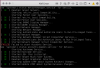
I am running into the following problem when trying to install Kali 2016.2 32-bit on my Mac using Parallels 12.1.1 running the latest version of macOS Sierra.
I go through the entire installation process just fine. Then, after the last step, I get this (see attached photo) and everything just stops. Any ideas why it won't continue to the Kali login page? Thanks for any help!
Hugo-OlivierM
Bit poster
Hi,
Have to second BenjaminS5's experience here.
I am met with the exact same behaviour, namely a total freeze before making it to the login page, after installing the tools (v. 12.1.1.41491). That is following the full update/upgrade process and installing missing dependencies manually (somehow the installer never sees "printer-driver-postscript-hp" as installed).
The screen, specifically the text on it, flickers and flashes a lot before freezing completely. This led me to believe in a graphic driver issue, but booting with "nomodeset" hasn't yielded any better results.
Any insight would be much appreciated.
Thanks guys !
Have to second BenjaminS5's experience here.
I am met with the exact same behaviour, namely a total freeze before making it to the login page, after installing the tools (v. 12.1.1.41491). That is following the full update/upgrade process and installing missing dependencies manually (somehow the installer never sees "printer-driver-postscript-hp" as installed).
The screen, specifically the text on it, flickers and flashes a lot before freezing completely. This led me to believe in a graphic driver issue, but booting with "nomodeset" hasn't yielded any better results.
Any insight would be much appreciated.
Thanks guys !
I have the same problem but only get as far as
/dev/sda1: clean, 368901/1179648 files, 2923154/4718336 blocks
and flashing starts and it won't proceed any further. I thought it might be a graphics driver issue so tried to install the latest xserver intel driver but get a message the latest driver is already installed.
Parallels v12.1.2(41525) and Kali 2016.2-amd64
/dev/sda1: clean, 368901/1179648 files, 2923154/4718336 blocks
and flashing starts and it won't proceed any further. I thought it might be a graphics driver issue so tried to install the latest xserver intel driver but get a message the latest driver is already installed.
Parallels v12.1.2(41525) and Kali 2016.2-amd64
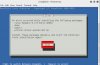
So I too keep getting asked to install printer-driver-postscript-hp when running ./install even though print-driver-postscript-hp was already installed via apt-get. Has anyone figured out how to fix this issue? If I click Next, I get an "error has occurred" message.. The installer just can't locate the installed package. Anyone know what might be going wrong or how to fix this issue?

Last edited:
-Overlord-
Bit poster
Unfortunately doesn't work with 2017-06-21. After am upgrade from Kali (upgrade and dist-upgrade) I have the same issue here.
I have the same issue:
Reading package lists...
Return code from apt-get update is 0
2017-08-16T16:19:24-0500: execCmd: ./installer/pm.sh --install gtools --logfile /var/log/parallels-tools-install.log [0]
Started installation of Parallels Guest Tools version '12.2.1.41615'
Wed Aug 16 16:19:24 CDT 2017
Start installation or upgrade of Guest Tools
new version of parallels tools
Installed Guest Tools were not found
Perform installation into the /usr/lib/parallels-tools directory
cat: /usr/lib/parallels-tools/kmods/../version: No such file or directory
Start installation of prl_eth kernel module
make: Entering directory '/usr/lib/parallels-tools/kmods'
cd prl_eth/pvmnet && make
make[1]: Entering directory '/usr/lib/parallels-tools/kmods/prl_eth/pvmnet'
make -C /lib/modules/4.11.0-kali1-amd64/build M=/usr/lib/parallels-tools/kmods/prl_eth/pvmnet
make[2]: Entering directory '/usr/src/linux-headers-4.11.0-kali1-amd64'
LD /usr/lib/parallels-tools/kmods/prl_eth/pvmnet/built-in.o
CC [M] /usr/lib/parallels-tools/kmods/prl_eth/pvmnet/pvmnet.o
LD [M] /usr/lib/parallels-tools/kmods/prl_eth/pvmnet/prl_eth.o
Building modules, stage 2.
MODPOST 1 modules
CC /usr/lib/parallels-tools/kmods/prl_eth/pvmnet/prl_eth.mod.o
LD [M] /usr/lib/parallels-tools/kmods/prl_eth/pvmnet/prl_eth.ko
make[2]: Leaving directory '/usr/src/linux-headers-4.11.0-kali1-amd64'
make[1]: Leaving directory '/usr/lib/parallels-tools/kmods/prl_eth/pvmnet'
cd prl_tg/Toolgate/Guest/Linux/prl_tg && make
make[1]: Entering directory '/usr/lib/parallels-tools/kmods/prl_tg/Toolgate/Guest/Linux/prl_tg'
make -C /lib/modules/4.11.0-kali1-amd64/build SUBDIRS=/usr/lib/parallels-tools/kmods/prl_tg/Toolgate/Guest/Linux/prl_tg SRCROOT=/usr/lib/parallels-tools/kmods/prl_tg/Toolgate/Guest/Linux/prl_tg modules
make[2]: Entering directory '/usr/src/linux-headers-4.11.0-kali1-amd64'
grep: /lib/modules/4.11.0-kali1-amd64/build/include/linux/completion.h: No such file or directory
CC [M] /usr/lib/parallels-tools/kmods/prl_tg/Toolgate/Guest/Linux/prl_tg/prltg.o
In file included from /usr/lib/parallels-tools/kmods/prl_tg/Toolgate/Guest/Linux/prl_tg/prltg.c:38:0:
/usr/lib/parallels-tools/kmods/prl_tg/Toolgate/Guest/Linux/prl_tg/prltg_compat.h: In function 'wait_for_completion_interruptible':
/usr/lib/parallels-tools/kmods/prl_tg/Toolgate/Guest/Linux/prl_tg/prltg_compat.h:137:8: error: implicit declaration of function 'signal_pending' [-Werror=implicit-function-declaration]
if (signal_pending(current)) {
^~~~~~~~~~~~~~
cc1: some warnings being treated as errors
/usr/src/linux-headers-4.11.0-kali1-common/scripts/Makefile.build:299: recipe for target '/usr/lib/parallels-tools/kmods/prl_tg/Toolgate/Guest/Linux/prl_tg/prltg.o' failed
make[5]: *** [/usr/lib/parallels-tools/kmods/prl_tg/Toolgate/Guest/Linux/prl_tg/prltg.o] Error 1
/usr/src/linux-headers-4.11.0-kali1-common/Makefile:1509: recipe for target '_module_/usr/lib/parallels-tools/kmods/prl_tg/Toolgate/Guest/Linux/prl_tg' failed
make[4]: *** [_module_/usr/lib/parallels-tools/kmods/prl_tg/Toolgate/Guest/Linux/prl_tg] Error 2
Makefile:152: recipe for target 'sub-make' failed
make[3]: *** [sub-make] Error 2
Makefile:8: recipe for target 'all' failed
make[2]: *** [all] Error 2
make[2]: Leaving directory '/usr/src/linux-headers-4.11.0-kali1-amd64'
/usr/lib/parallels-tools/kmods/prl_tg/Toolgate/Guest/Linux/prl_tg/Makefile.v26:23: recipe for target 'prl_tg' failed
make[1]: *** [prl_tg] Error 2
make[1]: Leaving directory '/usr/lib/parallels-tools/kmods/prl_tg/Toolgate/Guest/Linux/prl_tg'
Makefile.kmods:34: recipe for target 'installme' failed
make: *** [installme] Error 2
make: Leaving directory '/usr/lib/parallels-tools/kmods'
Error: could not build kernel modules
Error: failed to install kernel modules
2017-08-16T16:19:27-0500: execCmd: ./install --install [143]
2017-08-16T16:19:27-0500: Error: An error occurred when installing Parallels Tools. Please go to /var/log/parallels-tools-install.log for more information.
2017-08-16T16:19:58-0500: Exiting with code 1
- installation program asks if I want to install "printer-driver-postscript-hp" even though it's already installed.
- installation fails, here is the log:
Reading package lists...
Return code from apt-get update is 0
2017-08-16T16:19:24-0500: execCmd: ./installer/pm.sh --install gtools --logfile /var/log/parallels-tools-install.log [0]
Started installation of Parallels Guest Tools version '12.2.1.41615'
Wed Aug 16 16:19:24 CDT 2017
Start installation or upgrade of Guest Tools
new version of parallels tools
Installed Guest Tools were not found
Perform installation into the /usr/lib/parallels-tools directory
cat: /usr/lib/parallels-tools/kmods/../version: No such file or directory
Start installation of prl_eth kernel module
make: Entering directory '/usr/lib/parallels-tools/kmods'
cd prl_eth/pvmnet && make
make[1]: Entering directory '/usr/lib/parallels-tools/kmods/prl_eth/pvmnet'
make -C /lib/modules/4.11.0-kali1-amd64/build M=/usr/lib/parallels-tools/kmods/prl_eth/pvmnet
make[2]: Entering directory '/usr/src/linux-headers-4.11.0-kali1-amd64'
LD /usr/lib/parallels-tools/kmods/prl_eth/pvmnet/built-in.o
CC [M] /usr/lib/parallels-tools/kmods/prl_eth/pvmnet/pvmnet.o
LD [M] /usr/lib/parallels-tools/kmods/prl_eth/pvmnet/prl_eth.o
Building modules, stage 2.
MODPOST 1 modules
CC /usr/lib/parallels-tools/kmods/prl_eth/pvmnet/prl_eth.mod.o
LD [M] /usr/lib/parallels-tools/kmods/prl_eth/pvmnet/prl_eth.ko
make[2]: Leaving directory '/usr/src/linux-headers-4.11.0-kali1-amd64'
make[1]: Leaving directory '/usr/lib/parallels-tools/kmods/prl_eth/pvmnet'
cd prl_tg/Toolgate/Guest/Linux/prl_tg && make
make[1]: Entering directory '/usr/lib/parallels-tools/kmods/prl_tg/Toolgate/Guest/Linux/prl_tg'
make -C /lib/modules/4.11.0-kali1-amd64/build SUBDIRS=/usr/lib/parallels-tools/kmods/prl_tg/Toolgate/Guest/Linux/prl_tg SRCROOT=/usr/lib/parallels-tools/kmods/prl_tg/Toolgate/Guest/Linux/prl_tg modules
make[2]: Entering directory '/usr/src/linux-headers-4.11.0-kali1-amd64'
grep: /lib/modules/4.11.0-kali1-amd64/build/include/linux/completion.h: No such file or directory
CC [M] /usr/lib/parallels-tools/kmods/prl_tg/Toolgate/Guest/Linux/prl_tg/prltg.o
In file included from /usr/lib/parallels-tools/kmods/prl_tg/Toolgate/Guest/Linux/prl_tg/prltg.c:38:0:
/usr/lib/parallels-tools/kmods/prl_tg/Toolgate/Guest/Linux/prl_tg/prltg_compat.h: In function 'wait_for_completion_interruptible':
/usr/lib/parallels-tools/kmods/prl_tg/Toolgate/Guest/Linux/prl_tg/prltg_compat.h:137:8: error: implicit declaration of function 'signal_pending' [-Werror=implicit-function-declaration]
if (signal_pending(current)) {
^~~~~~~~~~~~~~
cc1: some warnings being treated as errors
/usr/src/linux-headers-4.11.0-kali1-common/scripts/Makefile.build:299: recipe for target '/usr/lib/parallels-tools/kmods/prl_tg/Toolgate/Guest/Linux/prl_tg/prltg.o' failed
make[5]: *** [/usr/lib/parallels-tools/kmods/prl_tg/Toolgate/Guest/Linux/prl_tg/prltg.o] Error 1
/usr/src/linux-headers-4.11.0-kali1-common/Makefile:1509: recipe for target '_module_/usr/lib/parallels-tools/kmods/prl_tg/Toolgate/Guest/Linux/prl_tg' failed
make[4]: *** [_module_/usr/lib/parallels-tools/kmods/prl_tg/Toolgate/Guest/Linux/prl_tg] Error 2
Makefile:152: recipe for target 'sub-make' failed
make[3]: *** [sub-make] Error 2
Makefile:8: recipe for target 'all' failed
make[2]: *** [all] Error 2
make[2]: Leaving directory '/usr/src/linux-headers-4.11.0-kali1-amd64'
/usr/lib/parallels-tools/kmods/prl_tg/Toolgate/Guest/Linux/prl_tg/Makefile.v26:23: recipe for target 'prl_tg' failed
make[1]: *** [prl_tg] Error 2
make[1]: Leaving directory '/usr/lib/parallels-tools/kmods/prl_tg/Toolgate/Guest/Linux/prl_tg'
Makefile.kmods:34: recipe for target 'installme' failed
make: *** [installme] Error 2
make: Leaving directory '/usr/lib/parallels-tools/kmods'
Error: could not build kernel modules
Error: failed to install kernel modules
2017-08-16T16:19:27-0500: execCmd: ./install --install [143]
2017-08-16T16:19:27-0500: Error: An error occurred when installing Parallels Tools. Please go to /var/log/parallels-tools-install.log for more information.
2017-08-16T16:19:58-0500: Exiting with code 1
This must be a current version issue with the latest Parallels or Kali. I have installed the Parallels tools many times in the past using the recommendation provided on this and other threads; but I am stuck as well with install printer-driver-postscript-hp even though I'm at the latest version.
-Overlord-
Bit poster
I have an backup from June 2017 of my Kali- an without changing the Parallels version or installing new Parallels tools - some updates from Kali destroy the Gnome Desktop. I can't figure out which one at the moment, because after round about 3 months there are a lot updates.
But it's associated with new Kali packages.
But it's associated with new Kali packages.
Well folks...I finally got Parallels Tools to install on Kali 2017 after over 10 tries. I was running into the same printer-driver-postscript-hp issue that everyone else has for the longest time. The ONLY thing I can think of I did differently this time was to choose how big I wanted to make the partitions of the Kali OS during install (home...var...swap...etc.) instead of allowing the installer to dictate for me....and I didn't specify anything different than what was recommended. Either that was the answer or I had to wait to install after the eclipse to do the install 
I got Parallels Tools version 12.2.1.41615 installed successfully on Linux Kernel 4.13.0 (Kali Linux 2017.2) using this command than install Parallel Tools normally:
# ln -s /usr/src/linux-headers-4.13.0-1-common/include/linux /lib/modules/$(uname -r)/build/include/
Was also receiving the same error log file as the posts above prior to running the ln command.
I found the solution in another thread here: https://forum.parallels.com/threads...-12-2-1-for-guest-os-debian-9-stretch.341416/
Also, I still receive the same message that the "printer-driver-postscript-hp" package is missing during installation even though I confirmed it is installed. It'll continue to download and install successfully after continuing with the installation.
# ln -s /usr/src/linux-headers-4.13.0-1-common/include/linux /lib/modules/$(uname -r)/build/include/
Was also receiving the same error log file as the posts above prior to running the ln command.
I found the solution in another thread here: https://forum.parallels.com/threads...-12-2-1-for-guest-os-debian-9-stretch.341416/
Also, I still receive the same message that the "printer-driver-postscript-hp" package is missing during installation even though I confirmed it is installed. It'll continue to download and install successfully after continuing with the installation.
Last edited:
[QUOTE ="NinadD,post:803656,member:6647931"]我收到错误,要求安装linux-headers-4.3.0和printer-driver-postscript-hp(ref S3)
但是我已经安装了printer-driver-postscript-hp(参考屏幕截图s4)
我找不到linux-headers-4.3.0 ..而是我有linux-headers-4.4.0可用(参考屏幕截图s5)
并且已经安装了linux-headers-4.4.0。(参见屏幕截图s6)
我仍然得到错误(屏幕截图s1).. [/ QUOTE]
我,too
但是我已经安装了printer-driver-postscript-hp(参考屏幕截图s4)
我找不到linux-headers-4.3.0 ..而是我有linux-headers-4.4.0可用(参考屏幕截图s5)
并且已经安装了linux-headers-4.4.0。(参见屏幕截图s6)
我仍然得到错误(屏幕截图s1).. [/ QUOTE]
我,too
what I did to get installation of the Parallels Tools -
Copied the contents of Parallels tools CD to a folder on Desktop - changed the permissions of 'install, 'install-gui' and one more file (i dont remember which was it) - then I could run the installation.
Later I installed some packages as suggested by the installer.
I did the update, upgrade and dist-upgrade
But still the installer keeps asking me to install 'printer-driver-postscript-hp' which actually is already installed and reinstalled it many times. when the installer tries to install it by itself it returns some error - error in installing parallels tools please look up the log file --.
Please help me
Can you solve this problem? I have always been like this.