Hello Seeker,
My apologies for being away...
I meant you should create a new VM and install Windows on it without using BootCamp.
I asked Parallels developers to analyze your issue profoundly. Here is what they said:
First, you should eliminate Parallels - BootCamp interaction problems and get Parallels Tools installed correctly:
1. Open Configuration Editor of your VM -> Hard Disk -> Advanced tab. Click Clear button.
2. In Configuration Editor open CD-Rom, make sure that CD/DVD-Rom is enabled. Choose Connect at startup option. Click OK.
3. Start your VM. It is supposed to run properly now.
Then you should make another try to get network connection:
1. Open Device Manager (Control Panel -> System -> Hardware) and uninstall the network driver there.
2. If Parallels Tools did not install automatically, go to Devices in Parallels Desktop menu bar and choose CD/DVD-Rom -> Connect image. Browse to Mac HD -> Library -> Parallels -> Tools -> vmtools.iso.
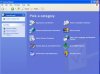
3. When Parallels Tools are installed, open Control Panel and launch Add Hardware Wizard.
- For the question "Have you already connected this hardware to your computer?" Answer "Yes, I've already connected..."
- In the Installed hardware list choose Network adapter. On the next page click "Have disk" button.
- Browse to D:\Network\RTL8029\Win2000.XP.ME.2000 and add the driver.
Best regards,
Xenos
My apologies for being away...
I meant you should create a new VM and install Windows on it without using BootCamp.
I asked Parallels developers to analyze your issue profoundly. Here is what they said:
First, you should eliminate Parallels - BootCamp interaction problems and get Parallels Tools installed correctly:
1. Open Configuration Editor of your VM -> Hard Disk -> Advanced tab. Click Clear button.
2. In Configuration Editor open CD-Rom, make sure that CD/DVD-Rom is enabled. Choose Connect at startup option. Click OK.
3. Start your VM. It is supposed to run properly now.
Then you should make another try to get network connection:
1. Open Device Manager (Control Panel -> System -> Hardware) and uninstall the network driver there.
2. If Parallels Tools did not install automatically, go to Devices in Parallels Desktop menu bar and choose CD/DVD-Rom -> Connect image. Browse to Mac HD -> Library -> Parallels -> Tools -> vmtools.iso.
3. When Parallels Tools are installed, open Control Panel and launch Add Hardware Wizard.
- For the question "Have you already connected this hardware to your computer?" Answer "Yes, I've already connected..."
- In the Installed hardware list choose Network adapter. On the next page click "Have disk" button.
- Browse to D:\Network\RTL8029\Win2000.XP.ME.2000 and add the driver.
Best regards,
Xenos
Last edited: