install os x mountain lion using the recovery partition

sabaphoto

Bit poster
i have a brand new imac with parallels 8 am trying to create a new VM from the recovery partition; however, it is not working. there is not much of an error, it just tries, boots, then reports no OS found.
is this happening with anyone else? i'm trying to search the forum, but not seeing anything.

thanks.
 
I suggest generating a support request with Parallels. The behaviour is like it's not able to find the recovery partition or that it can't read from it. This is a Fusion drive (SSD+3 TB drive) plus a second 3 TB drive right? I have no idea if this particular setup has any influence on the issue.
 
Last edited by a moderator:
I suggest generating a support request with Parallels. The behaviour is like it's not able to find the recovery partition or that it can't read from it. This is a Fusion drive (SSD+3 TB drive) plus a second 3 TB drive right? I have no idea if this particular setup has any influence on the issue.

It is a 3TB Fusion drive (no additional drive though), I have already been escalated to the second tier of support. The first tier support staff tried to tell me that Parallels for Mountain Lion does not support creating guests from the recovery partition. Not sure what his reason for that bit of misinformation was but after pressing him a bit on the issue he escalated me. Still waiting to hear back. I have linked this thread, a "Report a problem" ID, and the YouTube video all to that support ID.

My intuition is that this is definitely an issue that has something to do with the Fusion Drive. Just looking at this support page (http://support.apple.com/kb/HT5446), there seem to be all sorts of rules and restrictions.
 
i've got the fusion drive too. it sounds like that is probably the root cause. please keep me updated if you find any resolution.
 
Got a reply from second tier support:
The issue is most probably related to the Fusion Drive partition schema.

I have submitted all collected information on this issue to our Development team for further deep investigation. The Development Team will continue the work on the issue.

Thank you again for reporting about this issue, we will do our best to improve the product in our future updates.

As a workaround you may try to perform the following:

I. Enable the Debug Menu in Disk Utility
- Quit Disk Utility if it is open.
- Launch Terminal, located at /Applications/Utilities.
- Enter the following command at the Terminal prompt:
defaults write com.apple.DiskUtility DUDebugMenuEnabled 1
- Press enter or return.
- Close Terminal.

(To disable the Debug Menu in Disk Utility you need to execute the following command at the Terminal prompt:
defaults write com.apple.DiskUtility DUDebugMenuEnabled 0
)

II.
1. Launch Disk Utility, located at /Applications/Utilities -> Click on Debug menu -> check 'Show every partition'.
2. Clink 'New Image' to create a blank disk image (.dmg) -> click 'Size' and choose '4.6 GB (DVD-R/DVD-RAM)' -> click 'Partitions' and choose 'Single partition - CD/DVD with ISO data' -> specify your /Documents/Parallels/ folder as directory where to you want to safe .dmg file -> name file (for example MacOS) -> click 'Create'.
(see screenshot 1)
3. Highlight 'Recovery HD' -> click on 'Restore' tab (the Source field should be filled with 'Recovery HD') -> drag and drop 'Disk Image' to 'Destination' -> click Restore -> choose 'Erase' -> wait till the end of the process.
(see screenshot 2)


III.
1. Start Parallels Desktop -> go to File -> New...
2. Choose 'Install Windows or another OS' -> Continue -> under 'Install from' select 'Choose an image file...' -> specify the path to earlier created .dmg file -> Continue

I have not had the chance to try this yet but am posting it here for anyone else that may run into this issue. I will post again when I have a chance to report the results.

Also maybe we should get the thread name changed to something like
"Installing OSX Mountain Lion as a Parallels guest from recovery partition fails on Late 2012 iMac with Fusion drive"
 
Last edited:
I'm having the same problem also. Just bought a Mac Mini with a 1TB Fusion drive to run multiple OS X VMs for development testing I'll try to escalate my ticket as well. The support technician I dealt with is convinced that my issue is a "call Apple" issue when clearly it's how Parallels is accessing the Recovery HD.

I've been looking at the config files for the OS 10.8 VM that I tried to create when clicking on the "Install OS X Mountain Lion Using the Recovery Partition" but have yet to see where the parameter for the partition is defined. I'm running another Mini that has a single standard HD with the standard Mac partitioning scheme that works fine with the recovery hd to see if there's anything different in the configs but nothing so far.

I tried the solution that was recommended to MyCompanyAdmin by second tier support but it didn't work. Anyone else have success doing that?
 
I figured out what the "Install OS X Mountain Lion Using the Recovery Partition" button is doing, just not how it does it.

When you click on the "Install OS X Mountain Lion Using the Recovery Partition" button on the Parallels Wizard window, it must mount the Recovery HD partition temporarily and copy the contents of it to the /Users/username/Documents/Parallels/Mac OS X.pvm/harddisk.hdd file. The harddisk.hdd file is around the same size as the Recovery HD partition. I found this out on the other Mac Mini without a Fusion drive setup.

I was able to copy over the "Mac OS X.pvm" file from the non-Fusion Mac Mini and successfully open it on the Fusion-drive enabled Mini.

They must have written the code assuming a standard partition/drive configuration not accounting for the "Recovery HD" not residing anywhere else than "/dev/disk0s3 on /Volumes/Recovery HD" since the recovery partition on a Fusion-enabled drive is on "/dev/disk1s3 on /Volumes/Recovery HD".

Just some observations...

Obviously, in my environment, I'm able to make it work by using another PVM file but I wanted to at least know what was happening and why rather than just using the work around because it "just works".
 
I am having the same issue. Running Late 2012 iMac with 10.8.3 and Parallels 8 Desktop (latest version Build 8.0.18483
(Revision 860857; March 30, 2013). Yet, when I attempt to create a new OSX VM from recovery partition it does something, then starts to boot, only to tell me that there is no OS. I created a recovery USB stick hoping to be able to install from that, however, not sure how to do that with Parallels 8 Desktop.

Any help would be greatly appreciated.

Thanks.
-AP_
 
Same problem here, though I'm using a Mid-2010 MBP 15" in a Fusion drive configuration (yes, it's a hack job). This is smelling very much like a Fusion drive (in)compatibility issue. The lack of helpful error reporting during the process of VM creation is a bit of a let-down.

Months ago I was able to create a ML VM, though have since forgotten the exact process. I think it involved re-downloading the installer from Apple, extracting the recovery IMG and creating a bootable USB from it. Sadly, the resulting VM was so unstable (lockups) I eventually gave up and deleted the image.
 
Here is the process I finally followed:

Since your system came with Mountain Lion pre-installed, below are steps you can use to get the InstallESD.dmg file (installer) for your system.

Restart Mac using Command+Option+R at the boot chime. This will boot into Internet Recovery which is Apple's servers.
Plug in an external drive like a USB drive.
At the OS X Utilities Menu, select the option to Reinstall Mac OS X. This will begin the download of OS X Mountain Lion for your Mac. Select your external drive
IMPORTANT STEP: You will need to watch the download. As soon as the download completes and your Mac restarts, at the black screen unplug your external drive. Your Mac will boot to your normal Desktop.
Plug your external drive in, open it and navigate to a folder name something like "OS X Install Files". Within this folder is your InstallESD.dmg file. Copy this to your Desktop.
You can now use the InstallESD.dmg file to create a USB thumb drive (8GB) that needs to be formatted as Mac OS Extended-Journaled and GUID partition table. This now becomes a bootable installer for your system.
 
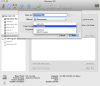
Hi, I tried to follow the Debug Disk Utility instructions, but they did not match up with my Disk Utility interface, please see my attached image to go along with the following... also, there were no screenshots, presumably from the TierII support person.

disk utility.png

2. Clink 'New Image' to create a blank disk image (.dmg) -> click 'Size' and choose '4.6 GB (DVD-R/DVD-RAM)' -> click 'Partitions' and choose 'Single partition - CD/DVD with ISO data' -> specify your /Documents/Parallels/ folder as directory where to you want to safe .dmg file -> name file (for example MacOS) -> click 'Create'.
(see screenshot 1)

There were no 'Size' and 'Partition' options, just 'Image Format'; also no 'Create' button, just 'Save'.

3. Highlight 'Recovery HD' -> click on 'Restore' tab (the Source field should be filled with 'Recovery HD') -> drag and drop 'Disk Image' to 'Destination' -> click Restore -> choose 'Erase' -> wait till the end of the process.
(see screenshot 2)

I wasn't sure what 'Disk Image' was, and thus could not drag anything to the 'Destination' field; again, the screenshot might help.

Thank you,
Zach
 
Thank you, Alex. This worked!

I deviated slightly in that I just downloaded the "Install OS X Mountain Lion" app through the App Store. When the App Store download is complete, the InstallESD.dmg should be stored in /Applications/Install OS X Mountain Lion.app/Contents/SharedSupport/InstallESD.dmg
 
Back
Top