Ok, got it.
here's the sequence that will work for most people.
1. start up parallels.
2. select your VM, but don't start it (open the vm window)
3. from the parallels menu select Virtual Machine --> Configure
4. Select the Hardware Tab
5. Click on Hard Disk 1
6. Click Edit...
7. Unclick "Resize file system" - this screws up Windows 7 if you don't!!!
8. reset the size to whatever you need (I bumped it to 100G from 65G)
9. Click "Apply"
When it gets done, Click Close
Ok, you now have created a larger disk for windows to see. now tell windows to suck it in.
Start up your VM.
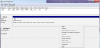
Open the control panel and in the search screen, type "partition" - no quotes
The partition manager will open.
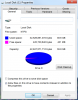
You will most likely have 3 areas in the disk structure, a "reserved" area, your C: disk, and if the stars have aligned, a new blank drive area right next to the c: drive.
1. Right click in the c: drive area (or on the line that says C:\)
2. select Expand - this option will now be available
3. The expand selector will come up. It will automatically "grab" the most available space it can. That's the right answer.
4. Click Ok
5. It will ask if you're sure, say yes again.
Voila! you now have a larger disk and more room in windows.
I am so pleased with myself!
A couple notes:
1. If you tell Parallels to resize the file system, I hope you have a backup. It will destroy your MBR and windows won't boot.
2. Make a backup before you get started.
3. this worked for me. Your mileage may vary
4. Before you do the happy dance, reboot your windows vm just to be sure that you actually can.
Standard disclaimer: I've been a computer geek for more years than you've been alive. But I only turned to the MacSide a couple years ago. i've been known to be completely full of s*** when it comes to fixing a Mac, so if you have trouble with my instructions, or are not sure you should follow them, use the common sense your dad beat into you and don't do this without an expert's help.
Good luck.