At symbol (@) on Swiss German keyboard

MartinL34

Bit poster
Hi there,

For about an hour now I'm desperately looking for a solution to type a @ on my Swiss German MacBookPro in Parallels... I've tried all possible combinations of option + key, option+control+key even with shift, but no @ appears anywhere! What can I do?

Thanks, Martin
 
Hi there,

For about an hour now I'm desperately looking for a solution to type a @ on my Swiss German MacBookPro in Parallels... I've tried all possible combinations of option + key, option+control+key even with shift, but no @ appears anywhere! What can I do?

Thanks, Martin
Dear Martin,
Thank you for your feedback.
For us to better understand the issue, please, perform the following steps:
1. Launch your Virtual Machine > Click on the Windows start icon > type Language settings and press enter > Next to your Language, select the 3 dots on the right.
upload_2023-2-28_15-16-54-png.20542


2. Select "Language Options" > Down below you will see all the keyboards that are currently installed.
3. Please check if you have a keyboard layout that ends with "-Parallels".
e.g on my mac I have the keyboard "French-Numerical" installed. To use the same layout in my Windows 11 virtual machine I need to set the keyboard layout as "French (Numerical, Apple) - Parallels".
4. If the keyboard installed inside your Windows virtual machine doesn't have the "- Parallels" extension > Click on Add a keyboard > Select the One that is currently installed on your mac along with the Parallels extension.
5. Press the Option+Shift button to switch to the Parallels Keyboard layout inside the virtual machine > check if this resolves your issue.

If the issue persists, for further investigation, kindly provide us with the following information:
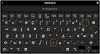
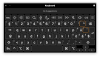
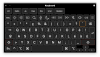
a. Start the Mac On-Screen keyboard (open Spotlight > type On-Screen keyboard) and take a screenshot with pressed Shift.
b. Start the On-Screen keyboard inside your virtual machine and take a screenshot with pressed Shift.
c. From your mac > Click on Apple Icon on Top left corner > Click on "System Preferences" > Choose "Input Sources" (Take a screenshot)
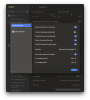
d. From your Windows Virtual Machine > Click on start button > Type "Language settings" > Click on the 3 dots next to the preferred language > Language options (Take screenshot)

Thank you!
 
I have the exact same problem. I also have a "Swiss German" Keyboard in MacOS and also on my desk. The Windows Configuration is described as written in the above post. However, I cannot type an @ sign in the Windows 11 VM. Here the requested screenshots.
Any help would greatly be appreciated.
 

Attachments

  • Screenshot 2023-11-16 at 21.04.33.png
    Screenshot 2023-11-16 at 21.04.33.png
    264.5 KB · Views: 10
  • Screenshot 2023-11-16 at 21.05.11.png
    Screenshot 2023-11-16 at 21.05.11.png
    44.7 KB · Views: 8
  • Screenshot 2023-11-16 at 21.04.50.png
    Screenshot 2023-11-16 at 21.04.50.png
    64.5 KB · Views: 9
  • Screenshot 2023-11-16 at 21.06.08.png
    Screenshot 2023-11-16 at 21.06.08.png
    207.4 KB · Views: 7
Hello.

The reason for this, is a difference between Alt functions in macOS and Windows, in short, you should be able to achieve the @ sign in your layout in Windows 11 virtual machine by either: Using the "Right Option" + G; Or "Ctrl+Left Option+G". As opposed to the host system "Left option + G"

A bit more expansion on the subject was covered in this thread: https://forum.parallels.com/threads/keyboard-layout-switched-option-keys.359922/ including the option to remap Option keys function, tho it does bear some limitations if this is done.
 
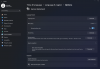
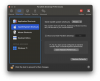
Hi. Sadly your post didn't help me much. After trying out a couple of settings I found the solution to the problem here. In the "Parallels Desktop Preferences" under "macOS System Shortcuts" I had to set the "Send macOS system shortcuts" to "Always" (see attached screenshot). With this setting, the described way of pressing "Ctrl+Left Option+G" started working. Before that this was not the case.
 

Attachments

  • Screenshot 2023-11-21 at 18.23.18.png
    Screenshot 2023-11-21 at 18.23.18.png
    148.7 KB · Views: 27
Back
Top