Thanks, @Nikolai2, for your procedure for getting an guest OS installed by manual process. I was able to install the Debian ARM64 desktop OS using the .iso files from https://www.debian.org/distrib/netinst on my M1 MacBook Pro.

Install the app
How to install the app on iOS
Follow along with the video below to see how to install our site as a web app on your home screen.
Note: This feature may not be available in some browsers.
You are using an out of date browser. It may not display this or other websites correctly.
You should upgrade or use an alternative browser.
You should upgrade or use an alternative browser.
Clarifying why CentOS (Stream) and RHEL don't boot on Parallels for M1:
It's because their kernels assume a 64KB page size. That translation granule isn't available on Apple M1.
(which only supports 4KB and 16KB granules)
Can this be changed for CentOS 7 aarch64 at boot time during install?
Clarifying why CentOS (Stream) and RHEL don't boot on Parallels for M1:
It's because their kernels assume a 64KB page size. That translation granule isn't available on Apple M1.
(which only supports 4KB and 16KB granules)
I have successfully installed Fedora 33 Server Aarch64 but, I can't get Xorg server running as Xorg -configure finds no devices. Also I checked for /dev/dri/card0 or similar and there is no directory. Do I need parallels tools first?, which does not currently support aarch64? Or am I just doing something wrong as the install had the video working?
P
Parallels User
>>> Message has been deleted by the user <<<
P
Parallels User
>>> Message has been deleted by the user <<<
Hello,
Yes, indeed, at the momen a manual installation is required (otherwise the images are incorrectly detected as x86). To perform it, please follow the steps below:
1. Open Parallels Desktop. Click New > Install Windows or another OS from a DVD or image file > Continue > Choose Manually > Continue without a source > Continue > Ok > Continue > Create.
2. Open the virtual machine's Configuration: click Parallels icon || > Control Center > right click on the virtual machine > Configure.
3. Click Hardware > CD/DVD > Source and browse to the installation .iso
4. Switch back to the virtual machine's Window and in the top menu click Actions > Reset.
5. Virtual machine shall boot from the installation image and let you proceed with installing the OS.
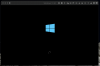
I have been unsuccessful. Even when following the above directions, I get the Windows ARM VM logo and a circle rotating on an infinite loop. It's been circling for over 12 hours now, and I can't get past that to get a Windows log-in screen. I have downloaded the same, exact Windows 10 Arm 64-bit file that everyone else seems to be downloading, and same issue. The rotating dotted circle is very slow.
I have the Apple Developers Test Kit with the A12X ARM processor. Is this processor related, though?
This is the same issue as when I tried this prior to the latest update. I did do an update from Parallels and did not download the newer version. I did an update in place. Anyone have any thoughts?
PatrickK13
Bit poster
Debian Desktop was easy (and now handy).
What about Android? Anyone know of an ARM64 version that would run in a Parallels VM?
What about Android? Anyone know of an ARM64 version that would run in a Parallels VM?
MatthewW13
Bit poster
I have used a few ubuntu images. They are all hanging on the cd for reason (or seem to be) even when one is not connected anymore).I was able to do this but when I got to the end of a default install (meaning defaults selected) at the end when you select reboot, the ISO is unmounted but the VM doesn't actually reboot. I had to issue a reset -- when I did this the installed OS booted up fine. I expected it to reboot when I selected reboot at the end of the install.
Debian and Kali do not seem to do that. All three of them boot up ridiculously fast though. If/when we get further along and start getting tools it will be really nice.
MatthewW13
Bit poster
Now that I got Kali working that is my next project probably. I don't think they will use UEFI so it will take a little manipulation. Don't think any will run out of the box.Debian Desktop was easy (and now handy).
What about Android? Anyone know of an ARM64 version that would run in a Parallels VM?
Hello,
Yes, indeed, at the momen a manual installation is required (otherwise the images are incorrectly detected as x86). To perform it, please follow the steps below:
1. Open Parallels Desktop. Click New > Install Windows or another OS from a DVD or image file > Continue > Choose Manually > Continue without a source > Continue > Ok > Continue > Create.
2. Open the virtual machine's Configuration: click Parallels icon || > Control Center > right click on the virtual machine > Configure.
3. Click Hardware > CD/DVD > Source and browse to the installation .iso
4. Switch back to the virtual machine's Window and in the top menu click Actions > Reset.
5. Virtual machine shall boot from the installation image and let you proceed with installing the OS.
I tried this and when I get to step 3, I cannot find the installation.iso file. I can't complete the set up. What am I missing?
AnonUKuser
Junior Member
Did you use a Kali iso file? Can you you say what you downloaded please.Now that I got Kali working that is my next project probably. I don't think they will use UEFI so it will take a little manipulation. Don't think any will run out of the box.
Perhaps you downloaded the virtual hard disk file containing Windows 10 (i.e *.vdhx) instead of the iso file. Check your downloads folder for a file that that extension. It will work to install Windows 10 in the Parallels 16 for M1 tech preview, just like the iso file.I tried this and when I get to step 3, I cannot find the installation.iso file. I can't complete the set up. What am I missing?
AnonUKuser
Junior Member
Did you use a Kali iso file? Can you you say what you downloaded please.
To answer my own query, sorry, but I completely missed this topic describing how to install Kali.
https://forum.parallels.com/threads/kali-linux-arm-images.351911/#post-879723
unfortunately it doesn't work for me, when i play reset this comes outHello,
Yes, indeed, at the momen a manual installation is required (otherwise the images are incorrectly detected as x86). To perform it, please follow the steps below:
1. Open Parallels Desktop. Click New > Install Windows or another OS from a DVD or image file > Continue > Choose Manually > Continue without a source > Continue > Ok > Continue > Create.
2. Open the virtual machine's Configuration: click Parallels icon || > Control Center > right click on the virtual machine > Configure.
3. Click Hardware > CD/DVD > Source and browse to the installation .iso
4. Switch back to the virtual machine's Window and in the top menu click Actions > Reset.
5. Virtual machine shall boot from the installation image and let you proceed with installing the OS.
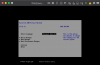
"To install an operating system, connect a source with the operating system installation files, such as a CD, USB stick or disk image and recover the virtual machine"
GianlucaG1
Bit poster
Hello,
Yes, indeed, at the momen a manual installation is required (otherwise the images are incorrectly detected as x86). To perform it, please follow the steps below:
1. Open Parallels Desktop. Click New > Install Windows or another OS from a DVD or image file > Continue > Choose Manually > Continue without a source > Continue > Ok > Continue > Create.
2. Open the virtual machine's Configuration: click Parallels icon || > Control Center > right click on the virtual machine > Configure.
3. Click Hardware > CD/DVD > Source and browse to the installation .iso
4. Switch back to the virtual machine's Window and in the top menu click Actions > Reset.
5. Virtual machine shall boot from the installation image and let you proceed with installing the OS.
I followed these steps several times, also after wiping out and reinstalling the Parallels technical preview. I always get the screen below, and it does not matter what I do - Continue, Reset again - the VM does not appear to boot from the installation image and the Windows 10 installation does not start. Any idea on what I may be doing wrong?
Attachments
the same thing!stesso problema!I followed these steps several times, also after wiping out and reinstalling the Parallels technical preview. I always get the screen below, and it does not matter what I do - Continue, Reset again - the VM does not appear to boot from the installation image and the Windows 10 installation does not start. Any idea on what I may be doing wrong?
Hello,
Yes, indeed, at the momen a manual installation is required (otherwise the images are incorrectly detected as x86). To perform it, please follow the steps below:
1. Open Parallels Desktop. Click New > Install Windows or another OS from a DVD or image file > Continue > Choose Manually > Continue without a source > Continue > Ok > Continue > Create.
2. Open the virtual machine's Configuration: click Parallels icon || > Control Center > right click on the virtual machine > Configure.
3. Click Hardware > CD/DVD > Source and browse to the installation .iso
4. Switch back to the virtual machine's Window and in the top menu click Actions > Reset.
5. Virtual machine shall boot from the installation image and let you proceed with installing the OS
Last edited by a moderator: