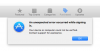
App Store: "Your device or computer could not be verified"

I experienced this issue today with a newly created MacOS 10.12.6 VM. Based on some of the advice earlier I was able to get it to work using a combination of Bridge Mode and changing the simulated ethernet adapter in the Parallels network configuration. Here is how I got it to work:
  1. In the MacOS VM, open System Preferences > Network, delete all of the listed Network Adapters and Apply the changes
  2. Delete the NetworkInterfaces.plist file from: /Library/Preferences/SystemConfiguration/
  3. Shutdown the VM
  4. Go into the Parallels Desktop Configuration for that VM (click the gear next to the VM name)
  5. Select the Hardware tab, and then Network, expand the Advanced Settings
  6. From the Source pull-down menu, select the option under Bridged Network that represent how your Mac is connected to the network (i.e.: Ethernet, or Wi-Fi)
    1. I would avoid using 'default adapter' as that allows Parallels to make decisions
  7. For me, I also had to use the Type of Realtek RTL8029AS, none of the Intel options worked for me.
  8. Optional: if you run Little Snitch on your host Mac, you may want to disable Network Filtering while you do this just to make sure it's not getting in the way.
  9. See screenshot attached. Good Luck.
I think the real winner here is using the Realtek adapter setting. I tried all the rest, numerous times but as soon as I switched to the Realtek adapter, bam!
 
FIXED !

I ended up being able to log into iTunes but not iCloud as I continued to receive 'Unable to verify . . . ' messages. Today during a remote session the Parallels engineer carried out the following, which fixed my problem:

As per our schedule I called you to assist on remote session.

During the remote session, I followed the below steps:

1) Started virtual machine and took a snapshot. (Actions > Take Snapshot)
2) Shut down the virtual machine.
3) Open virtual machine configuration and go to 'Hardware' tab.
4) Select 'Networks' and click on 'Advanced Settings'.
5) From the drop down menu change Network Adapter to 'Realtek RTL8029AS'.
6) Close the configuration window, start macOS virtual machine and check the issue.


So best of luck to those experiencing the same fault. I hope this helps, but will mark this as fixed.
 
I experienced this issue today with a newly created MacOS 10.12.6 VM. Based on some of the advice earlier I was able to get it to work using a combination of Bridge Mode and changing the simulated ethernet adapter in the Parallels network configuration. Here is how I got it to work:
  1. In the MacOS VM, open System Preferences > Network, delete all of the listed Network Adapters and Apply the changes
  2. Delete the NetworkInterfaces.plist file from: /Library/Preferences/SystemConfiguration/
  3. Shutdown the VM
  4. Go into the Parallels Desktop Configuration for that VM (click the gear next to the VM name)
  5. Select the Hardware tab, and then Network, expand the Advanced Settings
  6. From the Source pull-down menu, select the option under Bridged Network that represent how your Mac is connected to the network (i.e.: Ethernet, or Wi-Fi)
    1. I would avoid using 'default adapter' as that allows Parallels to make decisions
  7. For me, I also had to use the Type of Realtek RTL8029AS, none of the Intel options worked for me.
  8. Optional: if you run Little Snitch on your host Mac, you may want to disable Network Filtering while you do this just to make sure it's not getting in the way.
  9. See screenshot attached. Good Luck.
MichaelG31: I am not able to find /Library/Preferences/SystemConfigurations/ to delete the plist. When I press Option+Go I do not get the Users Library and can't seem to find it any other way. No SystemConfigurations folder is in my /System/Library. When I look in my regular Mac boot Mojave I could not find a SysteemConfigurations folder in either Library. A Spotlight search for NetworkInterfaces.plst was negative both within the VM and in my regular Mojave bot system.

Any further thoughts? Thanks - Randy.
 
Last edited:
I experienced this issue today with a newly created MacOS 10.12.6 VM. Based on some of the advice earlier I was able to get it to work using a combination of Bridge Mode and changing the simulated ethernet adapter in the Parallels network configuration. Here is how I got it to work:
  1. In the MacOS VM, open System Preferences > Network, delete all of the listed Network Adapters and Apply the changes
  2. Delete the NetworkInterfaces.plist file from: /Library/Preferences/SystemConfiguration/
  3. Shutdown the VM
  4. Go into the Parallels Desktop Configuration for that VM (click the gear next to the VM name)
  5. Select the Hardware tab, and then Network, expand the Advanced Settings
  6. From the Source pull-down menu, select the option under Bridged Network that represent how your Mac is connected to the network (i.e.: Ethernet, or Wi-Fi)
    1. I would avoid using 'default adapter' as that allows Parallels to make decisions
  7. For me, I also had to use the Type of Realtek RTL8029AS, none of the Intel options worked for me.
  8. Optional: if you run Little Snitch on your host Mac, you may want to disable Network Filtering while you do this just to make sure it's not getting in the way.
  9. See screenshot attached. Good Luck.
Michael -
I found Macintosh HD/Library/Preferences?SystemConfiguraion/NetworkInterfaces.plist. I'm going to try deleting this. I'll follow the rest of your suggestions and let you know if I am successful. Thanks. - Randy
 
FIXED !

I ended up being able to log into iTunes but not iCloud as I continued to receive 'Unable to verify . . . ' messages. Today during a remote session the Parallels engineer carried out the following, which fixed my problem:

As per our schedule I called you to assist on remote session.

During the remote session, I followed the below steps:

1) Started virtual machine and took a snapshot. (Actions > Take Snapshot)
2) Shut down the virtual machine.
3) Open virtual machine configuration and go to 'Hardware' tab.
4) Select 'Networks' and click on 'Advanced Settings'.
5) From the drop down menu change Network Adapter to 'Realtek RTL8029AS'.
6) Close the configuration window, start macOS virtual machine and check the issue.


So best of luck to those experiencing the same fault. I hope this helps, but will mark this as fixed.
Hi brianwmay -

Thanks for your helpful information. However, it did NOT work for me. When ever I tried any of the other Network Adapters I could not connect to the internet at all. Once I reset it back to InterR(R) PRO/1000 MT, I got my internet back and could access the store, but still continued to get the error when trying to sign in with my Apple ID. This is on a brand new Mac mini with Mojave via an El Capitan VM which otherwise works well.

:( - Randy
 
Hi brianwmay -

Thanks for your helpful information. However, it did NOT work for me. When ever I tried any of the other Network Adapters I could not connect to the internet at all. Once I reset it back to InterR(R) PRO/1000 MT, I got my internet back and could access the store, but still continued to get the error when trying to sign in with my Apple ID. This is on a brand new Mac mini with Mojave via an El Capitan VM which otherwise works well.

:( - Randy


FIXED !
The update to Parallels v14.1.0 has FIXED this issue for me completely!!! Yeah ! ! ! - Randy
 
Back
Top