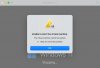
Hello! After migrating from a Mac to another Mac, Parallels now has an error when starting Windows. The error is: Unable to start the virtual machine. The virtual machine cannot be started. I've tried deleting the .mem and editing DiskDescriptor file as described in other threads - with no luck. My configuration: MacBook Air M4, 2025 Parallels Desktop 19 for Mac Standard Windows 11 Please help, thanks!
Thank you Avinash! The virtual machine was created from a M2 with Apple Silicon I installed V20 and was able to start Windows 11 normally. Appreciate the help!
Hello FerguW, Thank you for reaching out. Was the virtual machine created from an Intel Mac? In order to proceed with further investigation, please follow the steps below: 1. Download and install the V20 of Parallels Desktop, which is fully compatible with M4 chip https://download.parallels.com/desktop/v20/20.4.0-55980/ParallelsDesktop-20.4.0-55980.dmg 2. Try to reproduce the issue If the issue persists, please collect a technical report (right-click Parallels icon in Dock > Help > Send technical data > check "Attach screenshots..." > press Send Report) and send the report's 9-digit ID in a reply. Thank you!
Thank you Avinash! The virtual machine was created from a M2 with Apple Silicon I installed V20 and was able to start Windows 11 normally. Appreciate the help!
Hi I'm getting this error when I try to open the VM: "Unable to start the virtual machine. The virtual machine cannot be started." I'm using parallels 19 on Macbook pro m5 - could you please assist?
Hell Greetings @ShouvikA Thank you for your feedback. Please note that Parallels Desktop 19 is not fully compatible with M5 chip, which is why you are encountering the error. Moreover, only Parallels Desktop 26 is compatible with host macOS 26. Please follow the steps below to install Parallels Desktop 26: 1. Download and install Parallels 26 via the link: https://download.parallels.com/desktop/v26/26.2.2-57373/ParallelsDesktop-26.2.2-57373.dmg 2. Launch Parallels Desktop 26 > Right-click on the Parallels icon in the Dock > Account & license > Start the 14 Days Trial 3. Launch your virtual machine > check if everything is working fine. If your virtual machine launched without issues, you are advised to upgrade to Parallels Desktop 26 via the link https://www.parallels.com/products/desktop/buy/?full (Currently, we are having a promotion that you can benefit from if you would like to upgrade). Thanks