
Hi,
I've run into a space limit problem with ubuntu 22.04 vm running on intel mac Ventura. I'm using Parallels Desktop 20 for Mac.
After a reboot I adjusted disk capacity in the vm configuration, from the default 60 GB to 128 GB. The vm refused to boot.
Again after some trial, I managed using Ctrl + Alt + F2 to enter the vm in terminal mode. (without GUI)
I was then able to use parted to resize from /dev/sda3 to 120 GB.
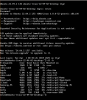
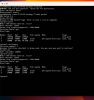
But now the vm will not boot anymore. Using Ctrl + Alt + F2 I can get back to the terminal command line, and did some checking. Files in the /user/Downloads directory are present and seem ok.
It seems like the disk has been resized, but that Ubuntu does not see it? (/dev/sda3 Use% 100%)
What can I do to get Ubuntu back up and running in this situation?
Thanks for helping out!
I've run into a space limit problem with ubuntu 22.04 vm running on intel mac Ventura. I'm using Parallels Desktop 20 for Mac.
After a reboot I adjusted disk capacity in the vm configuration, from the default 60 GB to 128 GB. The vm refused to boot.
Again after some trial, I managed using Ctrl + Alt + F2 to enter the vm in terminal mode. (without GUI)
I was then able to use parted to resize from /dev/sda3 to 120 GB.
But now the vm will not boot anymore. Using Ctrl + Alt + F2 I can get back to the terminal command line, and did some checking. Files in the /user/Downloads directory are present and seem ok.
It seems like the disk has been resized, but that Ubuntu does not see it? (/dev/sda3 Use% 100%)
What can I do to get Ubuntu back up and running in this situation?
Thanks for helping out!
