
Install the app
How to install the app on iOS
Follow along with the video below to see how to install our site as a web app on your home screen.
Note: This feature may not be available in some browsers.
You are using an out of date browser. It may not display this or other websites correctly.
You should upgrade or use an alternative browser.
You should upgrade or use an alternative browser.
GianlucaG1
Bit poster
I did. If I use the ISO image I get the problem described in my post. If I use the VHDX when I reset the VM it gets stuck in an endless "Resetting..." loop.a tip, register on insider and download windows 10 ARM, it works !!
IZTOK_BRATOS
Bit poster
Hello,
Yes, indeed, at the momen a manual installation is required (otherwise the images are incorrectly detected as x86). To perform it, please follow the steps below:
1. Open Parallels Desktop. Click New > Install Windows or another OS from a DVD or image file > Continue > Choose Manually > Continue without a source > Continue > Ok > Continue > Create.
2. Open the virtual machine's Configuration: click Parallels icon || > Control Center > right click on the virtual machine > Configure.
3. Click Hardware > CD/DVD > Source and browse to the installation .iso
4. Switch back to the virtual machine's Window and in the top menu click Actions > Reset.
5. Virtual machine shall boot from the installation image and let you proceed with installing the OS.
HiHello,
Yes, indeed, at the momen a manual installation is required (otherwise the images are incorrectly detected as x86). To perform it, please follow the steps below:
1. Open Parallels Desktop. Click New > Install Windows or another OS from a DVD or image file > Continue > Choose Manually > Continue without a source > Continue > Ok > Continue > Create.
2. Open the virtual machine's Configuration: click Parallels icon || > Control Center > right click on the virtual machine > Configure.
3. Click Hardware > CD/DVD > Source and browse to the installation .iso
4. Switch back to the virtual machine's Window and in the top menu click Actions > Reset.
5. Virtual machine shall boot from the installation image and let you proceed with installing the OS.
Hello,
Yes, indeed, at the momen a manual installation is required (otherwise the images are incorrectly detected as x86). To perform it, please follow the steps below:
1. Open Parallels Desktop. Click New > Install Windows or another OS from a DVD or image file > Continue > Choose Manually > Continue without a source > Continue > Ok > Continue > Create.
2. Open the virtual machine's Configuration: click Parallels icon || > Control Center > right click on the virtual machine > Configure.
3. Click Hardware > CD/DVD > Source and browse to the installation .iso
4. Switch back to the virtual machine's Window and in the top menu click Actions > Reset.
5. Virtual machine shall boot from the installation image and let you proceed with installing the OS.
Hi Nicolas
Follow your instructions, but then I try to reset, button is grey. I download Win10_20H2_v2_Slovenian_x64 and no way to install. Any suggestion where I make mistake?
Thanks and NG Iztok, Slovenia
IZTOK_BRATOS
Bit poster
Where can you find VHXD image?Don't use the ISO, it's x86/x64, not ARM I found out. Must download the VHDX and launch. Parallels beta will see it and install.
I get an error trying to register. Is this the only way to install Windows on the M1 Macs?Here: https://www.microsoft.com/en-us/software-download/windowsinsiderpreviewARM64 (You need to register for the Insider program first.)
P
Parallels User
>>> Message has been deleted by the user <<<
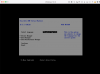
I am in this exact same predicament. I am on a chat with Microsoft. If I find anything out, I will post here. Been working on this for three days now trying to get Parallels running with my new Macbook Pro...I'm here (see attached)in the install of Technical Preview.
Now what?
Hello,
Yes, indeed, at the momen a manual installation is required (otherwise the images are incorrectly detected as x86). To perform it, please follow the steps below:
1. Open Parallels Desktop. Click New > Install Windows or another OS from a DVD or image file > Continue > Choose Manually > Continue without a source > Continue > Ok > Continue > Create.
2. Open the virtual machine's Configuration: click Parallels icon || > Control Center > right click on the virtual machine > Configure.
3. Click Hardware > CD/DVD > Source and browse to the installation .iso
4. Switch back to the virtual machine's Window and in the top menu click Actions > Reset.
5. Virtual machine shall boot from the installation image and let you proceed with installing the OS.
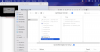
About step #3
I cannot source to the installation .iso
It's not even listed.
Is there a version out where all this is done automatically?
Attachments
Hello,
Yes, indeed, at the momen a manual installation is required (otherwise the images are incorrectly detected as x86). To perform it, please follow the steps below:
1. Open Parallels Desktop. Click New > Install Windows or another OS from a DVD or image file > Continue > Choose Manually > Continue without a source > Continue > Ok > Continue > Create.
2. Open the virtual machine's Configuration: click Parallels icon || > Control Center > right click on the virtual machine > Configure.
3. Click Hardware > CD/DVD > Source and browse to the installation .iso
4. Switch back to the virtual machine's Window and in the top menu click Actions > Reset.
5. Virtual machine shall boot from the installation image and let you proceed with installing the OS.
I cannot get this to work.
I'm on the "M1" version supposedly, I've followed what you said above - I set up a blank (continue without a source), right clicked the virtual machine and clicked configure, then on CD/DVD I added the source to be the Windows 10 64bit download .iso from windows file, I then click actions > reset & it comes up saying "there is no operating system installed in this virtual machine."
PLEASE CAN SOMEONE HELP?!

Any pointers to arm64 ISO or VHDX images to try?
I downloaded ubuntu-20.04.1-live-server-arm64.iso (https://ubuntu.com/download/server/arm), but Parallels tells me:
The specified image cannot be used because your Mac is equipped with the Apple M1 chip that doesn't support Intel-based operating systems.
Please use an ISO or VHDX image file with an ARM-based operating system.
I was able to get it installed by manually creating a VM and attaching the .iso.
Has anyone had success with other images?
I was able to get the arm64 VHDX to install by following the directions at 9 to 5 mac on my M1 MacBook Pro.
https://9to5mac.com/2020/12/22/run-windows-10-arm-m1-mac-apple-silicon-x64-x86-no-boot-camp-video/
However, I had to completely uninstall my previous version, and then the only way to get the VHDX file to start up, was to drag and drop it on the installer as noted in the video. Otherwise, it would not install even when I navigated to the same file.
https://9to5mac.com/2020/12/22/run-windows-10-arm-m1-mac-apple-silicon-x64-x86-no-boot-camp-video/
However, I had to completely uninstall my previous version, and then the only way to get the VHDX file to start up, was to drag and drop it on the installer as noted in the video. Otherwise, it would not install even when I navigated to the same file.
I cannot get this to work.
I'm on the "M1" version supposedly, I've followed what you said above - I set up a blank (continue without a source), right clicked the virtual machine and clicked configure, then on CD/DVD I added the source to be the Windows 10 64bit download .iso from windows file, I then click actions > reset & it comes up saying "there is no operating system installed in this virtual machine."
PLEASE CAN SOMEONE HELP?!
Hi.
U can not to use Windows 10 64bit .iso file, U mast to download ARM windows version!
Look here how to : https://9to5mac.com/2020/12/22/run-windows-10-arm-m1-mac-apple-silicon-x64-x86-no-boot-camp-video/
RichardS45
Bit poster
So far M1 Parallels is useless for the typical user. They need some reasonable installation methods. If you follow their instructions it appears you must have Windows Pro installed before you can install Windows ARM. How can that be?
RichardS45
Bit poster
Many many thanks. Very easy. It appears to have worked. I did not install Ubuntu Linux, only Windows 10.
Hi everyone,
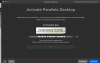
I used to BETA version for M1 Mac air. Last Parallels update my activation key is not working yet. after upgrade parallels ask me previous version key of parallels but I can't find activation key for beta version. screen shot is below.
I used to BETA version for M1 Mac air. Last Parallels update my activation key is not working yet. after upgrade parallels ask me previous version key of parallels but I can't find activation key for beta version. screen shot is below.
Attachments
RichardS45
Bit poster
I sgn into Parallels account and manage licenses there; it is pretty easy.