Can't get windows 11 to scale down display to 100%

MatthewH18

Junior Member
Using Display Settings I try to turn off custom scaling and sign out, but the old scale of 250% returns. I try to manually set it to 100% and sign out, but it doesn't stick. Dialog boxes, etc. are TOO BIG. Running a Viewsonic VP3881 monitor (3840 x 1600), parallels 17.1.1, windows 11
 
Using Display Settings I try to turn off custom scaling and sign out, but the old scale of 250% returns. I try to manually set it to 100% and sign out, but it doesn't stick. Dialog boxes, etc. are TOO BIG. Running a Viewsonic VP3881 monitor (3840 x 1600), parallels 17.1.1, windows 11
Hi, kindly help us with the screenshot of the error page to assist you further.
 
there is no "error page". It simply remains at 250% scale after I sign out and sign back in. The change does not "stick"
 
I had an issue with greyed out Scale section and it was locked at 175% after I've tried to set a custom scaling. To fix this I edited registry.
1. Hit Windows + R, type regedit and hit Enter to run Registry Editor
2. Navigate to HKEY_CURRENT_USER\Control Panel\Desktop
3. Look for LogPixels and double-click it
4. Change value type to decimal and enter value 96 (this equals to 100% scale). Click OK
5. Next, look for Win8DpiScaling and double-click it
6. Set value to 0. Click OK
7. Close Registry Editor. Sign out and sign back to see changer.
--
After I did that Scale was not greyed out for me anymore and I cloud change it!
 
I had an issue with greyed out Scale section and it was locked at 175% after I've tried to set a custom scaling. To fix this I edited registry.
1. Hit Windows + R, type regedit and hit Enter to run Registry Editor
2. Navigate to HKEY_CURRENT_USER\Control Panel\Desktop
3. Look for LogPixels and double-click it
4. Change value type to decimal and enter value 96 (this equals to 100% scale). Click OK
5. Next, look for Win8DpiScaling and double-click it
6. Set value to 0. Click OK
7. Close Registry Editor. Sign out and sign back to see changer.
--
After I did that Scale was not greyed out for me anymore and I cloud change it!
Tried this just now, still doesnt seem to work.
 
Thanks; if you have an older version that will work. But in newer versions do not have that option, at least as far as I can tell. For instance, I'm on 19, there are no hardware graphics options.
 
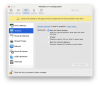
I was mistaken on the version of Parallels installed on my machine. It's Parallels 19 (just purchased it a few weeks ago). Here's the setting that I changed (Scaled in this case) that worked okay. I did find I needed to play with the resolution on the VM afterwards for it to work with 100% scaling.
upload_2023-11-6_17-44-6.png
Hopefully this helps.
 

Attachments

  • upload_2023-11-6_17-44-6.png
    upload_2023-11-6_17-44-6.png
    437.5 KB · Views: 258
Do you have the intel or apple CPU? I have an M1 MacBook Pro and I have no options under graphics w/ Parallels 19, so that could be my confusion.
Thanks, Mark
upload_2023-11-7_9-28-52.png
 

Attachments

  • upload_2023-11-7_9-28-52.png
    upload_2023-11-7_9-28-52.png
    73.6 KB · Views: 233

Attachments

  • upload_2023-11-8_13-40-16.png
    upload_2023-11-8_13-40-16.png
    118.7 KB · Views: 117
Well, the KB article I found is neat, but it's still not the same as the graphics menu you have.
upload_2023-11-8_13-55-23.png
 

Attachments

  • upload_2023-11-8_13-55-23.png
    upload_2023-11-8_13-55-23.png
    475.8 KB · Views: 234
Figured it out finally. https://download.parallels.com/desktop/v19/docs/en_US/Parallels Desktop User's Guide/43683.htm
Note: Set Resolution is available only in Parallels Desktop for Mac Pro Edition for virtual machines with Parallels Tools installed. And the Show developer tools option must be enabled in the More Options pane of the virtual machine configuration.
Thanks for being persistent, I would have gone on forever thinking it was a deprecated feature or something.
Thank you for this. It's the only thing that worked for me (on an M3 MBPro)
 
Back
Top