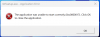
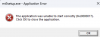
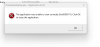
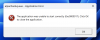
MetaTrader 5 Running on latest version of Parallels and Windows 11 running on M1 Pro

Hello,

We are sorry about your experience installing the MT5 application.

We advise creating a new Windows virtual machine and installing MT5 on it.

To do this, please follow the steps below:

1. Create a new Windows 11 Virtual Machine (click Parallels icon > Control Center)
2. Click on the "+" button in the upper right corner.
3. In the window that appears, click "Continue".
4. In the window that appears, click "Get Windows 11 from Microsoft" > "Install Windows".
5. Wait until the virtual machine is installed.
6. Install the MT5 application.
7. If the issue reoccurs, please collect a technical report (click Parallels icon || > Help > Send technical data > check "Attach screenshots..." > press Send Report) and send the report's 9-digit ID as well as the result of the flag test in a reply to this post.
 
I have same error code. I had an iMac with intel processor and using parallels it worked fine. Once I upgrade to a new MacBook Pro with M2 Processor I got same install error
 

Attachments

  • Screenshot 2023-01-25 at 11.46.47 PM.png
    Screenshot 2023-01-25 at 11.46.47 PM.png
    61.3 KB · Views: 18
Sent in a report my number of report is
417004826

Hello JeffreyS10,

Thank you for the provided data.
To try to resolve the issue, please perform the following steps:
  1. Shut down the Virtual Machine. Make sure that the virtual machine is shut down. If it is in a suspended state, please run it and then shut down (Actions > Shut Down).
  2. Temporarily disable AVGAntivirus and Malwarebytes.
  3. Run the Virtual Machine.
  4. Try to reinstall the MT5 application.
  5. If the issue still persists, please collect an additional technical report(click Parallels icon || > Help > Send technical data > check "Attach screenshots..." > press Send Report) and send the report's 9-digit ID in a reply to this post.
 
Hello JeffreyS10,

Thank you for the provided data.
To try to resolve the issue, please perform the following steps:
  1. Shut down the Virtual Machine. Make sure that the virtual machine is shut down. If it is in a suspended state, please run it and then shut down (Actions > Shut Down).
  2. Temporarily disable AVGAntivirus and Malwarebytes.
  3. Run the Virtual Machine.
  4. Try to reinstall the MT5 application.
  5. If the issue still persists, please collect an additional technical report(click Parallels icon || > Help > Send technical data > check "Attach screenshots..." > press Send Report) and send the report's 9-digit ID in a reply to this post.
Hi I did what you requested and still have some issue. Ran report again which is

417365310

Thank you
Jeff
 
Hi,
I also have the same issue.

417887105

regards, Jon
 

Attachments

  • Screenshot 2023-02-07 at 20.31.44.png
    Screenshot 2023-02-07 at 20.31.44.png
    83.1 KB · Views: 10
im having exact same issue is there a resolve for this yet so pissed and just bought a mac to trade on and now i cant
 
Hi
Just Download MT4 directly from the MT Site - was working for me. MT4 not MT5 ! After it shows MT5 on the Win. ARM.

Greetings
 
Hello all,

Please follow the steps provided below to resolve this issue:
  1. Exit Parallels Desktop (Parallels icon > Quit Parallels Desktop)
  2. Download and Install the latest version of Parallels desktop from the link below: https://download.parallels.com/desktop/v18/18.2.0-53488/ParallelsDesktop-18.2.0-53488.dmg
  3. Create a new Windows 11 Virtual Machine (click Parallels icon > Control Center)
  4. Click on the "+" button in the upper right corner.
  5. In the window that appears, click "Continue".
  6. In the window that appears, click "Get Windows 11 from Microsoft" > "Install Windows".
  7. Wait until the virtual machine is installed.
  8. Install the MT5 application.
 
Hello all,

Please follow the steps provided below to resolve this issue:
  1. Exit Parallels Desktop (Parallels icon > Quit Parallels Desktop)
  2. Download and Install the latest version of Parallels desktop from the link below: https://download.parallels.com/desktop/v18/18.2.0-53488/ParallelsDesktop-18.2.0-53488.dmg
  3. Create a new Windows 11 Virtual Machine (click Parallels icon > Control Center)
  4. Click on the "+" button in the upper right corner.
  5. In the window that appears, click "Continue".
  6. In the window that appears, click "Get Windows 11 from Microsoft" > "Install Windows".
  7. Wait until the virtual machine is installed.
  8. Install the MT5 application.
Ya still not working. I updated to the latest version 18 just as suggested with the link above, follow the steps and still got this error when trying to install MT5:
 

Attachments

  • Screenshot 2023-03-23 at 11.54.34 AM.png
    Screenshot 2023-03-23 at 11.54.34 AM.png
    131.5 KB · Views: 18
Back
Top