Install the app
How to install the app on iOS
Follow along with the video below to see how to install our site as a web app on your home screen.
Note: This feature may not be available in some browsers.
You are using an out of date browser. It may not display this or other websites correctly.
You should upgrade or use an alternative browser.
You should upgrade or use an alternative browser.
SQL Server on Windows 11 - M1 MACS
- Thread starter Karthikeyan1
- Start date
I don't believe you can downgrade a SQL database back to 2014 once it has been upgraded to 2019. You would have to get a backup that was on 2014 and restore that back on 2014.yes! it worked thank you but now i need to restore sql server 2019 backup in sql server 2014
Hi Guys,
I have M1 Mac with Windows 11 installed on Parallels desktop. I have tried to install SQL Server 2019, 2017 & 2014. But, the Database engine services is failing to install. I have attached the screenshots.
Kindly let me know how to solve this issue.
Thanks,
Karthik.
Hola, lo que realicé fue instalar el SQL 2014, solo la BD y de 32bits y funciono correctamente. Las otras versiones. no me funcionaron, aunque todas las tenía en 64 bits
Did you try installing SQL Express?
SQL Server Express LocalDB - SQL Server | Microsoft Learn
I had problems installing SQL Server too, but could install LocalDB using the MSI installer.
(I tried installing 2019 developer, and SQL Express but ran into problems listed in this thread)
To connect in SQL Server Management Studio, you enter "(localdb)\MSSQLLocalDB" as the Server Name, and use Windows Authentication.
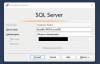
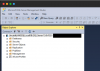
SQL Server Express LocalDB - SQL Server | Microsoft Learn
I had problems installing SQL Server too, but could install LocalDB using the MSI installer.
(I tried installing 2019 developer, and SQL Express but ran into problems listed in this thread)
To connect in SQL Server Management Studio, you enter "(localdb)\MSSQLLocalDB" as the Server Name, and use Windows Authentication.
Attachments
mohammedB10
Bit poster
Is there are any way to install sql server 2019 on windows 11 on mac ?
some vides on youtube say you can install it on docker on mac but I don't know is available to connect to it from parallels ?
some vides on youtube say you can install it on docker on mac but I don't know is available to connect to it from parallels ?
I have SQL Server Edge (Azure) working on my M1 MacBook.
I used these instructions.
https://www.mssqltips.com/sqlserver...erver-edge-and-docker-on-the-latest-macbooks/
I was able to restore an existing database to it as well.
You would be able to connect to it from a Parallels guest I'm sure.
I used these instructions.
https://www.mssqltips.com/sqlserver...erver-edge-and-docker-on-the-latest-macbooks/
I was able to restore an existing database to it as well.
You would be able to connect to it from a Parallels guest I'm sure.
Hello all, I came across this thread after finding that I could not install SQL 2022 developer edition on M1 Mac and started searching for solution.
I wasn't able to find anything online but I managed to work out a way of doing it so I though I would share that with you now.
The issue appears to be related to Parallels disabling Windows Update which the SQL setup program tries to check before installing.
This can be bypassed as follows;
Create a new windows user to use as the sql service account (make sure to create a local account - this might take a few clicks to get past Microsoft trying to force an online account on you)
Call the account SQLSVC and make sure to give it a secure password.
Download the full SQL Server iso and mount it by double clicking on it in the file explorer.
Open an admin terminal and navigate to the mounted DVD iso. On my system "cd E:"
Then update the following command with details from your individual setup with your Windows host name, your Windows account name and the details of the SQLSVC account you created in to the terminal.
PS E:\> ./setup.exe /Q /IACCEPTSQLSERVERLICENSETERMS /ACTION="install" /FEATURES=SQL,AS,IS /INSTANCENAME=MSSQLSERVER /SQLSVCPASSWORD="SVCACCOUNTPASSWORDHERE" /updatesource="E:" /SQLSVCACCOUNT="WINDOWSHOSTNAME\sqlsvc" /SQLSYSADMINACCOUNTS="WINDOWSHOSTNAME\YOURACCOUNT" /ASSYSADMINACCOUNTS="WINDOWSHOSTNAME\YOURACCOUNT"
I wasn't able to find anything online but I managed to work out a way of doing it so I though I would share that with you now.
The issue appears to be related to Parallels disabling Windows Update which the SQL setup program tries to check before installing.
This can be bypassed as follows;
Create a new windows user to use as the sql service account (make sure to create a local account - this might take a few clicks to get past Microsoft trying to force an online account on you)
Call the account SQLSVC and make sure to give it a secure password.
Download the full SQL Server iso and mount it by double clicking on it in the file explorer.
Open an admin terminal and navigate to the mounted DVD iso. On my system "cd E:"
Then update the following command with details from your individual setup with your Windows host name, your Windows account name and the details of the SQLSVC account you created in to the terminal.
PS E:\> ./setup.exe /Q /IACCEPTSQLSERVERLICENSETERMS /ACTION="install" /FEATURES=SQL,AS,IS /INSTANCENAME=MSSQLSERVER /SQLSVCPASSWORD="SVCACCOUNTPASSWORDHERE" /updatesource="E:" /SQLSVCACCOUNT="WINDOWSHOSTNAME\sqlsvc" /SQLSYSADMINACCOUNTS="WINDOWSHOSTNAME\YOURACCOUNT" /ASSYSADMINACCOUNTS="WINDOWSHOSTNAME\YOURACCOUNT"
I tried your suggestion above twice. Each time when the install had finished without any apparent error messages I was left with a system which did not appear to work. When I went into the SQL Server config tool it appeared that no network protocols were listed in the client and or server sections.
Can you elaborate on what your config looks like. I'm using Windows 11 ARM.
Dave
Can you elaborate on what your config looks like. I'm using Windows 11 ARM.
Dave
I think there are some crucial steps missing in the solutions described here. I've spent this weekend trying to make it work and I've been able to create a script that will install SQL Express on Windows 11 in the Parallels VM. I've verified it works by connecting from the MS SQL Management Studio as well as from an ASP.NET Core application. You can find the script here: https://github.com/jimm98y/MSSQLEXPRESS-M1-Install. Just run the bat file and wait until it completes.
Question - if I wanted to use the 2022 Developer version of SQL server what would I need to change the url to which is referenced in the .ps file. I suppose I could manually download it and comment out the download bit in your script but that seems rather untidy when you have created such a slick script.
Thank you! Well, it should be enough to change the URL on line 4 to https://download.microsoft.com/down...c-4b24-8920-dc057c1de9d3/SQL2022-SSEI-Dev.exe and on line 12 replace "SSEI-Expr.exe" with "SSEI-Dev.exe", but I haven't tried it yet 
I think there are some crucial steps missing in the solutions described here. I've spent this weekend trying to make it work and I've been able to create a script that will install SQL Express on Windows 11 in the Parallels VM. I've verified it works by connecting from the MS SQL Management Studio as well as from an ASP.NET Core application. You can find the script here: https://github.com/jimm98y/MSSQLEXPRESS-M1-Install. Just run the bat file and wait until it completes.
Thank you so much for this! It's been so frustrating to have this issue, and this is such an elegant solution. Thank you for your time putting this together!
If you need SQL Server Express (not Azure SQL Edge) this script can install it on a Win 11 ARM based hosted on M1 machine. I've tested it and works great.
https://github.com/jimm98y/MSSQLEXPRESS-M1-Install
https://github.com/jimm98y/MSSQLEXPRESS-M1-Install
I've just updated the script to fix an issue with the admin account not being able to sign into SQL after the script changes last night.
As for SQL Server Agent, I don't have a clue. I've never used it as all I ever needed was SQL Express which does not even come with the Agent. I've been able to modify the script to include the Developer edition, but I did not play with it yet.
As for SQL Server Agent, I don't have a clue. I've never used it as all I ever needed was SQL Express which does not even come with the Agent. I've been able to modify the script to include the Developer edition, but I did not play with it yet.