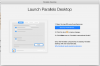
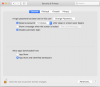
Hi! I had the same problem after updating to Parallels Desktop 17 (on current MacOS BigSur 11.6) AND SOLVED IT FOR ME!
Like in the original post, I was prompted to open the "
Security & Privacy" Settings, but there was NO "Allow" button.
Steps I tried which DID NOT seem to help:
- Reboot the machine (a few times)
- Reinstall Parallels Desktop 17
- In recovery: spctl kext-consent add 4C6364ACXT (also confirmed with spctl kext-consent list)
- sudo kextcache --clear-staging (this just temporarily cleans the /Library/StagedExtensions/Applications/ directory).
- I manually tried to load the kext, which also should trigger the "Allow" button display in "Security & Privacy": kextload -b com.parallels.kext.hypervisor but this command just failed and also NO "Allow" button was displayed in "Security & Privacy" (like displayed in the original post):
All of these steps seemed NOT to solve the problem!
What I also realised is that (even after uninstalling Parallels Desktop 17) in the system database file
/var/db/SystemPolicyConfiguration/KextPolicy there were these entries:
Note:
4C6364ACXT is the "team id" for parallels kernel extensions, see also here:
https://download.parallels.com/desk...siness-Edition-Administrators-Guide/44051.htm
sudo sqlite3 /var/db/SystemPolicyConfiguration/KextPolicy 'SELECT * FROM kext_policy WHERE team_id = "4C6364ACXT";'
(This command only DISPLAYS the content, it doesn't change anything):
For me, this command returned the following result:
team_id|bundle_id|allowed|developer_name|flags
4C6364ACXT|com.parallels.kext.hypervisor|1|Parallels, Inc.|28
4C6364ACXT|com.parallels.kext.netbridge|1|Parallels, Inc.|28
4C6364ACXT|com.parallels.kext.usbconnect|1|Parallels, Inc.|28
4C6364ACXT|com.parallels.kext.vnic|1|Parallels, Inc.|28
SOLUTION:
Getting rid of the entries in the
/var/db/SystemPolicyConfiguration/KextPolicy database will trigger macOS to ask the user again when the kext's are tried to be loaded the next time. This system database is protected and can only be changed in Recover mode. Steps to remove this 4 entries:
- Shutdown your Mac
- Power on and immediately press and hold <Cmd+r> (until the Apple logo is displayed, to boot into Recovery)
- In Recovery, start the Disk Utility and "Mount" the "... Data" Disk (by right clicking on it in the tree on the left side). (If you have file vault enabled, this will ask for your password)
- Then open the Terminal (from menu) and perform the following steps in terminal:
- chroot /Volumes/<name_of_your_disk_volume> (use can use <Tab> for completion)
- sqlite3 /var/db/SystemPolicyConfiguration/KextPolicy
- .headers on
- SELECT * FROM kext_policy WHERE team_id = '4C6364ACXT'; (this should show you again the 4 entries as displayed above in pink)
- DELETE FROM kext_policy WHERE team_id = '4C6364ACXT'; (this will delete the 4 entries)
- .quit (quits the sqlite3 utility again)
- Now close the Terminal app and reboot the Mac (using the menu)
After reboot start again Parallels Desktop. It will (again) show you the prompt to open "
Security & Privacy" System preferences, but this time, there IS a "Allow" button!