I signed up, just to post my solution here. I am new to Mac and parallels. On my MacBook Pro 15", I also had the Windows 10 resolution 'locked' at 1024x768, which looked terrible. One poster above gave me the clue in #1 below: thank you! Let me share what I did (this is simply what worked for me): Do all of this WITHOUT having your external monitor plugged into your MacBook. That's my suggestion: some options are NOT there if you have an external monitor plugged in.
1. Reinstall Parallels Tools (I shut down the Windows 10 VM (virtual machine) first). You do this from the double red bar icon in upper right, click Actions, Then 'Reinstall Parallels Tools'. If you have never installed them, it will just say 'Install Parallels Tools'. You MUST have this installed. The first time I did this, a Windows 10 msg popped up in the bottom right. You have to click on that again, to really get it started. It's a Windows 10 msg of some kind that says 'click here to tell it what you want to do'. You have to click it, and a popup appears again, and then click 'Install Parallels Tools', or something. Basically, don't ignore that msg or nothing may happen. The let the Install/Reinstall run, unattended.
2. After Parallels Tools is installed, and with the Windows 10 VM still off, click those double red bars again, then choose 'Configure'.
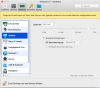
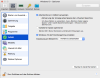
3. The popup window will say 'Windows 10 - Options' at the top.
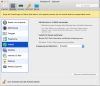
4. Click on the 2nd 'tab' called 'Options' at the top. Then in the list below, click on 'Full Screen'. The ONLY thing I have checked here is one checkbox 'Allow Windows 10 to set display gamma'. I can't uncheck this anyway. Right underneath that, it says 'Scale to fit screen:'. You want the option set to 'Auto'. You won't be able to change this, if your VM is running and Windows 10 is running!
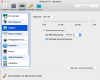
4. Click on the 3rd 'tab' called 'Hardware' at the top. Then in the list below, click on 'Graphics'. I have my resolution set to 'Best for Retina Display'. I didn't touch anything else (memory usage is already set, and I didn't click 'Advanced...').
5. Then I restarted the Windows 10 VM.
6. I was blown away. This is what it's SUPPOSED to look like. On my 2017 MacBook Pro, now Windows 10 looks crisp and clear.
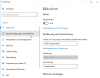
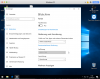
If you then go to Windows and check your resolution, I was surprised to find what it set that to, but I'm not touching it. In fact, I took pics of every screen in case I ever have to get it back. Parallels did THIS to my Windows display settings: 'Scale and Layout: a custom scale factor is set. It's set to 'change the size of text, apps, and other items to 350%'. And the resolution is at 3360x2100 (which it even says is '(Recommended)'.
That's what I did. Good luck. It's worth pursuing. Prior to this, I thought I would have to live with terrible resolution. But it works, if you tweak it right. Remember: turn off the VM and disconnect your monitor. Get it looking great on your MacBook screen. Then hook up monitors, etc. afterward.