You are using an out of date browser. It may not display this or other websites correctly.
You should upgrade or use an alternative browser.
You should upgrade or use an alternative browser.
Parallels won't find Windows Image
- Thread starter PabloM1
- Start date
Arun@Parallels
Parallels Support
Hi Pablo, please help us with the error message or screenshots, we will check and assist you further.
Thanks,
Arun.
Thanks,
Arun.
Hello,
About same thing for me. I have a MacbookPro 2016, and Parallels Desktop 12 Pro Edition, and I used Parallels for many years with Windows XP. Recently I bought Family Edition of Windows 10 (with a valid code, of course) , and wants to install it, in a new virtual machine. Following different steps, and trying to do that with the USB key of windows of with a downloaded image (Win10_1607_SingleLang_French_x64.iso), no success.........:-(
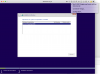
With disk image, I have this screen :
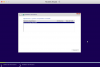
even in manual mode:
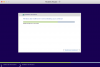
With USB key, it seems to be better, with all steps performed, this screen appears......
............but then this one :-(((
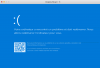
Please does anyone know how to fix this issue. Thanks in advance, and kind regards.
Bruno
About same thing for me. I have a MacbookPro 2016, and Parallels Desktop 12 Pro Edition, and I used Parallels for many years with Windows XP. Recently I bought Family Edition of Windows 10 (with a valid code, of course) , and wants to install it, in a new virtual machine. Following different steps, and trying to do that with the USB key of windows of with a downloaded image (Win10_1607_SingleLang_French_x64.iso), no success.........:-(
With disk image, I have this screen :
even in manual mode:
With USB key, it seems to be better, with all steps performed, this screen appears......
............but then this one :-(((
Please does anyone know how to fix this issue. Thanks in advance, and kind regards.
Bruno
Attachments

Hi Swati, thanks a lot for tying to help me, but it doesn't work. Installation of Windows 10 is not completed, and no access to it. The sequence of screens is this one :

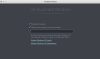
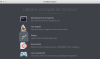

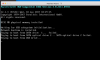
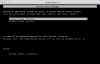
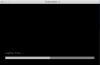
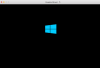

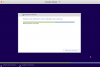
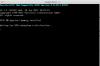
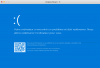
And after, it turns in a loop......:-(((
Bruno
And after, it turns in a loop......:-(((
Bruno
Attachments
-
 Photo ecran BJ 2017-03-26 à 13.51.07.png88.5 KB · Views: 15
 -
 Photo ecran BJ 2017-03-26 à 13.50.09.png248.5 KB · Views: 15
 -
 Photo ecran BJ 2017-03-26 à 13.51.25.png114.4 KB · Views: 14
 -
 Photo ecran BJ 2017-03-26 à 13.50.45.png305.7 KB · Views: 14
 -
 Photo ecran BJ 2017-03-26 à 13.51.17.png165.4 KB · Views: 14
 -
 Photo ecran BJ 2017-03-26 à 13.50.27.png197.1 KB · Views: 14
 -
 Photo ecran BJ 2017-03-26 à 13.52.05.png59.9 KB · Views: 14
 -
 Photo ecran BJ 2017-03-26 à 13.54.23.png92.5 KB · Views: 15
 -
 Photo ecran BJ 2017-03-26 à 13.52.19.png69.4 KB · Views: 14
 -
 Photo ecran BJ 2017-03-26 à 13.51.41.png60.8 KB · Views: 14
 -
 Photo ecran BJ 2017-03-26 à 13.41.00.png116.5 KB · Views: 15
 -
 Photo ecran BJ 2017-03-26 à 11.16.04.png131.2 KB · Views: 15

Hemnath@Parallels
Parallels Support
Please stop the installation completely and remove the thumb-drive from the Mac. Then, download a new Windows 10 disk image file from https://goo.gl/4PqKRX and start a new Windows 10 installation, using the disk image file which you downloaded. Disable 'Express Installation' (**Very Important**). Then, during the course of the installation, you will get a screen with the option 'Customize settings before installation'. Select it and click on 'Continue'. In the virtual machine configuration window that appears: A.) Navigate to Hardware --> CPU & Memory and ensure that the number of processors is 2 (or 1 if total number of processors is < 4) and RAM is at least 2 GB (or 3 GB if total Mac RAM is 8 GB, or 4 GB if total Mac RAM is > 8 GB). (NOTE: If total Mac RAM is only 4 GB, then allocate 1.5 GB RAM for Windows.) B.) Navigate to Hardware --> Graphics and ensure that video memory is 512 MB. Then, close the virtual machine configuration window and proceed with the installation. Let us know how it goes.
Hemnath@Parallels
Parallels Support
You're welcome. I'm glad to be of assistance. Please get back to us for any further queries. Thanks for your time.Hi, perfect, it works nows. I didn't use exactly the same way (it was not possible with the downloaded image file I had), but, maybe be with chance, it's OK now.
Thanks a lot.
Bruno