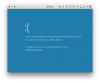
Windows 10 will not launch after latest update

Hi Allen, please shut down your virtual machine and go to Configuration->Hardware->CPU and Memory and choose "Advanced settings" and to uncheck "Nested Virtualization" and then restart Parallels Desktop and reinstall Parallels Tools tp fix the issue. Thanks!

Same BSOD errors for me. I disabled "Nested Virtualization", and it will boot. Installed the new Parallels Tools. After re-enabling "Nested Virtualization" the BSODs are back.
Screen Shot 2016-01-04 at 10.48.11.png
 
Hi Allen, please shut down your virtual machine and go to Configuration->Hardware->CPU and Memory and choose "Advanced settings" and to uncheck "Nested Virtualization" and then restart Parallels Desktop and reinstall Parallels Tools tp fix the issue. Thanks!
Paul - referring to my screenshot above - can you tell me where to locate the 'advanced' checkbox/switch in order to fix?
 
I also get a infinite loop "CRITICAL_PROCESS_DIED" BSOD don't have the Pro version and cannot uncheck "Nested Virtualization". Great, I cannot do my work. Great, I'm a beta-tester.

Can I downgrade to Parallels 10 where the "Advanced settings" option is present?
Thanks a lot for paying for an 11 upgrade to get a inferior product. I want Parallels 10 back!
 
Downgrading to 32312 (from the link provided above) fixed my problem for now. Looking forward to get a working version of 32408 (or later).
 
I also get a infinite loop "CRITICAL_PROCESS_DIED" BSOD don't have the Pro version and cannot uncheck "Nested Virtualization". Great, I cannot do my work. Great, I'm a beta-tester.

Can I downgrade to Parallels 10 where the "Advanced settings" option is present?
Thanks a lot for paying for an 11 upgrade to get a inferior product. I want Parallels 10 back!
Hi, please disable it the following way:

Locate VM.pvm file (by default in ~/Documents/Parallels/ directory) > Right-click it > Show package contents > locate config.pvs > open it with textedit, locate "VirtualizedHV" and set it to "0"
 
Locate VM.pvm file (by default in ~/Documents/Parallels/ directory) > Right-click it > Show package contents > locate config.pvs > open it with textedit, locate "VirtualizedHV" and set it to "0"

nope, different error messages but same result - my VMs are still hosed .... #Seriously-not-impressed
 
Thank you all for the support. I can confirm that turning off nested virtualisation fixed the problems on both windows 8.1 and windows 10.

Thank you!
 
Locate VM.pvm file (by default in ~/Documents/Parallels/ directory) > Right-click it > Show package contents > locate config.pvs > open it with textedit, locate "VirtualizedHV" and set it to "0"

nope, different error messages but same result - my VMs are still hosed .... #Seriously-not-impressed
well, you may try to recreate a VM (new VM will have this options turned off for sure) and connect existing hard disk as per http://kb.parallels.com/en/121578 (screenshots are out-of-date but still should be ok).
 
to recap - basically, everything was working fine, the dialog offered to update so I foolishly accepted, assuming it was tested/safe ...
and since then, not one VM will spin up and stay stable.... so yes, unfortunately its the latest version .. if you tell me where I can get log files I will gladly send them to you for analysis. Not only have I been down and not able to work the past few days, it seems from how the Vm (partially) spun up, that I have lost data ... not a good situation you will agree....
 
I'm sorry for inconvenience. It will be helpful if you provide me with problem report and memory dump:
1. Boot Windows in Safe mode as per http://kb.parallels.com/en/118732 (in win8.1 and win10 steps should be the same)
2. Once booted open File Explorer > Right-click "This PC" > "Properties" > in left tab "Advanced system settings" > in the opened dialog switch to "Advanced" tab > in "Startup and Recovery" pane hit "Settings" button. Here in "System failure" pane:
- UNcheck "Automatically restart" option
- in Write debugging information pane from the dropdown list select "Kernel memory dump"
- set dump file to %SystemRoot%\MEMORY.DMP
- hit "OK" everywhere to close the windows
3. In File Explorer go to C:\Windows and look for MEMORY.DMP. If it's there - delete it.
4. Reboot VM in normal mode to reproduce the issue. Once blue screen appears, do not turn VM off, generate and send a problem report (http://kb.parallels.com/en/9058 ). After the report is sent you will see its unique 8-digit number in the pop-up window on your screen. Specify this ID number here.
5. Now stop VM and open VM hdd with Parallels Mounter: Locate VM.pvm file (by default in ~/Documents/Parallels/ directory) > Right-click it > Show package contents > locate VM_name-0.hdd > right-click it > Open with Parallels Mounter
6. In Finder left bar VM hdd will appear. Navigate to C:\Windows and copy MEMORY.DMP on Mac Desktop
7. unmount VM hdd from Finder (right-click them > ejeect)
8. compress MEMORY.DMP (right-click > Compress)
9. open Terminal (Finder > Applications > Terminal) and execute the following command to upload dump to our share:

rsync ~/Desktop/MEMORY.DMP.zip rsync://fe.odin.com/37b2304ed83784522396d6fba663fa1a/


To monitor the progress, you can do the following:

- Open Activity monitor > switch to 'Network' tab, locate 'rsync' process. 'Sent Bytes' means the part of the archive that has been already uploaded. Once uploaded 'rsync' will disappear from Activity Monitor

- while uploading is in progress the Terminal keyboard carriage will be near the left Terminal window cross. After the operation is done the latest Terminal string will contain 'computer name'+'location'+'user name'+keyboard carriage.
10. Let me know when it's finished. Please don't forget to specify report ID
 
Please try to recreate the same issue on a test virtual machine as per this article and let us know how it goes.
I downloaded the image Microsoft Edge on Windows 10, and it works fine. 10 minutes of uptime at this moment.

As stated before, my VM with EFI boot works fine too.
My VM with BIOS boot does not work. For that I have a LogMeIn session scheduled today with one of your technicians.
 
Thanks Marat - got it this time.
Reset to older veriosn - did not allow upgrade (nightmare).
Got back into 3 x VMs ... the two that were opened with the update, have trashed user profiles and lost data.
Will update if it stays up in a while.
 
Thanks for the link to the old version.

This is affecting 3 people in our office (so far). I hope Parallels have disabled downloads of the new broken version!
 
I really don't think that data could be lost. may be Shared Profile (VM config > Options > Sharing) was turned off and now it's on.
 
Back
Top