theblueprinted made an account just so they could give us the password, but I made one just because I laughed so hard at the confusion that vi caused.
For future reference, the nano installation route works, but if you want the nerd points, using vi (or vim, if you prefer) isn't all that hard. Either way, it's entirely screen-oriented, meaning your mouse isn't going to work with it. This looks fun:
http://www.openvim.com/ Check it out.
That said, for the sake of contributing something useful (and also because I'm totally procrastinating right now):
1. Start Chrome OS
2. Login with credentials.
3. Press ALT-CTRL-Fn-F2 to enter command mode.
I'm on a Mac host, so maybe that's why this was different for me, but I had to use ctrl+alt+tab+t to open a shell tab in the 'browser'. From there, had to type the command `shell`, and then I was logged in already.
Alternatively, ctrl+alt+f2 got me to an actual terminal. Note: I have my function keys set so I don't have to actually press fn to use the, well, function. System Preferences > Keyboard > Keyboard tab > check the box for 'use as standard function keys' or whatever it says.
4. Login into Root User.
User Name : Chronos
Password: By default root user password is empty.
As dude mentioned above, this might not be true. Try:
- parallel
- chrome
- facepunch
- chronos
- chromium
5. Now you would have logged into root user.
6. Now type the following Commands
sudo mount -o remount /
Might also wanna try `sudo mount -o remount,rw /` if you get errors trying to edit the xorg.conf file.
sudo vi /etc/X11/xorg.conf
7. Set your required Screen resolution in "Modes "----x----" ".
8. Save changes to xorg.conf
`sudo vim /etc/X11/xorg.conf` should also work.
Now you're in vi (or vim).
If there's already a line in the "Screen" section that starts with "Modes," use the arrow keys to move the curser to that line. Press shift+a. This puts you in edit/input mode at the end of the line. Use your cursor with arrow keys as necessary to navigate. Backspace/Delete should work in this mode.
If there isn't a "Modes" line in your file, move your curser to the "EndSection" line at the end of the "Screen" section, and hit shift+o. This will add a new line above that line and drop you into edit mode. Use your cursor with arrow keys as necessary to navigate. Backspace/Delete should work in this mode.
Code:
Section "Screen"
  Identifier	"DefaultScreen"
  Monitor	"DefaultMonitor"
  Device	"DefaultDevice"
  Modes		"1920x1080"  << Move cursor with arrow keys to this line if it exists, and type "a
EndSection
As soon as you're done making your edits, HIT ESCAPE. Like 14 times. Srsly. Just do it.
Now type:
:wq!
That's a colon, followed by a w (for 'write') and a q (for quit) and an exclamation point.
It'll show up at the bottom, not where you left your cursor. Hit enter. You've now successfully edited and saved a file in vi (or vim). Congratulations.
9. Exit terminal mode: exit
10. Restart Chrome OS.
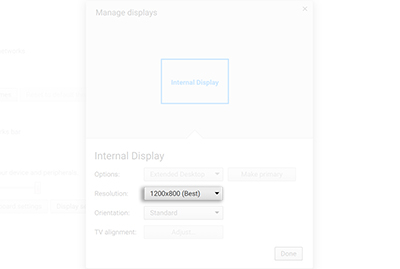
11. Now you will be able to view Chrome OS in your desired screen resolution.
There ya go. Hope that helps someone. Otherwise I've now successfully wasted a good 20 minutes. Because I still can't figure out how to fix the resolution on my chrome os install on vbox.
 Thank you so much!